The Tech Edvocate

Top Menu

  • Advertisement
  • Apps
  • Home Page
  • Home Page Five (No Sidebar)
  • Home Page Four
  • Home Page Three
  • Home Page Two
  • Home Tech2
  • Icons [No Sidebar]
  • Left Sidbear Page
  • Lynch Educational Consulting
  • My Account
  • My Speaking Page
  • Newsletter Sign Up Confirmation
  • Newsletter Unsubscription
  • Our Brands
  • Page Example
  • Privacy Policy
  • Protected Content
  • Register
  • Request a Product Review
  • Shop
  • Shortcodes Examples
  • Signup
  • Start Here
    • Governance
    • Careers
    • Contact Us
  • Terms and Conditions
  • The Edvocate
  • The Tech Edvocate Product Guide
  • Topics
  • Write For Us
  • Advertise

Main Menu

  • Start Here
    • Our Brands
    • Governance
      • Lynch Educational Consulting, LLC.
      • Dr. Lynch’s Personal Website
      • Careers
    • Write For Us
    • The Tech Edvocate Product Guide
    • Contact Us
    • Books
    • Edupedia
    • Post a Job
    • The Edvocate Podcast
    • Terms and Conditions
    • Privacy Policy
  • Topics
    • Assistive Technology
    • Child Development Tech
    • Early Childhood & K-12 EdTech
    • EdTech Futures
    • EdTech News
    • EdTech Policy & Reform
    • EdTech Startups & Businesses
    • Higher Education EdTech
    • Online Learning & eLearning
    • Parent & Family Tech
    • Personalized Learning
    • Product Reviews
  • Advertise
  • Tech Edvocate Awards
  • The Edvocate
  • Pedagogue
  • School Ratings

logo

The Tech Edvocate

  • Start Here
    • Our Brands
    • Governance
      • Lynch Educational Consulting, LLC.
      • Dr. Lynch’s Personal Website
        • My Speaking Page
      • Careers
    • Write For Us
    • The Tech Edvocate Product Guide
    • Contact Us
    • Books
    • Edupedia
    • Post a Job
    • The Edvocate Podcast
    • Terms and Conditions
    • Privacy Policy
  • Topics
    • Assistive Technology
    • Child Development Tech
    • Early Childhood & K-12 EdTech
    • EdTech Futures
    • EdTech News
    • EdTech Policy & Reform
    • EdTech Startups & Businesses
    • Higher Education EdTech
    • Online Learning & eLearning
    • Parent & Family Tech
    • Personalized Learning
    • Product Reviews
  • Advertise
  • Tech Edvocate Awards
  • The Edvocate
  • Pedagogue
  • School Ratings
  • 100 Best Google Workspace Add-ons

  • 100 Best Microsoft 365 Add-ins

  • 100 Best HubSpot Integrations

  • 100 Best Salesforce Apps

  • 100 Best Notion Integrations

  • 100 Best Windows Apps

  • 100 Best Mac Apps

  • 100 Best Android Apps

  • 100 Best iOS Apps

  • 100 Best Chrome Extensions

Digital & Mobile Technology
Home›Digital & Mobile Technology›Ways to Get More RAM on Your Laptop

Ways to Get More RAM on Your Laptop
By Matthew Lynch
July 5, 2023
0
Spread the love

Random Access Memory, or RAM, is the short-term memory that your laptop uses to run various applications and processes seamlessly. It is what determines the speed and efficiency of your device. However, many laptops come with limited RAM, and the more applications you run, the slower your device becomes. Fortunately, there are ways to get more RAM on your laptop, and in this article, we’ll explore some of them.

1. Upgrade your RAM

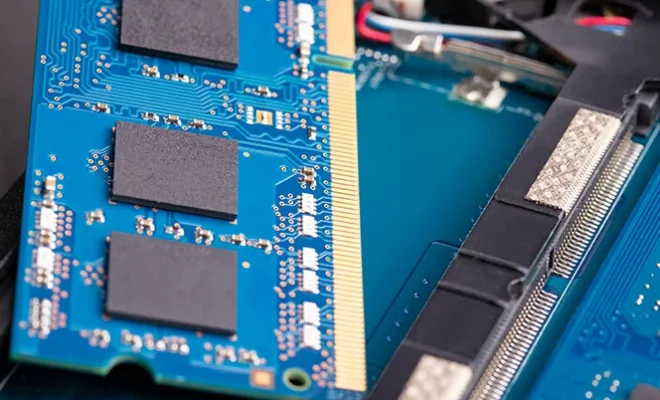
One of the easiest and most straightforward ways to get more RAM on your laptop is to upgrade it. You can do this by purchasing a new RAM module compatible with your laptop and replacing the existing one. To upgrade your RAM, you need to find the RAM slot, remove the old module, and insert the new module. Upgrading your RAM can significantly improve your laptop’s overall performance, and it’s a relatively inexpensive upgrade.

2. Use external RAM

Another way to get more RAM on your laptop is to use an external RAM device. This is a device that plugs into your laptop’s USB port and provides additional RAM. External RAM devices are portable and easy to use, making them a convenient option. However, they may not be as fast as internal RAM, and their performance may vary depending on the specific device and your laptop’s configuration.

3. Adjust your virtual memory settings

By default, your laptop uses the hard drive as virtual memory when it is running low on RAM. However, you can adjust the virtual memory settings to increase the amount of memory available to your laptop. To do this, go to the system settings, then the advanced system settings, and choose the virtual memory option. Here, you can set the maximum size of the virtual memory to increase the amount of memory available to your laptop.

4. Shut down unnecessary applications

Sometimes, the best way to get more RAM on your laptop is to shut down unnecessary applications. When you have too many applications running, they use up valuable system resources, including RAM. Closing unused applications can free up more RAM and improve your laptop’s performance. You can also disable startup applications and services that you don’t need, which can also free up more RAM.

5. Clear your cache

Your laptop’s cache stores data that you have recently accessed or opened, making it faster to access them again in the future. However, over time, the cache can become cluttered and take up valuable RAM. Clearing your cache regularly can free up more RAM and improve your laptop’s performance. You can clear your cache by going to the browser settings and choosing the clear cache option.

In conclusion, there are several ways to get more RAM on your laptop, and it’s essential to choose the method that works best for you. Upgrading your RAM is the most effective solution, but it may not be feasible for everyone. External RAM devices, adjusting virtual memory settings, shutting down unnecessary applications, and clearing your cache are other effective ways to get more RAM and improve your laptop’s performance. By implementing these methods, you can boost your laptop’s speed and efficiency and make it run smoother than ever before.


Previous Article

How to Upload Videos From an Old ...

Next Article

Best Inspirational Movies

Matthew Lynch

Related articles More from author

  • Digital & Mobile Technology

    How to Find an Obituary for a Specific Person

    August 4, 2023
    By Matthew Lynch
  • Digital & Mobile Technology

    Stunning Icon Themes for Linux to Refresh Your Desktop

    June 12, 2023
    By Matthew Lynch
  • Digital & Mobile Technology

    What Is Windows Hardware Quality Labs?

    June 9, 2023
    By Matthew Lynch
  • Digital & Mobile Technology

    Advanced Uninstaller PRO v13.25 Review

    June 10, 2023
    By Matthew Lynch
  • Digital & Mobile Technology

    What is Million Instructions Per Second (MIPS)?

    May 24, 2023
    By Matthew Lynch
  • Digital & Mobile Technology

    Is Fast Charging Bad for Battery Life?

    August 5, 2023
    By Matthew Lynch

Search

Login & Registration

  • Log in
  • Entries feed
  • Comments feed
  • WordPress.org

Newsletter

Signup for The Tech Edvocate Newsletter and have the latest in EdTech news and opinion delivered to your email address!

About Us

Since technology is not going anywhere and does more good than harm, adapting is the best course of action. That is where The Tech Edvocate comes in. We plan to cover the PreK-12 and Higher Education EdTech sectors and provide our readers with the latest news and opinion on the subject. From time to time, I will invite other voices to weigh in on important issues in EdTech. We hope to provide a well-rounded, multi-faceted look at the past, present, the future of EdTech in the US and internationally.

We started this journey back in June 2016, and we plan to continue it for many more years to come. I hope that you will join us in this discussion of the past, present and future of EdTech and lend your own insight to the issues that are discussed.

Newsletter

Signup for The Tech Edvocate Newsletter and have the latest in EdTech news and opinion delivered to your email address!

Contact Us

The Tech Edvocate
910 Goddin Street
Richmond, VA 23231
(601) 630-5238
[email protected]

Copyright © 2026 Matthew Lynch. All rights reserved.