The Tech Edvocate

Top Menu

  • Advertisement
  • Apps
  • Home Page
  • Home Page Five (No Sidebar)
  • Home Page Four
  • Home Page Three
  • Home Page Two
  • Home Tech2
  • Icons [No Sidebar]
  • Left Sidbear Page
  • Lynch Educational Consulting
  • My Account
  • My Speaking Page
  • Newsletter Sign Up Confirmation
  • Newsletter Unsubscription
  • Our Brands
  • Page Example
  • Privacy Policy
  • Protected Content
  • Register
  • Request a Product Review
  • Shop
  • Shortcodes Examples
  • Signup
  • Start Here
    • Governance
    • Careers
    • Contact Us
  • Terms and Conditions
  • The Edvocate
  • The Tech Edvocate Product Guide
  • Topics
  • Write For Us
  • Advertise

Main Menu

  • Start Here
    • Our Brands
    • Governance
      • Lynch Educational Consulting, LLC.
      • Dr. Lynch’s Personal Website
      • Careers
    • Write For Us
    • The Tech Edvocate Product Guide
    • Contact Us
    • Books
    • Edupedia
    • Post a Job
    • The Edvocate Podcast
    • Terms and Conditions
    • Privacy Policy
  • Topics
    • Assistive Technology
    • Child Development Tech
    • Early Childhood & K-12 EdTech
    • EdTech Futures
    • EdTech News
    • EdTech Policy & Reform
    • EdTech Startups & Businesses
    • Higher Education EdTech
    • Online Learning & eLearning
    • Parent & Family Tech
    • Personalized Learning
    • Product Reviews
  • Advertise
  • Tech Edvocate Awards
  • The Edvocate
  • Pedagogue
  • School Ratings

logo

The Tech Edvocate

  • Start Here
    • Our Brands
    • Governance
      • Lynch Educational Consulting, LLC.
      • Dr. Lynch’s Personal Website
        • My Speaking Page
      • Careers
    • Write For Us
    • The Tech Edvocate Product Guide
    • Contact Us
    • Books
    • Edupedia
    • Post a Job
    • The Edvocate Podcast
    • Terms and Conditions
    • Privacy Policy
  • Topics
    • Assistive Technology
    • Child Development Tech
    • Early Childhood & K-12 EdTech
    • EdTech Futures
    • EdTech News
    • EdTech Policy & Reform
    • EdTech Startups & Businesses
    • Higher Education EdTech
    • Online Learning & eLearning
    • Parent & Family Tech
    • Personalized Learning
    • Product Reviews
  • Advertise
  • Tech Edvocate Awards
  • The Edvocate
  • Pedagogue
  • School Ratings
  • 100 Best Revenue Recognition Apps

  • Dramatic: AI Surveillance Giant Cuts Hundreds of Jobs Amid Privacy Backlash

  • Dramatic: Anthropic Claude AI Just Banned ‘Cruel’ Behavior — Here’s Why It Matters

  • This One Shift in Gaming VC Could Reshape the Entire Industry

  • The AI Doctor Is Coming: Is It a Miracle or a Menace?

  • Unmasking the AI Deepfake Threat: Why Corporate America’s Billions Are at Risk

  • Shocking: China’s AI Programmers Collapse — A Disturbing Glimpse Into Our Future?

  • Dramatic Spike: College Costs Projected to Soar 7.5% — Are You Ready?

  • 20 Million Records Exposed: The Reckless Truth Behind the Oracle Health Data Breach

  • The AI Cybersecurity Threat: A Dangerous New Frontier

Tech News
Home›Tech News›6 Fixes for Google Maps Showing Blank Screen on CarPlay

6 Fixes for Google Maps Showing Blank Screen on CarPlay

By Matthew Lynch
February 20, 2024
0
Spread the love

Google Maps has become an essential navigation tool for many drivers, especially when integrated with Apple’s CarPlay, offering a convenient way to display directions and maps directly on the car’s infotainment system. However, sometimes users may encounter a frustrating issue where Google Maps shows a blank screen on CarPlay. If you’re facing this problem, don’t worry. Here are six fixes that can help get Google Maps running smoothly again on your CarPlay.

1.Check Internet Connection:

Before delving into more complex solutions, ensure your device has a stable internet connection. CarPlay requires an active data connection for Google Maps to show maps and provide real-time navigation.

2.Update Google Maps and iOS:

Running outdated versions of Google Maps or iOS could lead to compatibility issues with CarPlay. Go to the App Store and update Google Maps to the latest version. Also, check for any available iOS updates in your iPhone’s settings and install them.

3.Restart Your iPhone and Car’s Infotainment System:

A simple restart can often resolve temporary glitches that might be causing the blank screen issue. Turn off your iPhone and restart it after a minute. Similarly, power cycle your car’s infotainment system if possible.

4.Reconnect CarPlay:

Disconnect your iPhone from CarPlay and forget this car in the CarPlay settings on your phone. Then reconnect your iPhone and allow it to set up CarPlay again as if it were for the first time.

5.Reset Network Settings on iPhone:

If connectivity issues are the culprit, resetting the network settings on your iPhone might solve the problem. This action will erase all networks and passwords, so be sure you have this information saved elsewhere before doing so.

6.Use the Original Apple USB Cable:

Make sure you are using an original Apple USB cable or a certified third-party cable for the connection between your iPhone and the car’s infotainment system. Faulty cables can disrupt the connection and lead to performance issues like a blank screen.

If you’ve tried all these steps and Google Maps still shows a blank screen on CarPlay, you may need to seek further assistance from Apple support or visit a certified technician who can diagnose hardware-related issues with either your vehicle’s infotainment system or your iPhone.

Previous Article

6 Best Bluetooth Turntables in 2024

Next Article

How to Enable or Disable Safari Pop-up ...

Matthew Lynch

Related articles More from author

  • Tech News

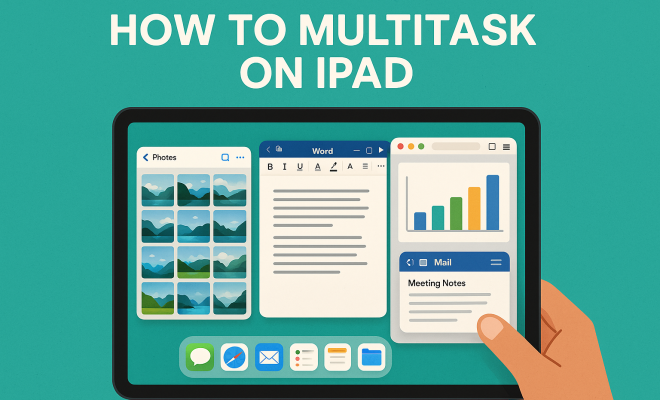
    Master iPad Multitasking: Boost Productivity Now!

    June 19, 2026
    By Matthew Lynch
  • Tech News

    Iran Launches Missile Strikes on Israel Amid Regional Tensions

    April 2, 2026
    By Matthew Lynch
  • Tech News

    How to use Google Assistant driving mode

    July 25, 2026
    By Matthew Lynch
  • Tech News

    How to compress files in Google Drive

    July 15, 2026
    By Matthew Lynch
  • Tech News

    How to check if PSU is failing

    June 21, 2026
    By Matthew Lynch
  • Tech News

    How to do bookkeeping for small business

    June 29, 2026
    By Matthew Lynch

Search

Login & Registration

  • Log in
  • Entries feed
  • Comments feed
  • WordPress.org

Newsletter

Signup for The Tech Edvocate Newsletter and have the latest in EdTech news and opinion delivered to your email address!

About Us

Since technology is not going anywhere and does more good than harm, adapting is the best course of action. That is where The Tech Edvocate comes in. We plan to cover the PreK-12 and Higher Education EdTech sectors and provide our readers with the latest news and opinion on the subject. From time to time, I will invite other voices to weigh in on important issues in EdTech. We hope to provide a well-rounded, multi-faceted look at the past, present, the future of EdTech in the US and internationally.

We started this journey back in June 2016, and we plan to continue it for many more years to come. I hope that you will join us in this discussion of the past, present and future of EdTech and lend your own insight to the issues that are discussed.

Newsletter

Signup for The Tech Edvocate Newsletter and have the latest in EdTech news and opinion delivered to your email address!

Contact Us

The Tech Edvocate
910 Goddin Street
Richmond, VA 23231
(601) 630-5238
[email protected]

Copyright © 2026 Matthew Lynch. All rights reserved.