The Tech Edvocate

Top Menu

  • Advertisement
  • Apps
  • Home Page
  • Home Page Five (No Sidebar)
  • Home Page Four
  • Home Page Three
  • Home Page Two
  • Home Tech2
  • Icons [No Sidebar]
  • Left Sidbear Page
  • Lynch Educational Consulting
  • My Account
  • My Speaking Page
  • Newsletter Sign Up Confirmation
  • Newsletter Unsubscription
  • Our Brands
  • Page Example
  • Privacy Policy
  • Protected Content
  • Register
  • Request a Product Review
  • Shop
  • Shortcodes Examples
  • Signup
  • Start Here
    • Governance
    • Careers
    • Contact Us
  • Terms and Conditions
  • The Edvocate
  • The Tech Edvocate Product Guide
  • Topics
  • Write For Us
  • Advertise

Main Menu

  • Start Here
    • Our Brands
    • Governance
      • Lynch Educational Consulting, LLC.
      • Dr. Lynch’s Personal Website
      • Careers
    • Write For Us
    • The Tech Edvocate Product Guide
    • Contact Us
    • Books
    • Edupedia
    • Post a Job
    • The Edvocate Podcast
    • Terms and Conditions
    • Privacy Policy
  • Topics
    • Assistive Technology
    • Child Development Tech
    • Early Childhood & K-12 EdTech
    • EdTech Futures
    • EdTech News
    • EdTech Policy & Reform
    • EdTech Startups & Businesses
    • Higher Education EdTech
    • Online Learning & eLearning
    • Parent & Family Tech
    • Personalized Learning
    • Product Reviews
  • Advertise
  • Tech Edvocate Awards
  • The Edvocate
  • Pedagogue
  • School Ratings

logo

The Tech Edvocate

  • Start Here
    • Our Brands
    • Governance
      • Lynch Educational Consulting, LLC.
      • Dr. Lynch’s Personal Website
        • My Speaking Page
      • Careers
    • Write For Us
    • The Tech Edvocate Product Guide
    • Contact Us
    • Books
    • Edupedia
    • Post a Job
    • The Edvocate Podcast
    • Terms and Conditions
    • Privacy Policy
  • Topics
    • Assistive Technology
    • Child Development Tech
    • Early Childhood & K-12 EdTech
    • EdTech Futures
    • EdTech News
    • EdTech Policy & Reform
    • EdTech Startups & Businesses
    • Higher Education EdTech
    • Online Learning & eLearning
    • Parent & Family Tech
    • Personalized Learning
    • Product Reviews
  • Advertise
  • Tech Edvocate Awards
  • The Edvocate
  • Pedagogue
  • School Ratings
  • A Visitor’s Guide to Fresno (CA), United States

  • A Visitors Guide to New Orleans (LA), United States

  • A Visitors Guide to Sacramento (CA), United States

  • A Visitors Guide to Lyon, France

  • JisuLife Ultra2 Portable Fan: A Powerful Multi-Function Cooling Solution

  • A Visitors Guide to Viña del Mar, Chile

  • A Visitors Guide to Århus, Denmark

  • A Visitors Guide to Bakersfield (CA), United States

  • A Visitors Guide to Aurora (CO), United States

  • A Visitor’s Guide to Toledo (OH), United States

Digital & Mobile Technology
Home›Digital & Mobile Technology›20 Roku Hacks to Make Your Life Easier

20 Roku Hacks to Make Your Life Easier
By Matthew Lynch
June 10, 2023
0
Spread the love

Roku is a fantastic platform for streaming content, but did you know there are several hacks that can make your life even easier? Here are 20 Roku hacks that can save you time and make your streaming experience more enjoyable.

1. Customize Your Roku Screen

Did you know that you can use your own pictures as a screensaver on Roku? Go to the ‘Screensaver’ option in your settings and select ‘Custom Screensaver’. From there, you can use your own photos or choose from a selection of screensavers.

2. Use Your Phone as a Remote

Misplaced your Roku remote? No problem, download the Roku app on your phone and control your device from there.

3. Play Games on Your Roku

Roku has several quirky games that you can play on your device. Check out classics such as Snake and Tetris, or try something new like Go Pub Trivia or Kung Fu Video Poker.

4. Use Your Voice to Control Your Roku

If you have a Roku device that comes with a voice remote, you can use voice commands to search for movies or TV shows to stream. Simply press the microphone button on your remote and start talking.

5. Enable Guest Mode

Do you have visitors coming over and don’t want them to mess with your personal Roku settings? Enable guest mode by going to ‘Settings’ and selecting ‘Guest Mode’. This allows your visitors to use your Roku without accessing your personal content.

6. Control Your TV with Your Roku Remote

If your Roku remote comes with power and volume buttons, you can control your TV with it as well. Check your Roku remote’s compatibility list to see if your TV brand is included.

7. Stream Movies and TV Shows from Your Local Library

If you have a library card, you can download the Kanopy app on your Roku and stream critically acclaimed movies and documentaries for free.

8. Block Content with Parental Controls

If you want to restrict your children from accessing adult content, you can set up parental controls on your Roku device. Go to ‘Settings’ and select ‘Parental Controls’ to turn on this feature.

9. Mirror Your Phone Screen on Your TV

If you have an Android or Windows device, you can mirror your phone screen on your TV using the Roku app. Just select ‘Photos+’ from the app, choose your screen’s orientation, and start mirroring.

10. Watch Free Channels on Roku

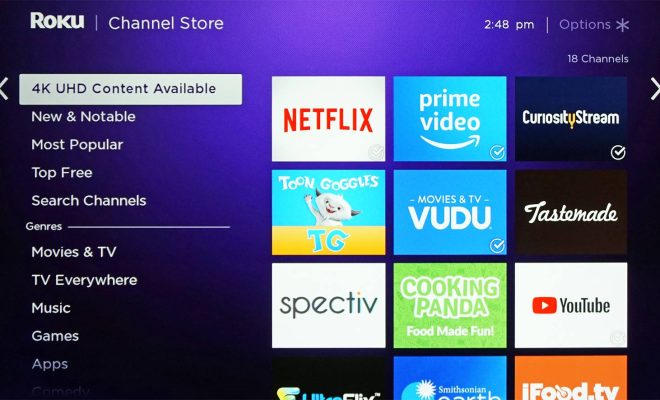
Roku has several free channels such as The Roku Channel, Popcornflix, and Crunchyroll that offer a range of movies and TV shows to stream for free.

11. Set up Multiple Profiles

If you share your Roku with multiple people, you can create different profiles to personalize each user’s streaming experience. Go to ‘Settings’ and select ‘Manage Profiles’ to set this up.

12. Use Keyboard Shortcuts

If you stream content regularly on Roku, you can speed up your navigation using keyboard shortcuts. Press the ‘Shift’ button on your remote and scroll through the list of shortcuts displayed.

13. Use Private Listening

If you want to watch a movie or TV show without disturbing your partner, use the private listening feature on your Roku remote. Just plug in your earphones and watch your content without any distractions.

14. Schedule Your Roku Screen Time

If you’re worried about excessive screen time, you can use the ‘Auto Off’ feature on your Roku device to set a specific time for your device to turn off automatically.

15. Use Your Roku Remote as a Headphone Jack

If you have a Roku device with a headphone jack on the remote, you can plug in your earphones to listen to your content privately.

16. Use Roku Channels Not Available in Your Country

If you want to access channels that aren’t available in your country, use a VPN to change your location and access these channels.

17. Set up Notifications for New Content

If you want to stay updated on the latest movies and TV shows available on Roku, turn on notifications in your settings to receive alerts on new content.

18. Access Your Roku Device Remotely

If you’re away from home and want to access your Roku device, download the Roku app on your phone and use it to control your device remotely.

19. Connect Your Roku TV to Amazon Alexa

If you have an Amazon Alexa device, you can use voice commands to control your Roku TV. Just connect your devices and start talking to Alexa to navigate and stream content.

20. Buy a Universal Remote

If you have multiple streaming devices, consider buying a universal remote that allows you to control all your devices from one remote.

In conclusion, by using these simple hacks, you can enhance your Roku experience and streamline your streaming habits. Whether it’s customizing your screensaver or setting up multiple profiles, these hacks are sure to make your streaming experience more enjoyable.


Previous Article

You Might Still Want a Sony Walkman ...

Next Article

How to Pair Two Echo Dots for ...

Matthew Lynch

Related articles More from author

  • Digital & Mobile Technology

    The Best Cooking Games for Android and iPhone

    August 5, 2023
    By Matthew Lynch
  • Digital & Mobile Technology

    Everything You Need to Know About Your Apple Watch Move Goal

    April 13, 2023
    By Matthew Lynch
  • Digital & Mobile Technology

    How to Use Apple AirTags on Android

    June 8, 2023
    By Matthew Lynch
  • Digital & Mobile Technology

    The Best Ethereum (ETH) DApps

    June 9, 2023
    By Matthew Lynch
  • Digital & Mobile Technology

    How to Add, Edit, and Delete Bookmarks in iPhone’s Safari

    June 1, 2023
    By Matthew Lynch
  • Digital & Mobile Technology

    Easy Ways to Create a New Folder in Windows 11

    June 15, 2023
    By Matthew Lynch

Search

Login & Registration

  • Register
  • Log in
  • Entries feed
  • Comments feed
  • WordPress.org

Newsletter

Signup for The Tech Edvocate Newsletter and have the latest in EdTech news and opinion delivered to your email address!

About Us

Since technology is not going anywhere and does more good than harm, adapting is the best course of action. That is where The Tech Edvocate comes in. We plan to cover the PreK-12 and Higher Education EdTech sectors and provide our readers with the latest news and opinion on the subject. From time to time, I will invite other voices to weigh in on important issues in EdTech. We hope to provide a well-rounded, multi-faceted look at the past, present, the future of EdTech in the US and internationally.

We started this journey back in June 2016, and we plan to continue it for many more years to come. I hope that you will join us in this discussion of the past, present and future of EdTech and lend your own insight to the issues that are discussed.

Newsletter

Signup for The Tech Edvocate Newsletter and have the latest in EdTech news and opinion delivered to your email address!

Contact Us

The Tech Edvocate
910 Goddin Street
Richmond, VA 23231
(601) 630-5238
[email protected]

Copyright © 2025 Matthew Lynch. All rights reserved.