The Tech Edvocate

Top Menu

  • Advertisement
  • Apps
  • Home Page
  • Home Page Five (No Sidebar)
  • Home Page Four
  • Home Page Three
  • Home Page Two
  • Home Tech2
  • Icons [No Sidebar]
  • Left Sidbear Page
  • Lynch Educational Consulting
  • My Account
  • My Speaking Page
  • Newsletter Sign Up Confirmation
  • Newsletter Unsubscription
  • Our Brands
  • Page Example
  • Privacy Policy
  • Protected Content
  • Register
  • Request a Product Review
  • Shop
  • Shortcodes Examples
  • Signup
  • Start Here
    • Governance
    • Careers
    • Contact Us
  • Terms and Conditions
  • The Edvocate
  • The Tech Edvocate Product Guide
  • Topics
  • Write For Us
  • Advertise

Main Menu

  • Start Here
    • Our Brands
    • Governance
      • Lynch Educational Consulting, LLC.
      • Dr. Lynch’s Personal Website
      • Careers
    • Write For Us
    • The Tech Edvocate Product Guide
    • Contact Us
    • Books
    • Edupedia
    • Post a Job
    • The Edvocate Podcast
    • Terms and Conditions
    • Privacy Policy
  • Topics
    • Assistive Technology
    • Child Development Tech
    • Early Childhood & K-12 EdTech
    • EdTech Futures
    • EdTech News
    • EdTech Policy & Reform
    • EdTech Startups & Businesses
    • Higher Education EdTech
    • Online Learning & eLearning
    • Parent & Family Tech
    • Personalized Learning
    • Product Reviews
  • Advertise
  • Tech Edvocate Awards
  • The Edvocate
  • Pedagogue
  • School Ratings

logo

The Tech Edvocate

  • Start Here
    • Our Brands
    • Governance
      • Lynch Educational Consulting, LLC.
      • Dr. Lynch’s Personal Website
        • My Speaking Page
      • Careers
    • Write For Us
    • The Tech Edvocate Product Guide
    • Contact Us
    • Books
    • Edupedia
    • Post a Job
    • The Edvocate Podcast
    • Terms and Conditions
    • Privacy Policy
  • Topics
    • Assistive Technology
    • Child Development Tech
    • Early Childhood & K-12 EdTech
    • EdTech Futures
    • EdTech News
    • EdTech Policy & Reform
    • EdTech Startups & Businesses
    • Higher Education EdTech
    • Online Learning & eLearning
    • Parent & Family Tech
    • Personalized Learning
    • Product Reviews
  • Advertise
  • Tech Edvocate Awards
  • The Edvocate
  • Pedagogue
  • School Ratings
  • Viaim Opennote Review: The AI Note-Taker That Disappears Into Your Daily Routine

  • A Visitors Guide to Long Beach (CA), United States

  • A Visitor’s Guide to Fresno (CA), United States

  • A Visitors Guide to New Orleans (LA), United States

  • A Visitors Guide to Sacramento (CA), United States

  • A Visitors Guide to Lyon, France

  • JisuLife Ultra2 Portable Fan: A Powerful Multi-Function Cooling Solution

  • A Visitors Guide to Viña del Mar, Chile

  • A Visitors Guide to Århus, Denmark

  • A Visitors Guide to Bakersfield (CA), United States

Digital & Mobile Technology
Home›Digital & Mobile Technology›How to Optimize Windows 10 for Gaming and Performance

How to Optimize Windows 10 for Gaming and Performance

By Matthew Lynch
June 8, 2023
0
Spread the love

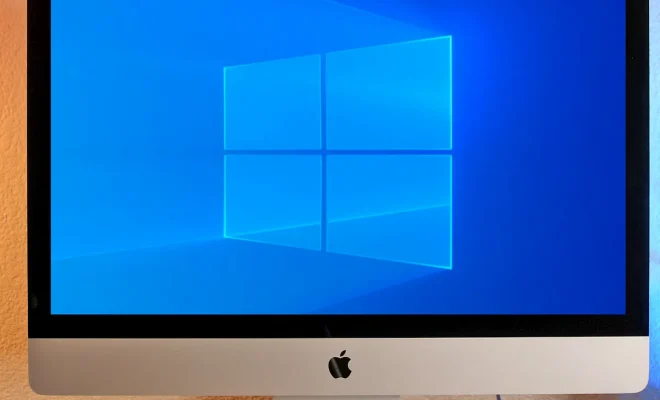
Windows 10 is among the most popular gaming platforms globally, thanks to its powerful features and functionalities. But even with such powerful hardware, your gaming experience can still get interrupted by slow performance, glitches or crashes. All these issues can be resolved by optimizing your Windows 10 system for gaming and performance to get the best out of your gaming experience.

If you’re a gamer, you want to make the most of your computer hardware to ensure that it delivers the best possible performance. Here are some tips to optimize your Windows 10 PC for smooth gaming experience:

1. Keep Your Operating System and Drivers Up-to-date

To enhance the performance of your computer, you need to update your operating system regularly. New patches and updates from Microsoft improve the performance of your system, addressing any security loopholes that may slow the performance of the system. You also need to keep your drivers up-to-date to ensure that they can be compatible with the latest games and software.

2. Disable Background Applications

One major culprit that slows down your gaming experience is the presence of background apps. These apps work in the background and use up CPU power, disk space, and memory unnecessarily. To turn them off, you can carry out a selective startup using the system configuration tool. This way, your PC will launch only the programs that are necessary for its operation, freeing up resources for your games.

3. Clean Up Your System

To optimize your Windows10, you must carry out routine maintenance to ensure that your system stays clean. Junk files accumulate over time, making your system slow and sluggish. Using the built-in Disk Cleanup tool or a third-party tool can free up your hard drive, allowing your computer to work at an optimal pace.

4. Optimize Your Display Settings

Adjusting display settings on your system can mean the difference between winning and losing in games. Many games automatically adjust the display settings, but you may have to change these settings manually to optimize performance by tweaking the resolution, frames per second, and refresh rate. You can also disable certain graphic-rich features such as shadows, or reflections to boost your system’s performance.

5. Disable Startup Programs

To enhance your gaming experience, you need to have system resources available. Disabling startup programs helps to speed up the boot process and free up memory, which results in a speedy launch of your games. You can find programs that start automatically upon your system’s start-up in the task manager.

6. Use a Performance-Boosting Tool

Windows 10 includes a built-in performance booster called the Game Mode. Enabling Game Mode in your Windows 10 can help to optimize your gaming experience. This mode adjusts your PC performance by allocating system resources and carrying out various optimizations to improve gaming performance. There are also third-party performance-boosting tools that you can use, such as CCleaner, AVG TuneUp, or Razer Cortex.


Previous Article

How to Convert MKV to MP4 in ...

Next Article

How to Make Your Photos Private on ...

Matthew Lynch

Related articles More from author

  • Digital & Mobile Technology

    The Quest for the 8mm/VHS Adapter

    June 8, 2023
    By Matthew Lynch
  • Digital & Mobile Technology

    How to Set Up Do Not Disturb While Driving on an iPhone

    June 22, 2023
    By Matthew Lynch
  • Digital & Mobile Technology

    How to Turn Off Quick Chat in Among Us

    August 5, 2023
    By Matthew Lynch
  • Digital & Mobile Technology

    SOAP vs. REST API: What Are the Differences?

    June 23, 2023
    By Matthew Lynch
  • Digital & Mobile Technology

    How to Install VirtualBox on Windows 11

    April 27, 2023
    By Matthew Lynch
  • Digital & Mobile Technology

    How to Fix D3dx9_43.dll Not Found or Missing Errors

    June 4, 2023
    By Matthew Lynch

Search

Login & Registration

  • Register
  • Log in
  • Entries feed
  • Comments feed
  • WordPress.org

Newsletter

Signup for The Tech Edvocate Newsletter and have the latest in EdTech news and opinion delivered to your email address!

About Us

Since technology is not going anywhere and does more good than harm, adapting is the best course of action. That is where The Tech Edvocate comes in. We plan to cover the PreK-12 and Higher Education EdTech sectors and provide our readers with the latest news and opinion on the subject. From time to time, I will invite other voices to weigh in on important issues in EdTech. We hope to provide a well-rounded, multi-faceted look at the past, present, the future of EdTech in the US and internationally.

We started this journey back in June 2016, and we plan to continue it for many more years to come. I hope that you will join us in this discussion of the past, present and future of EdTech and lend your own insight to the issues that are discussed.

Newsletter

Signup for The Tech Edvocate Newsletter and have the latest in EdTech news and opinion delivered to your email address!

Contact Us

The Tech Edvocate
910 Goddin Street
Richmond, VA 23231
(601) 630-5238
[email protected]

Copyright © 2025 Matthew Lynch. All rights reserved.