The Tech Edvocate

Top Menu

  • Advertisement
  • Apps
  • Home Page
  • Home Page Five (No Sidebar)
  • Home Page Four
  • Home Page Three
  • Home Page Two
  • Home Tech2
  • Icons [No Sidebar]
  • Left Sidbear Page
  • Lynch Educational Consulting
  • My Account
  • My Speaking Page
  • Newsletter Sign Up Confirmation
  • Newsletter Unsubscription
  • Our Brands
  • Page Example
  • Privacy Policy
  • Protected Content
  • Register
  • Request a Product Review
  • Shop
  • Shortcodes Examples
  • Signup
  • Start Here
    • Governance
    • Careers
    • Contact Us
  • Terms and Conditions
  • The Edvocate
  • The Tech Edvocate Product Guide
  • Topics
  • Write For Us
  • Advertise

Main Menu

  • Start Here
    • Our Brands
    • Governance
      • Lynch Educational Consulting, LLC.
      • Dr. Lynch’s Personal Website
      • Careers
    • Write For Us
    • The Tech Edvocate Product Guide
    • Contact Us
    • Books
    • Edupedia
    • Post a Job
    • The Edvocate Podcast
    • Terms and Conditions
    • Privacy Policy
  • Topics
    • Assistive Technology
    • Child Development Tech
    • Early Childhood & K-12 EdTech
    • EdTech Futures
    • EdTech News
    • EdTech Policy & Reform
    • EdTech Startups & Businesses
    • Higher Education EdTech
    • Online Learning & eLearning
    • Parent & Family Tech
    • Personalized Learning
    • Product Reviews
  • Advertise
  • Tech Edvocate Awards
  • The Edvocate
  • Pedagogue
  • School Ratings

logo

The Tech Edvocate

  • Start Here
    • Our Brands
    • Governance
      • Lynch Educational Consulting, LLC.
      • Dr. Lynch’s Personal Website
        • My Speaking Page
      • Careers
    • Write For Us
    • The Tech Edvocate Product Guide
    • Contact Us
    • Books
    • Edupedia
    • Post a Job
    • The Edvocate Podcast
    • Terms and Conditions
    • Privacy Policy
  • Topics
    • Assistive Technology
    • Child Development Tech
    • Early Childhood & K-12 EdTech
    • EdTech Futures
    • EdTech News
    • EdTech Policy & Reform
    • EdTech Startups & Businesses
    • Higher Education EdTech
    • Online Learning & eLearning
    • Parent & Family Tech
    • Personalized Learning
    • Product Reviews
  • Advertise
  • Tech Edvocate Awards
  • The Edvocate
  • Pedagogue
  • School Ratings
  • This One Thing Is Quietly Reshaping High School Education Forever

  • Millions of Student Loan Borrowers Face Unprecedented Chaos: Is Your Repayment Plan Next?

  • The Astonishing Truth About Student Loan Refinance Rates: What You Need to Know Now

  • Devastating: AI Agents Just Found a Zero-Day in Medical Software in 11 Minutes

  • The AI Education Revolution: 10 Urgent Questions Universities Must Answer Now

  • Explosive Zero-Day Vulnerability: 15 Million Websites Under Siege – Is Yours Next?

  • The Ultimate Kuru Footwear Trio: A Comfort Revolution for Every Adventure

  • Why Your Mortgage Could Be Denied by Biased AI – And What the Fed Is Doing About It

  • Unprecedented: Lawsuit Demands Total AI Shutdown Amid Rising Global Panic

  • The Astonishing Truth: Microcredentials Now Trump MBAs for Data Science Jobs

Assistive Technology
Home›Assistive Technology›Ways to Fix the “Not Enough Disk Space for Windows 10 Update” Error

Ways to Fix the “Not Enough Disk Space for Windows 10 Update” Error
By Matthew Lynch
June 15, 2023
0
Spread the love

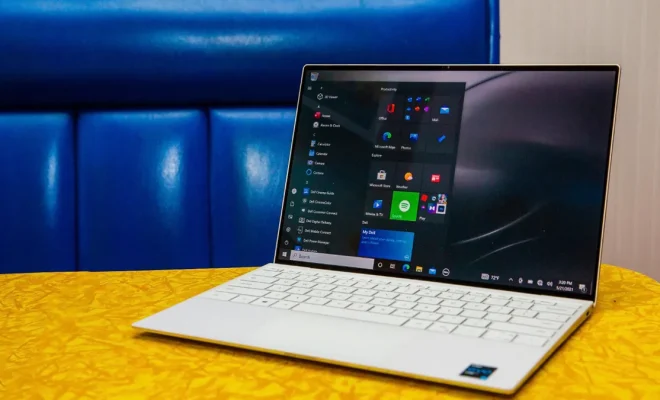
As Microsoft continues to roll out updates to its Windows 10 operating system, you may run into an error message stating that there is not enough disk space to install the latest update. The error message may seem daunting, but there are several ways to fix the “not enough disk space for Windows 10 update” error and get your operating system up to date.

  1. Clear out temporary files and unnecessary data

One of the easiest ways to free up disk space is to clear temporary files and unnecessary data from your hard drive. To do this, simply type “disk cleanup” into the search bar in the Start menu and select the “Disk Cleanup” app. This will scan your hard drive and give you the option to delete temporary files and other unnecessary data.

  1. Uninstall unused programs

If you have programs on your computer that you do not use, uninstalling them can free up valuable disk space. To do this, go to the Start menu and type “programs and features” in the search bar. Select the “Programs and Features” app and scroll through the list of programs installed on your computer. Select the programs you no longer need and click “Uninstall.”

  1. Move files to an external hard drive or cloud storage

If you have large files such as photos or videos taking up space on your hard drive, consider moving them to an external hard drive or cloud storage service. This will free up space on your computer’s hard drive and give you more room for updates. Services like Google Drive, Dropbox, and OneDrive offer free storage options.

  1. Disable hibernate mode

If your computer uses hibernate mode, it creates a large file on your hard drive called “hiberfil.sys.” Disabling hibernate mode can free up a significant amount of disk space. To disable hibernate mode, type “cmd” into the search bar in the Start menu and select “Command Prompt.” Type “powercfg -h off” and press enter. This will disable hibernate mode and free up the space taken up by “hiberfil.sys.”

  1. Use a disk cleanup tool

There are several third-party disk cleanup tools available that can help remove temporary files, old log files, and other unnecessary data from your hard drive. These tools can be more comprehensive than the built-in Windows disk cleanup tool. Some popular options include CCleaner, Advanced SystemCare, and CleanMyPC.


Previous Article

How to Delete Shows & Movies From ...

Next Article

The Best World War II Movies to ...

Matthew Lynch

Related articles More from author

  • Assistive Technology

    How to Improve Your Laptop’s Wi-Fi Reception

    June 22, 2023
    By Matthew Lynch
  • Assistive Technology

    How to Turn Off Chromecast

    June 8, 2023
    By Matthew Lynch
  • Assistive Technology

    How to Get Log Stakes in Animal Crossing

    June 6, 2023
    By Matthew Lynch
  • Assistive Technology

    How to Turn On or Off Network Discovery in Windows 10

    June 8, 2023
    By Matthew Lynch
  • Assistive Technology

    The 6 Best Driverless Car Manufacturers of 2023

    June 3, 2023
    By Matthew Lynch
  • Assistive Technology

    How to Fix It When Your PS5 Won’t Turn On

    June 8, 2023
    By Matthew Lynch

Search

Login & Registration

  • Log in
  • Entries feed
  • Comments feed
  • WordPress.org

Newsletter

Signup for The Tech Edvocate Newsletter and have the latest in EdTech news and opinion delivered to your email address!

About Us

Since technology is not going anywhere and does more good than harm, adapting is the best course of action. That is where The Tech Edvocate comes in. We plan to cover the PreK-12 and Higher Education EdTech sectors and provide our readers with the latest news and opinion on the subject. From time to time, I will invite other voices to weigh in on important issues in EdTech. We hope to provide a well-rounded, multi-faceted look at the past, present, the future of EdTech in the US and internationally.

We started this journey back in June 2016, and we plan to continue it for many more years to come. I hope that you will join us in this discussion of the past, present and future of EdTech and lend your own insight to the issues that are discussed.

Newsletter

Signup for The Tech Edvocate Newsletter and have the latest in EdTech news and opinion delivered to your email address!

Contact Us

The Tech Edvocate
910 Goddin Street
Richmond, VA 23231
(601) 630-5238
[email protected]

Copyright © 2026 Matthew Lynch. All rights reserved.