The Tech Edvocate

Top Menu

  • Advertisement
  • Apps
  • Home Page
  • Home Page Five (No Sidebar)
  • Home Page Four
  • Home Page Three
  • Home Page Two
  • Home Tech2
  • Icons [No Sidebar]
  • Left Sidbear Page
  • Lynch Educational Consulting
  • My Account
  • My Speaking Page
  • Newsletter Sign Up Confirmation
  • Newsletter Unsubscription
  • Our Brands
  • Page Example
  • Privacy Policy
  • Protected Content
  • Register
  • Request a Product Review
  • Shop
  • Shortcodes Examples
  • Signup
  • Start Here
    • Governance
    • Careers
    • Contact Us
  • Terms and Conditions
  • The Edvocate
  • The Tech Edvocate Product Guide
  • Topics
  • Write For Us
  • Advertise

Main Menu

  • Start Here
    • Our Brands
    • Governance
      • Lynch Educational Consulting, LLC.
      • Dr. Lynch’s Personal Website
      • Careers
    • Write For Us
    • The Tech Edvocate Product Guide
    • Contact Us
    • Books
    • Edupedia
    • Post a Job
    • The Edvocate Podcast
    • Terms and Conditions
    • Privacy Policy
  • Topics
    • Assistive Technology
    • Child Development Tech
    • Early Childhood & K-12 EdTech
    • EdTech Futures
    • EdTech News
    • EdTech Policy & Reform
    • EdTech Startups & Businesses
    • Higher Education EdTech
    • Online Learning & eLearning
    • Parent & Family Tech
    • Personalized Learning
    • Product Reviews
  • Advertise
  • Tech Edvocate Awards
  • The Edvocate
  • Pedagogue
  • School Ratings

logo

The Tech Edvocate

  • Start Here
    • Our Brands
    • Governance
      • Lynch Educational Consulting, LLC.
      • Dr. Lynch’s Personal Website
        • My Speaking Page
      • Careers
    • Write For Us
    • The Tech Edvocate Product Guide
    • Contact Us
    • Books
    • Edupedia
    • Post a Job
    • The Edvocate Podcast
    • Terms and Conditions
    • Privacy Policy
  • Topics
    • Assistive Technology
    • Child Development Tech
    • Early Childhood & K-12 EdTech
    • EdTech Futures
    • EdTech News
    • EdTech Policy & Reform
    • EdTech Startups & Businesses
    • Higher Education EdTech
    • Online Learning & eLearning
    • Parent & Family Tech
    • Personalized Learning
    • Product Reviews
  • Advertise
  • Tech Edvocate Awards
  • The Edvocate
  • Pedagogue
  • School Ratings
  • Zola Suite pricing 2026

  • How to become Airbnb Superhost

  • Yelp Elite status how to get

  • Rocket Matter vs CosmoLex comparison

  • Lawyaw vs Documate which is better

  • How to use Yelp for marketing

  • How many templates in Lawyaw

  • Can TripAdvisor reviews be edited

  • How to manage documents in Zola Suite

  • Filevine vs Litify features

Digital & Mobile Technology
Home›Digital & Mobile Technology›How to Change Windows 10 System Sounds

How to Change Windows 10 System Sounds
By Matthew Lynch
June 12, 2023
0
Spread the love

Windows 10 comes with a variety of system sounds that play whenever a specific action is performed on the computer. These sounds include alerts, notifications, startup, shutdown, etc. While the default sound scheme is pleasant, there may be times when you want to customize the sounds to suit your preferences. In this article, we’ll discuss how to change Windows 10 system sounds.

Step 1: Access Sound Settings

To access the sound settings in Windows 10, follow these steps:

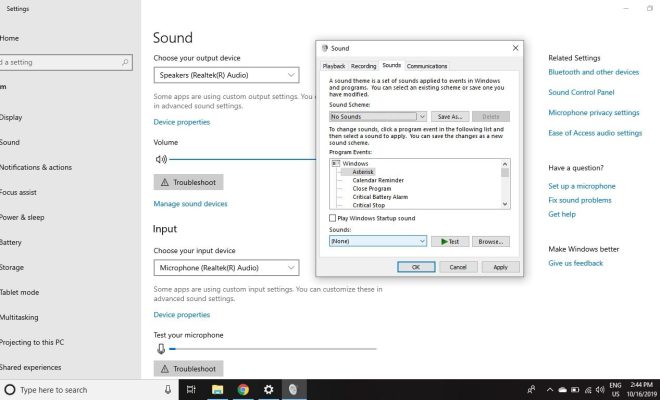
1. Click on the Start menu and select the gear icon to open the Settings app.
2. Click on the System option.
3. Click on Sound in the left-hand pane.

Step 2: Choose a Sound Scheme

Windows 10 has several pre-installed sound schemes such as Windows Default, No Sounds, and a few others. You can choose one of these or create a custom scheme by following these steps:

1. Click on the dropdown menu under Sound Scheme.
2. Select a pre-installed scheme or click on the “Create” button to make your custom scheme.

If you choose to make your custom scheme, you can assign different sounds to specific actions such as logon, logoff, and critical stop. You can also apply the same sound to multiple actions.

Step 3: Change System Sound Events

Once you have selected the sound scheme, you can customize the specific sound events. Here’s how:

1. Click on the “Sound” dropdown menu under Program Events.
2. Choose the event that you want to change, for example, “Windows Notify System Generic.”
3. Click on the “Browse” button.
4. Browse through your computer to find a WAV file that you would like to play for this event.
5. Once you have selected the WAV file, click apply to save the changes.

If you don’t want a sound to play for an event, select “(None)” in the dropdown menu.

Step 4: Test Your Changes

After applying the changes, you can test them to make sure everything is working correctly. To do this, follow these steps:

1. Click on the Sound icon in your taskbar and then click on the Sound Mixer.
2. Play the sound event you changed and make sure that the new sound plays.

If the new sound played, then you have successfully changed the system sound. If not, then check that the file you selected is in WAV format.

In conclusion, changing Windows 10 system sounds is a straightforward process. Just follow the steps above, and you can customize the sounds to your liking. You can also revert to the default sounds or the sound scheme you created at any time. Keep in mind that not all sound events can be customized, and you may need administrative privileges to make changes.


Previous Article

Network APIs (Application Programming Interfaces)

Next Article

How to Create a Mailing List in ...

Matthew Lynch

Related articles More from author

  • Digital & Mobile Technology

    How to Enable and Change the iPad Lock Screen

    August 4, 2023
    By Matthew Lynch
  • Digital & Mobile Technology

    What Is a Meme?

    June 1, 2023
    By Matthew Lynch
  • Digital & Mobile Technology

    Kilobit – Megabit – Gigabit

    September 7, 2023
    By Matthew Lynch
  • Digital & Mobile Technology

    How to Change a Discord Profile Picture

    June 3, 2023
    By Matthew Lynch
  • Digital & Mobile Technology

    How to Convert DVI to VGA or VGA to DVI

    June 4, 2023
    By Matthew Lynch
  • Digital & Mobile Technology

    How to Open Extensions With a Keyboard Shortcut in Any Browser

    June 14, 2023
    By Matthew Lynch

Search

Login & Registration

  • Log in
  • Entries feed
  • Comments feed
  • WordPress.org

Newsletter

Signup for The Tech Edvocate Newsletter and have the latest in EdTech news and opinion delivered to your email address!

About Us

Since technology is not going anywhere and does more good than harm, adapting is the best course of action. That is where The Tech Edvocate comes in. We plan to cover the PreK-12 and Higher Education EdTech sectors and provide our readers with the latest news and opinion on the subject. From time to time, I will invite other voices to weigh in on important issues in EdTech. We hope to provide a well-rounded, multi-faceted look at the past, present, the future of EdTech in the US and internationally.

We started this journey back in June 2016, and we plan to continue it for many more years to come. I hope that you will join us in this discussion of the past, present and future of EdTech and lend your own insight to the issues that are discussed.

Newsletter

Signup for The Tech Edvocate Newsletter and have the latest in EdTech news and opinion delivered to your email address!

Contact Us

The Tech Edvocate
910 Goddin Street
Richmond, VA 23231
(601) 630-5238
[email protected]

Copyright © 2026 Matthew Lynch. All rights reserved.