The Tech Edvocate

Top Menu

  • Advertisement
  • Apps
  • Home Page
  • Home Page Five (No Sidebar)
  • Home Page Four
  • Home Page Three
  • Home Page Two
  • Home Tech2
  • Icons [No Sidebar]
  • Left Sidbear Page
  • Lynch Educational Consulting
  • My Account
  • My Speaking Page
  • Newsletter Sign Up Confirmation
  • Newsletter Unsubscription
  • Our Brands
  • Page Example
  • Privacy Policy
  • Protected Content
  • Register
  • Request a Product Review
  • Shop
  • Shortcodes Examples
  • Signup
  • Start Here
    • Governance
    • Careers
    • Contact Us
  • Terms and Conditions
  • The Edvocate
  • The Tech Edvocate Product Guide
  • Topics
  • Write For Us
  • Advertise

Main Menu

  • Start Here
    • Our Brands
    • Governance
      • Lynch Educational Consulting, LLC.
      • Dr. Lynch’s Personal Website
      • Careers
    • Write For Us
    • The Tech Edvocate Product Guide
    • Contact Us
    • Books
    • Edupedia
    • Post a Job
    • The Edvocate Podcast
    • Terms and Conditions
    • Privacy Policy
  • Topics
    • Assistive Technology
    • Child Development Tech
    • Early Childhood & K-12 EdTech
    • EdTech Futures
    • EdTech News
    • EdTech Policy & Reform
    • EdTech Startups & Businesses
    • Higher Education EdTech
    • Online Learning & eLearning
    • Parent & Family Tech
    • Personalized Learning
    • Product Reviews
  • Advertise
  • Tech Edvocate Awards
  • The Edvocate
  • Pedagogue
  • School Ratings

logo

The Tech Edvocate

  • Start Here
    • Our Brands
    • Governance
      • Lynch Educational Consulting, LLC.
      • Dr. Lynch’s Personal Website
        • My Speaking Page
      • Careers
    • Write For Us
    • The Tech Edvocate Product Guide
    • Contact Us
    • Books
    • Edupedia
    • Post a Job
    • The Edvocate Podcast
    • Terms and Conditions
    • Privacy Policy
  • Topics
    • Assistive Technology
    • Child Development Tech
    • Early Childhood & K-12 EdTech
    • EdTech Futures
    • EdTech News
    • EdTech Policy & Reform
    • EdTech Startups & Businesses
    • Higher Education EdTech
    • Online Learning & eLearning
    • Parent & Family Tech
    • Personalized Learning
    • Product Reviews
  • Advertise
  • Tech Edvocate Awards
  • The Edvocate
  • Pedagogue
  • School Ratings
  • New CIA Cybersecurity Breach Exposes Unclassified Data: Here’s What It Means

  • Jaw-Dropping: CrowdStrike Zscaler Acquisition — 10 Reasons It’s a Cybersecurity Game-Changer

  • This One Thing Is Quietly Reshaping High School Education Forever

  • Millions of Student Loan Borrowers Face Unprecedented Chaos: Is Your Repayment Plan Next?

  • The Astonishing Truth About Student Loan Refinance Rates: What You Need to Know Now

  • Devastating: AI Agents Just Found a Zero-Day in Medical Software in 11 Minutes

  • The AI Education Revolution: 10 Urgent Questions Universities Must Answer Now

  • Explosive Zero-Day Vulnerability: 15 Million Websites Under Siege – Is Yours Next?

  • The Ultimate Kuru Footwear Trio: A Comfort Revolution for Every Adventure

  • Why Your Mortgage Could Be Denied by Biased AI – And What the Fed Is Doing About It

Digital & Mobile Technology
Home›Digital & Mobile Technology›How to Fix Ghost Typing and False Touch on iPad

How to Fix Ghost Typing and False Touch on iPad
By Matthew Lynch
June 11, 2023
0
Spread the love

iPads are fantastic devices for entertainment, productivity, and just about everything in between. However, they can be frustrating to use when ghost typing or false touch problems appear. These issues are not unique to iPads but are present on other touch-based gadgets as well. Typically, ghost typing occurs when the device registers a touch even if you are not touching the screen, while false touches happen when the device thinks you have made a particular touch when you have not.

The good news is that you don’t need to head to the Apple Store for a repair. In most cases, you can fix the issues yourself. In this article, we’ll explore how to fix ghost typing and false touch on the iPad.

1. Clean the screen

The first and simplest solution is to clean the iPad’s screen. Dirt, sweat, or oils can make the device register a false touch, making it difficult to type, swipe, or scroll. Therefore, cleaning your iPad often with a microfiber cloth or a soft piece of cloth dedicated to cleaning electronic devices will help minimize the risk of ghost touch problems. If your iPad has a screen protector, consider removing and replacing it.

2. Check and Clean the Touchscreen Digitizer Connector

The next step is to check the iPad’s touchscreen digitizer connector. Sometimes, the connector can come loose or dirty, resulting in ghost touch or false touch. To do this, you will need a pry tool or a small screwdriver to open the back panel of your iPad. Then locate the connector that connects the digitizer to the logic board. Disconnect the connector and then reconnect it, and test the screen to see if the problem has been resolved.

3. Reset iPad

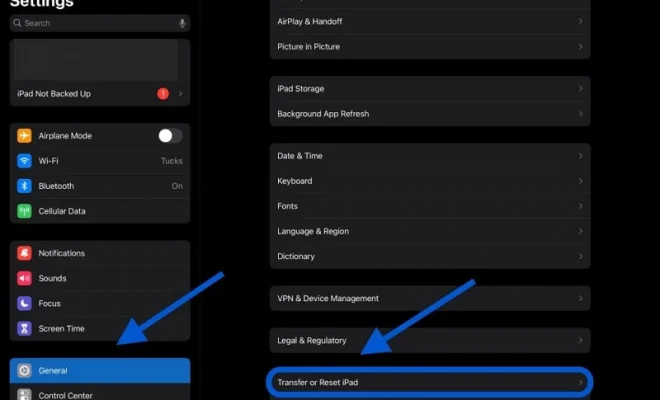
Suppose the problem persists despite cleaning the screen and checking the digitizer connector. In that case, you might need to reset your iPad to fix the problem. To do this, go to Settings on your iPad, tap General, scroll down, and tap the Reset button. Choose the option to “Erase all content and settings,” and then proceed to reset your device. Remember to back up any critical data before doing a reset.

4. Update iPad Software

Updating the iPad’s software could also help fix ghost typing and false touch. Apple often releases software updates that fix bugs, UI issues, and other software-related problems. If you haven’t updated your iPad, now is the time to do so. To update the software, go to Settings, tap General, and then tap Software Update.

5. Seek Assistance from Apple

If none of these fixes work, you might need to take your iPad to an Apple Store or contact Apple Support for further assistance. Sometimes, the problem could be hardware related, and a simple DIY fix may not solve the issue.

In conclusion, ghost typing and false touch on an iPad can be frustrating, but you don’t need to panic. There are quick and straightforward steps you can take to resolve the problem. Start by cleaning your screen, then move to more advanced solutions, such as resetting your device, checking and cleaning the digitizer connector, and updating the software. If you are still having problems, seek professional help from Apple Support.

Previous Article

How to Cancel Your Shudder Subscription

Next Article

What Is an XLAM File?

Matthew Lynch

Related articles More from author

  • Digital & Mobile Technology

    What Is a LAN (Local Area Network)?

    June 1, 2023
    By Matthew Lynch
  • Digital & Mobile Technology

    Windows 10 Taskbar Not Working? Common Issues and Fixes

    June 8, 2023
    By Matthew Lynch
  • Digital & Mobile Technology

    Why Is My iPad Bluetooth Not Working? How to Fix the Problem

    June 3, 2023
    By Matthew Lynch
  • Digital & Mobile Technology

    How to Uninstall Kaspersky Antivirus From Mac or PC

    July 28, 2023
    By Matthew Lynch
  • Digital & Mobile Technology

    How to Use Emojis in Windows 11 Using Keyboard Shortcuts

    June 22, 2023
    By Matthew Lynch
  • Digital & Mobile Technology

    Best Small TVs for Your Kitchen

    June 14, 2023
    By Matthew Lynch

Search

Login & Registration

  • Log in
  • Entries feed
  • Comments feed
  • WordPress.org

Newsletter

Signup for The Tech Edvocate Newsletter and have the latest in EdTech news and opinion delivered to your email address!

About Us

Since technology is not going anywhere and does more good than harm, adapting is the best course of action. That is where The Tech Edvocate comes in. We plan to cover the PreK-12 and Higher Education EdTech sectors and provide our readers with the latest news and opinion on the subject. From time to time, I will invite other voices to weigh in on important issues in EdTech. We hope to provide a well-rounded, multi-faceted look at the past, present, the future of EdTech in the US and internationally.

We started this journey back in June 2016, and we plan to continue it for many more years to come. I hope that you will join us in this discussion of the past, present and future of EdTech and lend your own insight to the issues that are discussed.

Newsletter

Signup for The Tech Edvocate Newsletter and have the latest in EdTech news and opinion delivered to your email address!

Contact Us

The Tech Edvocate
910 Goddin Street
Richmond, VA 23231
(601) 630-5238
[email protected]

Copyright © 2026 Matthew Lynch. All rights reserved.