The Tech Edvocate

Top Menu

  • Advertisement
  • Apps
  • Home Page
  • Home Page Five (No Sidebar)
  • Home Page Four
  • Home Page Three
  • Home Page Two
  • Home Tech2
  • Icons [No Sidebar]
  • Left Sidbear Page
  • Lynch Educational Consulting
  • My Account
  • My Speaking Page
  • Newsletter Sign Up Confirmation
  • Newsletter Unsubscription
  • Our Brands
  • Page Example
  • Privacy Policy
  • Protected Content
  • Register
  • Request a Product Review
  • Shop
  • Shortcodes Examples
  • Signup
  • Start Here
    • Governance
    • Careers
    • Contact Us
  • Terms and Conditions
  • The Edvocate
  • The Tech Edvocate Product Guide
  • Topics
  • Write For Us
  • Advertise

Main Menu

  • Start Here
    • Our Brands
    • Governance
      • Lynch Educational Consulting, LLC.
      • Dr. Lynch’s Personal Website
      • Careers
    • Write For Us
    • The Tech Edvocate Product Guide
    • Contact Us
    • Books
    • Edupedia
    • Post a Job
    • The Edvocate Podcast
    • Terms and Conditions
    • Privacy Policy
  • Topics
    • Assistive Technology
    • Child Development Tech
    • Early Childhood & K-12 EdTech
    • EdTech Futures
    • EdTech News
    • EdTech Policy & Reform
    • EdTech Startups & Businesses
    • Higher Education EdTech
    • Online Learning & eLearning
    • Parent & Family Tech
    • Personalized Learning
    • Product Reviews
  • Advertise
  • Tech Edvocate Awards
  • The Edvocate
  • Pedagogue
  • School Ratings

logo

The Tech Edvocate

  • Start Here
    • Our Brands
    • Governance
      • Lynch Educational Consulting, LLC.
      • Dr. Lynch’s Personal Website
        • My Speaking Page
      • Careers
    • Write For Us
    • The Tech Edvocate Product Guide
    • Contact Us
    • Books
    • Edupedia
    • Post a Job
    • The Edvocate Podcast
    • Terms and Conditions
    • Privacy Policy
  • Topics
    • Assistive Technology
    • Child Development Tech
    • Early Childhood & K-12 EdTech
    • EdTech Futures
    • EdTech News
    • EdTech Policy & Reform
    • EdTech Startups & Businesses
    • Higher Education EdTech
    • Online Learning & eLearning
    • Parent & Family Tech
    • Personalized Learning
    • Product Reviews
  • Advertise
  • Tech Edvocate Awards
  • The Edvocate
  • Pedagogue
  • School Ratings
  • Can Housecall Pro accept payments

  • How to create pricebooks in ServiceTitan

  • ZenMaid vs ServiceM8 comparison

  • JobNimbus pricing 2026

  • How to use Housecall Pro for dispatching

  • ServiceTitan vs Workiz comparison

  • Unsettling: Your Smart Cameras Might Be Part of a Vast Surveillance Grid

  • The $40 Billion Betrayal: How Consumer Protection Startups Are Fighting Back

  • This Crucial EU AI Act Ban Just Kicked In – Is Your HR Tech Illegally Spying?

  • Unbelievable: Players Demand Chronos Saga Refunds After Disastrous ‘Pay-to-Win’ Launch

Assistive Technology
Home›Assistive Technology›How to Set a Default Printer in Windows 10

How to Set a Default Printer in Windows 10
By Matthew Lynch
June 10, 2023
0
Spread the love

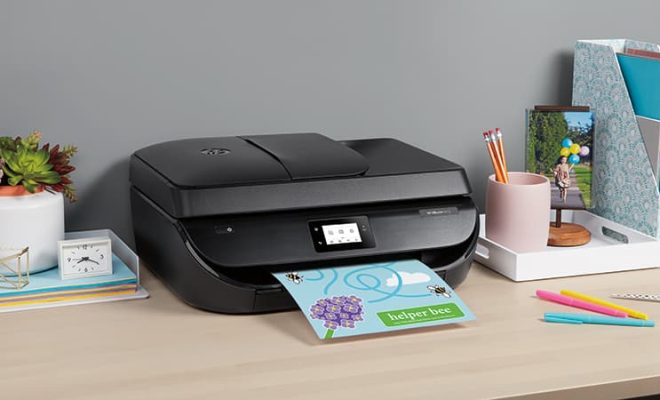
Setting a default printer can be a crucial task for Windows 10 users. When you have multiple printers connected to your device, it may become tedious to select a printer every time you need to print documents. However, using the default printer feature in Windows 10 can simplify the process, and make printing more comfortable.

So, if you’re looking for a step-by-step guide on how to set a default printer in Windows 10, we’ve got you covered!

Here’s how to set a default printer in Windows 10:

Step 1:

Click on the Windows icon in the bottom left corner of your screen, and then click on “Settings.”

Step 2:

In the Windows Settings menu, click on “Devices.”

Step 3:

In the Devices menu, click on “Printers and scanners.”

Step 4:

You will see a list of all connected printers on the right side of the screen. Locate the printer that you want to set as the default printer, and then click on it.

Step 5:

Once you’ve selected the printer, click on the “Manage” button.

Step 6:

In the Manage your device window, click on “Set as default.”

Step 7:

A confirmation window will appear, asking if you want to set the selected printer as your default printer. Click on “Yes.”

Congratulations! You have now successfully set your default printer in Windows 10. From now on, every time you try to print a document, Windows will automatically select the default printer as the printing device.

Alternatively, you can also set your default printer by right-clicking on the printer that you want to set as default in the Printers and scanners menu (Step 3 above), and then selecting the option “Set as default printer.”

In conclusion, setting a default printer in Windows 10 can save you significant time and energy whenever you need to print documents. Follow these simple steps, and you’ll be able to set your default printer in no time! 

Previous Article

How to Fix It When HBO Max ...

Next Article

How to Combine Two or More Gmail ...

Matthew Lynch

Related articles More from author

  • Assistive Technology

    How to See Who Has Viewed a Google Doc

    June 10, 2023
    By Matthew Lynch
  • Assistive Technology

    How to Connect a Stereo System or Speakers to a TV

    June 10, 2023
    By Matthew Lynch
  • Assistive Technology

    How to Use Snapchat’s Shared Stories Feature

    June 15, 2023
    By Matthew Lynch
  • Assistive Technology

    How to Change Your PS4 Theme

    June 15, 2023
    By Matthew Lynch
  • Assistive Technology

    How to Change Icon Sizes in Windows 10

    June 23, 2023
    By Matthew Lynch
  • Assistive Technology

    How to Turn Off Google Location Tracking

    June 21, 2023
    By Matthew Lynch

Search

Login & Registration

  • Log in
  • Entries feed
  • Comments feed
  • WordPress.org

Newsletter

Signup for The Tech Edvocate Newsletter and have the latest in EdTech news and opinion delivered to your email address!

About Us

Since technology is not going anywhere and does more good than harm, adapting is the best course of action. That is where The Tech Edvocate comes in. We plan to cover the PreK-12 and Higher Education EdTech sectors and provide our readers with the latest news and opinion on the subject. From time to time, I will invite other voices to weigh in on important issues in EdTech. We hope to provide a well-rounded, multi-faceted look at the past, present, the future of EdTech in the US and internationally.

We started this journey back in June 2016, and we plan to continue it for many more years to come. I hope that you will join us in this discussion of the past, present and future of EdTech and lend your own insight to the issues that are discussed.

Newsletter

Signup for The Tech Edvocate Newsletter and have the latest in EdTech news and opinion delivered to your email address!

Contact Us

The Tech Edvocate
910 Goddin Street
Richmond, VA 23231
(601) 630-5238
[email protected]

Copyright © 2026 Matthew Lynch. All rights reserved.