The Tech Edvocate

Top Menu

  • Advertisement
  • Apps
  • Home Page
  • Home Page Five (No Sidebar)
  • Home Page Four
  • Home Page Three
  • Home Page Two
  • Home Tech2
  • Icons [No Sidebar]
  • Left Sidbear Page
  • Lynch Educational Consulting
  • My Account
  • My Speaking Page
  • Newsletter Sign Up Confirmation
  • Newsletter Unsubscription
  • Our Brands
  • Page Example
  • Privacy Policy
  • Protected Content
  • Register
  • Request a Product Review
  • Shop
  • Shortcodes Examples
  • Signup
  • Start Here
    • Governance
    • Careers
    • Contact Us
  • Terms and Conditions
  • The Edvocate
  • The Tech Edvocate Product Guide
  • Topics
  • Write For Us
  • Advertise

Main Menu

  • Start Here
    • Our Brands
    • Governance
      • Lynch Educational Consulting, LLC.
      • Dr. Lynch’s Personal Website
      • Careers
    • Write For Us
    • The Tech Edvocate Product Guide
    • Contact Us
    • Books
    • Edupedia
    • Post a Job
    • The Edvocate Podcast
    • Terms and Conditions
    • Privacy Policy
  • Topics
    • Assistive Technology
    • Child Development Tech
    • Early Childhood & K-12 EdTech
    • EdTech Futures
    • EdTech News
    • EdTech Policy & Reform
    • EdTech Startups & Businesses
    • Higher Education EdTech
    • Online Learning & eLearning
    • Parent & Family Tech
    • Personalized Learning
    • Product Reviews
  • Advertise
  • Tech Edvocate Awards
  • The Edvocate
  • Pedagogue
  • School Ratings

logo

The Tech Edvocate

  • Start Here
    • Our Brands
    • Governance
      • Lynch Educational Consulting, LLC.
      • Dr. Lynch’s Personal Website
        • My Speaking Page
      • Careers
    • Write For Us
    • The Tech Edvocate Product Guide
    • Contact Us
    • Books
    • Edupedia
    • Post a Job
    • The Edvocate Podcast
    • Terms and Conditions
    • Privacy Policy
  • Topics
    • Assistive Technology
    • Child Development Tech
    • Early Childhood & K-12 EdTech
    • EdTech Futures
    • EdTech News
    • EdTech Policy & Reform
    • EdTech Startups & Businesses
    • Higher Education EdTech
    • Online Learning & eLearning
    • Parent & Family Tech
    • Personalized Learning
    • Product Reviews
  • Advertise
  • Tech Edvocate Awards
  • The Edvocate
  • Pedagogue
  • School Ratings
  • 100 Best Resource Management Apps

  • The Startling Truth About Viral Weight Loss Drugs You Need to Know

  • 57% Failure Rate: The Unsettling Truth About AI Financial Advice You Need to Know

  • AI’s Quiet Takeover: 179,542 Tech Layoffs 2023 Signal a Troubling Future

  • The Billion-Dollar Race: Why U.S. Tech Giants Are Scrambling for Israeli Startups

  • The Secret Way Activision Blizzard May Be Exploiting Kids for Millions

  • This One AI Change Could Cost You Thousands in Medical Bills

  • The Billion-Dollar AI Learning Boom: Why Experts Are Sounding the Alarm

  • Your Student Loans Just Got a Massive Overhaul — Here’s What It Means For Your Future

  • Identity Theft Nightmare: Johnson Investment Counsel Data Breach Exposes SSNs

Digital & Mobile Technology
Home›Digital & Mobile Technology›How to Add Error Bars in Excel

How to Add Error Bars in Excel
By Matthew Lynch
June 10, 2023
0
Spread the love

Excel is a powerful tool that businesses and individuals can use to analyze, present, and visualize data. One of the features that makes it so useful is the ability to add error bars to charts.

Error bars are lines that extend from each data point on a chart, indicating the range of possible values for that data point. They help to display the variability or uncertainty in the data and can make it easier to draw conclusions from the chart.

Follow these steps to add error bars to your Excel chart:

Step 1: Create your chart

To add error bars, you’ll first need to create a chart in Excel. Select the data you want to include in the chart and click on the “Insert” tab. Select the chart type you want to create and customize it to suit your needs.

Step 2: Add error bars to your chart

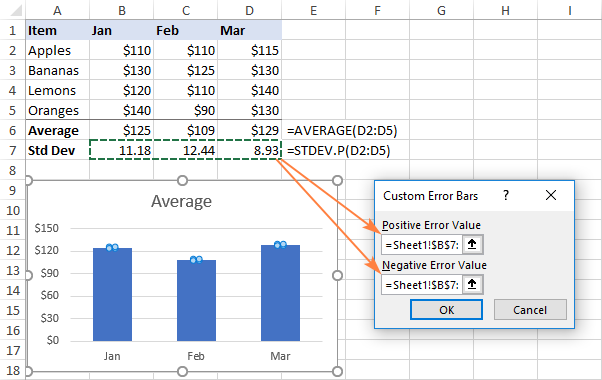
Next, click on the chart to select it, and then click on the “Chart Elements” button on the top right corner of the chart. Select “Error Bars” from the drop-down menu, and choose the type of error bars you want to add.

There are three types of error bars you can choose from:

– Standard Error: This calculates the standard deviation of the data points and draws error bars based on this value.
– Percentage: This calculates error bars based on the percentage of each data point’s value.
– Custom: This allows you to enter your own values for the error bars.

Step 3: Customize your error bars

Once you’ve chosen the type of error bars to add, you can customize them further. Click on the “More Options” button to access additional options.

Here, you can choose the direction of the error bars, the style and color of the bars, and whether to include end caps or not. You can also choose to display error bars for only one data point, a group of data points, or all data points in the chart.

Step 4: Format your error bars

Finally, you can format your error bars to make them more visually appealing. Click on one of the error bars to select them, and then click on the “Format” tab. Here, you can choose the color, thickness, and style of the error bars.

You can also change the formatting for specific error bars by clicking on them individually, or you can apply the same formatting to all error bars in the chart.

In conclusion, adding error bars to your Excel chart can help you to better visualize and interpret your data. By following these simple steps, you can easily add and customize error bars to your charts


Previous Article

Choose a Different Default Language in Outlook ...

Next Article

What Is an M2TS File?

Matthew Lynch

Related articles More from author

  • Digital & Mobile Technology

    ATX 24-pin 12V Power Supply Pinout

    June 1, 2023
    By Matthew Lynch
  • Digital & Mobile Technology

    How to Fix a “Stuck in Auto­mat­ic Repair” Loop in Windows 10

    August 5, 2023
    By Matthew Lynch
  • Digital & Mobile Technology

    How to Connect Chromecast to a Mobile Hotspot

    June 4, 2023
    By Matthew Lynch
  • Digital & Mobile Technology

    Best Free Party Game Apps for Any Celebratory Occasion

    June 22, 2023
    By Matthew Lynch
  • Digital & Mobile Technology

    How to Get a Snapchat Streak Back

    May 31, 2023
    By Matthew Lynch
  • Digital & Mobile Technology

    The 7 Best Free Antivirus Apps for Android

    August 1, 2023
    By Matthew Lynch

Search

Login & Registration

  • Log in
  • Entries feed
  • Comments feed
  • WordPress.org

Newsletter

Signup for The Tech Edvocate Newsletter and have the latest in EdTech news and opinion delivered to your email address!

About Us

Since technology is not going anywhere and does more good than harm, adapting is the best course of action. That is where The Tech Edvocate comes in. We plan to cover the PreK-12 and Higher Education EdTech sectors and provide our readers with the latest news and opinion on the subject. From time to time, I will invite other voices to weigh in on important issues in EdTech. We hope to provide a well-rounded, multi-faceted look at the past, present, the future of EdTech in the US and internationally.

We started this journey back in June 2016, and we plan to continue it for many more years to come. I hope that you will join us in this discussion of the past, present and future of EdTech and lend your own insight to the issues that are discussed.

Newsletter

Signup for The Tech Edvocate Newsletter and have the latest in EdTech news and opinion delivered to your email address!

Contact Us

The Tech Edvocate
910 Goddin Street
Richmond, VA 23231
(601) 630-5238
[email protected]

Copyright © 2026 Matthew Lynch. All rights reserved.