The Tech Edvocate

Top Menu

  • Advertisement
  • Apps
  • Home Page
  • Home Page Five (No Sidebar)
  • Home Page Four
  • Home Page Three
  • Home Page Two
  • Home Tech2
  • Icons [No Sidebar]
  • Left Sidbear Page
  • Lynch Educational Consulting
  • My Account
  • My Speaking Page
  • Newsletter Sign Up Confirmation
  • Newsletter Unsubscription
  • Our Brands
  • Page Example
  • Privacy Policy
  • Protected Content
  • Register
  • Request a Product Review
  • Shop
  • Shortcodes Examples
  • Signup
  • Start Here
    • Governance
    • Careers
    • Contact Us
  • Terms and Conditions
  • The Edvocate
  • The Tech Edvocate Product Guide
  • Topics
  • Write For Us
  • Advertise

Main Menu

  • Start Here
    • Our Brands
    • Governance
      • Lynch Educational Consulting, LLC.
      • Dr. Lynch’s Personal Website
      • Careers
    • Write For Us
    • The Tech Edvocate Product Guide
    • Contact Us
    • Books
    • Edupedia
    • Post a Job
    • The Edvocate Podcast
    • Terms and Conditions
    • Privacy Policy
  • Topics
    • Assistive Technology
    • Child Development Tech
    • Early Childhood & K-12 EdTech
    • EdTech Futures
    • EdTech News
    • EdTech Policy & Reform
    • EdTech Startups & Businesses
    • Higher Education EdTech
    • Online Learning & eLearning
    • Parent & Family Tech
    • Personalized Learning
    • Product Reviews
  • Advertise
  • Tech Edvocate Awards
  • The Edvocate
  • Pedagogue
  • School Ratings

logo

The Tech Edvocate

  • Start Here
    • Our Brands
    • Governance
      • Lynch Educational Consulting, LLC.
      • Dr. Lynch’s Personal Website
        • My Speaking Page
      • Careers
    • Write For Us
    • The Tech Edvocate Product Guide
    • Contact Us
    • Books
    • Edupedia
    • Post a Job
    • The Edvocate Podcast
    • Terms and Conditions
    • Privacy Policy
  • Topics
    • Assistive Technology
    • Child Development Tech
    • Early Childhood & K-12 EdTech
    • EdTech Futures
    • EdTech News
    • EdTech Policy & Reform
    • EdTech Startups & Businesses
    • Higher Education EdTech
    • Online Learning & eLearning
    • Parent & Family Tech
    • Personalized Learning
    • Product Reviews
  • Advertise
  • Tech Edvocate Awards
  • The Edvocate
  • Pedagogue
  • School Ratings
  • 100 Best Apps for Data Backup

  • 100 Best Apps for Data Migration

  • 100 Best Apps for Data Transformation

  • 100 Best Apps for Data Cleaning

  • 100 Best Apps for Data Entry

  • 100 Best Apps for Business Process Automation

  • 100 Best Apps for Operational Efficiency

  • 100 Best Apps for Improving Processes

  • 100 Best Apps for Scaling Operations

  • 100 Best Apps for Community-Led Growth

Digital & Mobile Technology
Home›Digital & Mobile Technology›How to Use Your Fitbit Charge 2

How to Use Your Fitbit Charge 2
By Matthew Lynch
June 9, 2023
0
Spread the love

Fitbit Charge 2 is an amazingly versatile fitness tracker that has improved greatly from its predecessor, the Fitbit Charge. The wristband packs a host of features including an enhanced heart rate monitor, step counter, sleep monitor, calorie tracker, and many more. Here’s a quick guide on how to use your Fitbit Charge 2 and stay on top of your fitness goals.

1. Charge your Fitbit Charge 2:

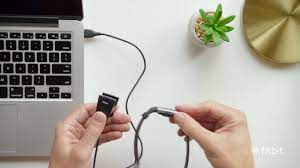
Your Charge 2 comes with a charger that you need to connect to a power source to charge the tracker. While charging, the battery icon on the screen will indicate how much charge time is left.

2. Download the Fitbit app and sync with your tracker:

The app is available on both Android and iOS. After downloading it, create an account and connect it to your Fitbit Charge 2 for the first time to sync your data.

3. Set up your preferences:

Once you’ve synced your Fitbit and app, open the app and input your weight, height, and age. The app will use this information to set up your daily goals, such as calories burned, steps taken, and distance traveled.

4. Understand the basics of navigation:

The Charge 2 has a touchscreen, which makes navigation easy. You swipe right or left to access different menus or apps.

5. Use the different modes:

Your Charge 2 comes with several modes, including exercise, heart rate, and relax. The exercise mode is great for tracking your workout, while the heart rate mode monitors your heart rate throughout the day. The relax mode tracks your breathing and helps you de-stress.

6. Track your sleep:

The Charge 2 has a sleep tracker that monitors how long and how deep you sleep. To activate it, press and hold the button on the side for a few seconds until the tracker vibrates and enters sleep mode.

7. Monitor your cardiovascular fitness:

The Charge 2 also tracks your cardiovascular fitness level, which is indicated by your VO2 max. To check your VO2 max, click on the heart rate icon on your Charge 2 or your app, and it will give you an estimate of your fitness level.

8. Personalize your tracker:

You can personalize your Charge 2 by changing the clock face and adding different apps. Simply tap and hold the clock face to access different options.

9. Set reminders and alerts:

The Fitbit app allows you to set reminders and alerts for various things like taking a walk, drinking water, or going to bed.

10. Stay motivated:

The Fitbit app offers a community feature that allows you to connect and compete with friends and family to keep you motivated to achieve your fitness goals.

In conclusion, the Fitbit Charge 2 is an excellent fitness tracker that comes packed with features to help you achieve your health and fitness goals. With just a few taps, you can easily customize and track your progress towards a healthier lifestyle.


Previous Article

The 6 Best Ways to Watch Television ...

Next Article

Did Steve Jobs Answer Email Personally?

Matthew Lynch

Related articles More from author

  • Digital & Mobile Technology

    No Sound When Streaming on Discord? Here’s How to Solve It

    August 3, 2023
    By Matthew Lynch
  • Digital & Mobile Technology

    What Are the Colored Bars on TV Called?

    August 5, 2023
    By Matthew Lynch
  • Digital & Mobile Technology

    How to Search on Prime Video

    July 31, 2023
    By Matthew Lynch
  • Digital & Mobile Technology

    What is a Microsoft Certified Desktop Support Technician (MCDST)?

    April 18, 2023
    By Matthew Lynch
  • Digital & Mobile Technology

    Need a Virtual Business Card? Create Your Own vCard for Free on Your Mac

    August 1, 2023
    By Matthew Lynch
  • Digital & Mobile Technology

    Ways to View the USB Device History in Windows

    June 12, 2023
    By Matthew Lynch

Search

Login & Registration

  • Log in
  • Entries feed
  • Comments feed
  • WordPress.org

Newsletter

Signup for The Tech Edvocate Newsletter and have the latest in EdTech news and opinion delivered to your email address!

About Us

Since technology is not going anywhere and does more good than harm, adapting is the best course of action. That is where The Tech Edvocate comes in. We plan to cover the PreK-12 and Higher Education EdTech sectors and provide our readers with the latest news and opinion on the subject. From time to time, I will invite other voices to weigh in on important issues in EdTech. We hope to provide a well-rounded, multi-faceted look at the past, present, the future of EdTech in the US and internationally.

We started this journey back in June 2016, and we plan to continue it for many more years to come. I hope that you will join us in this discussion of the past, present and future of EdTech and lend your own insight to the issues that are discussed.

Newsletter

Signup for The Tech Edvocate Newsletter and have the latest in EdTech news and opinion delivered to your email address!

Contact Us

The Tech Edvocate
910 Goddin Street
Richmond, VA 23231
(601) 630-5238
[email protected]

Copyright © 2026 Matthew Lynch. All rights reserved.