The Tech Edvocate

Top Menu

  • Advertisement
  • Apps
  • Home Page
  • Home Page Five (No Sidebar)
  • Home Page Four
  • Home Page Three
  • Home Page Two
  • Home Tech2
  • Icons [No Sidebar]
  • Left Sidbear Page
  • Lynch Educational Consulting
  • My Account
  • My Speaking Page
  • Newsletter Sign Up Confirmation
  • Newsletter Unsubscription
  • Our Brands
  • Page Example
  • Privacy Policy
  • Protected Content
  • Register
  • Request a Product Review
  • Shop
  • Shortcodes Examples
  • Signup
  • Start Here
    • Governance
    • Careers
    • Contact Us
  • Terms and Conditions
  • The Edvocate
  • The Tech Edvocate Product Guide
  • Topics
  • Write For Us
  • Advertise

Main Menu

  • Start Here
    • Our Brands
    • Governance
      • Lynch Educational Consulting, LLC.
      • Dr. Lynch’s Personal Website
      • Careers
    • Write For Us
    • The Tech Edvocate Product Guide
    • Contact Us
    • Books
    • Edupedia
    • Post a Job
    • The Edvocate Podcast
    • Terms and Conditions
    • Privacy Policy
  • Topics
    • Assistive Technology
    • Child Development Tech
    • Early Childhood & K-12 EdTech
    • EdTech Futures
    • EdTech News
    • EdTech Policy & Reform
    • EdTech Startups & Businesses
    • Higher Education EdTech
    • Online Learning & eLearning
    • Parent & Family Tech
    • Personalized Learning
    • Product Reviews
  • Advertise
  • Tech Edvocate Awards
  • The Edvocate
  • Pedagogue
  • School Ratings

logo

The Tech Edvocate

  • Start Here
    • Our Brands
    • Governance
      • Lynch Educational Consulting, LLC.
      • Dr. Lynch’s Personal Website
        • My Speaking Page
      • Careers
    • Write For Us
    • The Tech Edvocate Product Guide
    • Contact Us
    • Books
    • Edupedia
    • Post a Job
    • The Edvocate Podcast
    • Terms and Conditions
    • Privacy Policy
  • Topics
    • Assistive Technology
    • Child Development Tech
    • Early Childhood & K-12 EdTech
    • EdTech Futures
    • EdTech News
    • EdTech Policy & Reform
    • EdTech Startups & Businesses
    • Higher Education EdTech
    • Online Learning & eLearning
    • Parent & Family Tech
    • Personalized Learning
    • Product Reviews
  • Advertise
  • Tech Edvocate Awards
  • The Edvocate
  • Pedagogue
  • School Ratings
  • 100 Best Apps for Scaling Operations

  • 100 Best Apps for Community-Led Growth

  • 100 Best Apps for Product-Led Growth

  • 100 Best Apps for User Activation

  • 100 Best Apps for Acquiring Customers

  • 100 Best Apps for 1-on-1 Meetings

  • 100 Best Apps for Eliminating Bottlenecks

  • 100 Best Apps for Automating Workflows

  • 100 Best Apps for Sales-Led Growth

  • 100 Best Apps for Viral Growth

Digital & Mobile Technology
Home›Digital & Mobile Technology›How to Connect a Magic Keyboard to Your iPad or iPad Pro

How to Connect a Magic Keyboard to Your iPad or iPad Pro
By Matthew Lynch
June 9, 2023
0
Spread the love

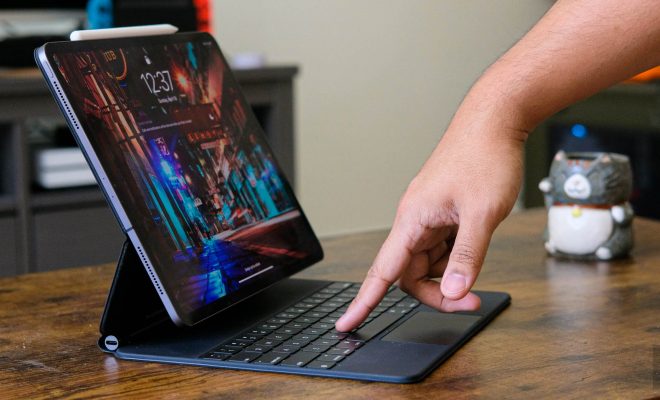
Apple’s Magic Keyboard is quite a popular accessory for its sleek and seamless design, excellent functionality, and a great typing experience. The keyboard is manufactured to work with all Apple devices such as iPhones, iPads, and Macs, including the latest iPad and iPad Pro models. In this article, we’ll explore how to connect a Magic Keyboard to your iPad or iPad Pro.

Here are the steps to follow:

Step 1: Turn on your Magic Keyboard

The first step is to turn on your magic keyboard. To do this, press the power button on the keyboard’s right-hand side until the green LED light turns on. If the LED light doesn’t turn on, you may need to install fresh batteries or connect your keyboard to a power source.

Step 2: Open iPad Settings

To connect your Magic Keyboard to your iPad or iPad Pro, open the settings app on your device. The settings app is typically located on your iPad’s home screen. Tap on the icon to open the app.

Step 3: Enable Bluetooth

Next, ensure that the Bluetooth feature on your iPad is turned on. To access the Bluetooth settings, look for the Bluetooth option in settings and tap on it. Once the Bluetooth option is selected, wait for your iPad to scan for available devices. This process may take a few seconds, so ensure that your Magic Keyboard is close to your iPad device.

Step 4: Connect to Magic Keyboard

Once your device discovers your Magic Keyboard, select it from the list of available devices. When you select this option, a setup prompt will appear on your iPad’s screen with a security code. You will need to type in this code on your Magic Keyboard to complete the connection process.

Step 5: Input Security Code

Type the security code on your Magic Keyboard to pair it to your iPad. When the connection is successful, a message will appear telling you that your Magic Keyboard is now connected to your iPad.

Step 6: Manage Your Connections

Your Magic Keyboard is now ready to use with your iPad device. Every time you switch on the keyboard and turn on Bluetooth on your iPad, the device will automatically connect to it. To disconnect the keyboard, turn off Bluetooth on your iPad or switch off the Magic Keyboard.

In conclusion, connecting your Magic Keyboard to your iPad or iPad Pro is a straightforward process. Once the connection is established, you can enjoy the seamless typing experience and excellent functionality that the keyboard offers. Having a reliable and efficient keyboard like the Magic Keyboard is sure to enhance your productivity and improve your iPad experience.


Previous Article

What Are the Yahoo Mail POP Settings?

Next Article

Windows Sonic vs Dolby Atmos: Which Headphones ...

Matthew Lynch

Related articles More from author

  • Digital & Mobile Technology

    How to Improve Internet Speed for Streaming

    April 26, 2023
    By Matthew Lynch
  • Digital & Mobile Technology

    How to Upscale Your Old Videos With MadVR for Windows

    June 22, 2023
    By Matthew Lynch
  • Digital & Mobile Technology

    Best Steam Deck Protective Cases

    August 5, 2023
    By Matthew Lynch
  • Digital & Mobile Technology

    Best Drawing Apps for Windows 10

    June 8, 2023
    By Matthew Lynch
  • Digital & Mobile Technology

    The Best Apps for Starting a Small Business

    June 23, 2023
    By Matthew Lynch
  • Digital & Mobile Technology

    Cortana: Microsoft’s Virtual Assistant

    June 9, 2023
    By Matthew Lynch

Search

Login & Registration

  • Log in
  • Entries feed
  • Comments feed
  • WordPress.org

Newsletter

Signup for The Tech Edvocate Newsletter and have the latest in EdTech news and opinion delivered to your email address!

About Us

Since technology is not going anywhere and does more good than harm, adapting is the best course of action. That is where The Tech Edvocate comes in. We plan to cover the PreK-12 and Higher Education EdTech sectors and provide our readers with the latest news and opinion on the subject. From time to time, I will invite other voices to weigh in on important issues in EdTech. We hope to provide a well-rounded, multi-faceted look at the past, present, the future of EdTech in the US and internationally.

We started this journey back in June 2016, and we plan to continue it for many more years to come. I hope that you will join us in this discussion of the past, present and future of EdTech and lend your own insight to the issues that are discussed.

Newsletter

Signup for The Tech Edvocate Newsletter and have the latest in EdTech news and opinion delivered to your email address!

Contact Us

The Tech Edvocate
910 Goddin Street
Richmond, VA 23231
(601) 630-5238
[email protected]

Copyright © 2026 Matthew Lynch. All rights reserved.