The Tech Edvocate

Top Menu

  • Advertisement
  • Apps
  • Home Page
  • Home Page Five (No Sidebar)
  • Home Page Four
  • Home Page Three
  • Home Page Two
  • Home Tech2
  • Icons [No Sidebar]
  • Left Sidbear Page
  • Lynch Educational Consulting
  • My Account
  • My Speaking Page
  • Newsletter Sign Up Confirmation
  • Newsletter Unsubscription
  • Our Brands
  • Page Example
  • Privacy Policy
  • Protected Content
  • Register
  • Request a Product Review
  • Shop
  • Shortcodes Examples
  • Signup
  • Start Here
    • Governance
    • Careers
    • Contact Us
  • Terms and Conditions
  • The Edvocate
  • The Tech Edvocate Product Guide
  • Topics
  • Write For Us
  • Advertise

Main Menu

  • Start Here
    • Our Brands
    • Governance
      • Lynch Educational Consulting, LLC.
      • Dr. Lynch’s Personal Website
      • Careers
    • Write For Us
    • The Tech Edvocate Product Guide
    • Contact Us
    • Books
    • Edupedia
    • Post a Job
    • The Edvocate Podcast
    • Terms and Conditions
    • Privacy Policy
  • Topics
    • Assistive Technology
    • Child Development Tech
    • Early Childhood & K-12 EdTech
    • EdTech Futures
    • EdTech News
    • EdTech Policy & Reform
    • EdTech Startups & Businesses
    • Higher Education EdTech
    • Online Learning & eLearning
    • Parent & Family Tech
    • Personalized Learning
    • Product Reviews
  • Advertise
  • Tech Edvocate Awards
  • The Edvocate
  • Pedagogue
  • School Ratings

logo

The Tech Edvocate

  • Start Here
    • Our Brands
    • Governance
      • Lynch Educational Consulting, LLC.
      • Dr. Lynch’s Personal Website
        • My Speaking Page
      • Careers
    • Write For Us
    • The Tech Edvocate Product Guide
    • Contact Us
    • Books
    • Edupedia
    • Post a Job
    • The Edvocate Podcast
    • Terms and Conditions
    • Privacy Policy
  • Topics
    • Assistive Technology
    • Child Development Tech
    • Early Childhood & K-12 EdTech
    • EdTech Futures
    • EdTech News
    • EdTech Policy & Reform
    • EdTech Startups & Businesses
    • Higher Education EdTech
    • Online Learning & eLearning
    • Parent & Family Tech
    • Personalized Learning
    • Product Reviews
  • Advertise
  • Tech Edvocate Awards
  • The Edvocate
  • Pedagogue
  • School Ratings
  • How to use ClickUp goals feature

  • Trello for Business

  • Can Smartsheet do automation

  • How to use Microsoft Planner boards

  • How many transactions in Kashoo

  • Sage

  • Is Sage worth it for accountants

  • How to use Smartsheet templates

  • How many users in Zoho Books free plan

  • Can Wrike integrate with Adobe Creative Cloud

Digital & Mobile Technology
Home›Digital & Mobile Technology›How to Transfer Photos from an iPhone to a PC

How to Transfer Photos from an iPhone to a PC
By Matthew Lynch
May 29, 2023
0
Spread the love

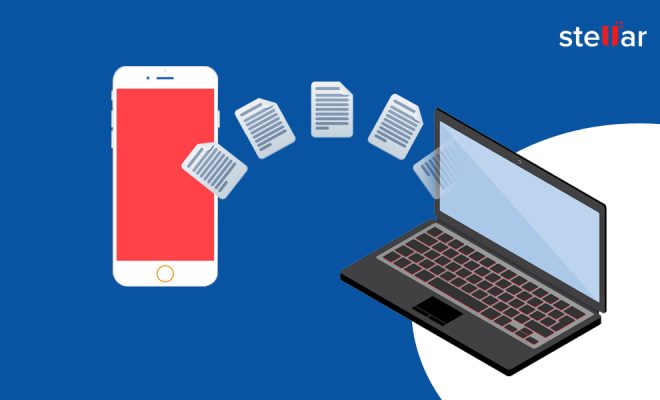
If you’re an iPhone user, you’re probably quite familiar with the following dilemma: you’ve taken some stunning pictures on your device, but now you need to transfer them onto your PC, and you have no idea how to go about it. Thankfully, transferring photos from your iPhone to your PC is a hassle-free process once you get the hang of it. Here’s how to do it.

Connect your iPhone to your PC

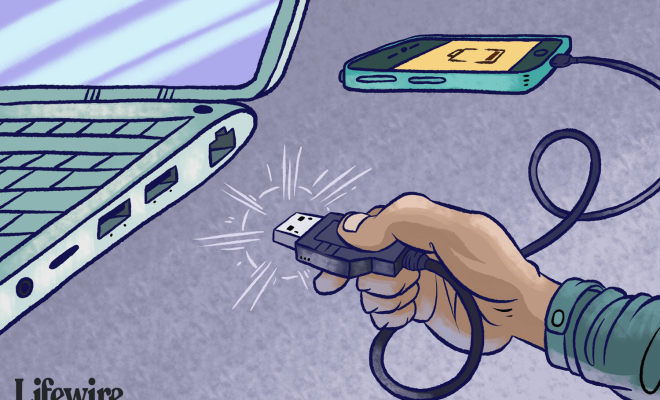
First things first – you’ll need to connect your iPhone to your computer using a USB cable. Once connected, your PC should recognize the device and automatically bring up the “AutoPlay” window. If this doesn’t happen, open File Explorer on your PC and look for your iPhone under the “This PC” section. If you’re having trouble, try switching to a different USB port or using a different cable.

Select and transfer your photos

Now that your iPhone is connected, you should be able to access your photos via File Explorer. Double-click on your iPhone to open its contents and navigate to the folder labeled DCIM (Digital Camera Images). This folder contains all the photos and videos you’ve taken with your iPhone.

From here on out, you can simply select the photos you want to transfer and drag them onto your PC’s desktop or another folder of your choice. Depending on the size and number of photos you’re moving, the transfer process may take a while to complete.

Alternatively, you can use the built-in Photos app on your PC to import your photos. Open the app and click on the “Import” button in the top right corner. Select your iPhone from the list of devices and choose which photos you want to transfer. Once you’ve made your selection, click “Import Selected” to start the transfer.

Consider using iCloud

If you have an iCloud account set up on your iPhone and your PC, you can also use this to transfer your photos. To do this, open the iCloud app on your PC and select “Photos” from the list of options. Choose the photos you want to transfer and click on the “Download” button. This will save the photos to your PC’s default downloads folder.

In conclusion, transferring photos from your iPhone to your PC is not as complicated as it may seem. Whether you prefer to use a cable, the Photos app or iCloud, the process is straightforward and only takes a few minutes. Once you’ve done it a couple of times, you’ll be an expert in no time.

Previous Article

How to Transfer Voice Memos From Your ...

Next Article

Write an article about How to Transfer ...

Matthew Lynch

Related articles More from author

  • Digital & Mobile Technology

    What Is a USB Port?

    May 30, 2023
    By Matthew Lynch
  • Digital & Mobile Technology

    Why Should You Avoid Illegal Streaming Sites?

    August 3, 2023
    By Matthew Lynch
  • Digital & Mobile Technology

    How Your Phone Can Be Hacked Remotely and What You Can Do to Stop It

    August 3, 2023
    By Matthew Lynch
  • Digital & Mobile Technology

    What Is the WPS Button on My Router?

    August 5, 2023
    By Matthew Lynch
  • Digital & Mobile Technology

    What to Watch on YouTube

    June 26, 2023
    By Matthew Lynch
  • Digital & Mobile Technology

    What is a Server Cage?

    April 23, 2023
    By Matthew Lynch

Search

Login & Registration

  • Log in
  • Entries feed
  • Comments feed
  • WordPress.org

Newsletter

Signup for The Tech Edvocate Newsletter and have the latest in EdTech news and opinion delivered to your email address!

About Us

Since technology is not going anywhere and does more good than harm, adapting is the best course of action. That is where The Tech Edvocate comes in. We plan to cover the PreK-12 and Higher Education EdTech sectors and provide our readers with the latest news and opinion on the subject. From time to time, I will invite other voices to weigh in on important issues in EdTech. We hope to provide a well-rounded, multi-faceted look at the past, present, the future of EdTech in the US and internationally.

We started this journey back in June 2016, and we plan to continue it for many more years to come. I hope that you will join us in this discussion of the past, present and future of EdTech and lend your own insight to the issues that are discussed.

Newsletter

Signup for The Tech Edvocate Newsletter and have the latest in EdTech news and opinion delivered to your email address!

Contact Us

The Tech Edvocate
910 Goddin Street
Richmond, VA 23231
(601) 630-5238
[email protected]

Copyright © 2026 Matthew Lynch. All rights reserved.