The Tech Edvocate

Top Menu

  • Advertisement
  • Apps
  • Home Page
  • Home Page Five (No Sidebar)
  • Home Page Four
  • Home Page Three
  • Home Page Two
  • Home Tech2
  • Icons [No Sidebar]
  • Left Sidbear Page
  • Lynch Educational Consulting
  • My Account
  • My Speaking Page
  • Newsletter Sign Up Confirmation
  • Newsletter Unsubscription
  • Our Brands
  • Page Example
  • Privacy Policy
  • Protected Content
  • Register
  • Request a Product Review
  • Shop
  • Shortcodes Examples
  • Signup
  • Start Here
    • Governance
    • Careers
    • Contact Us
  • Terms and Conditions
  • The Edvocate
  • The Tech Edvocate Product Guide
  • Topics
  • Write For Us
  • Advertise

Main Menu

  • Start Here
    • Our Brands
    • Governance
      • Lynch Educational Consulting, LLC.
      • Dr. Lynch’s Personal Website
      • Careers
    • Write For Us
    • The Tech Edvocate Product Guide
    • Contact Us
    • Books
    • Edupedia
    • Post a Job
    • The Edvocate Podcast
    • Terms and Conditions
    • Privacy Policy
  • Topics
    • Assistive Technology
    • Child Development Tech
    • Early Childhood & K-12 EdTech
    • EdTech Futures
    • EdTech News
    • EdTech Policy & Reform
    • EdTech Startups & Businesses
    • Higher Education EdTech
    • Online Learning & eLearning
    • Parent & Family Tech
    • Personalized Learning
    • Product Reviews
  • Advertise
  • Tech Edvocate Awards
  • The Edvocate
  • Pedagogue
  • School Ratings

logo

The Tech Edvocate

  • Start Here
    • Our Brands
    • Governance
      • Lynch Educational Consulting, LLC.
      • Dr. Lynch’s Personal Website
        • My Speaking Page
      • Careers
    • Write For Us
    • The Tech Edvocate Product Guide
    • Contact Us
    • Books
    • Edupedia
    • Post a Job
    • The Edvocate Podcast
    • Terms and Conditions
    • Privacy Policy
  • Topics
    • Assistive Technology
    • Child Development Tech
    • Early Childhood & K-12 EdTech
    • EdTech Futures
    • EdTech News
    • EdTech Policy & Reform
    • EdTech Startups & Businesses
    • Higher Education EdTech
    • Online Learning & eLearning
    • Parent & Family Tech
    • Personalized Learning
    • Product Reviews
  • Advertise
  • Tech Edvocate Awards
  • The Edvocate
  • Pedagogue
  • School Ratings
  • Medicube PDRN Pink Collagen Cream: Is It Safe to Use Now?

  • Tarte’s ‘Snatch Sticks’ Spark Unprecedented Backlash — Here’s Why Everyone’s Talking

  • This AI-Designed Drug Just Entered Phase III Trials — And It Might Reverse Your Biological Age

  • Unbelievable: Top AI Startups Caught Faking Revenue, Rocking Silicon Valley

  • Xbox Cloud Gaming’s Urgent Problem: Microsoft’s Brutal Truth Revealed

  • The Hypocrisy That’s Quietly Reshaping Gaming Journalism

  • Anthropic Insider: Why AI Could End Humanity by 2036

  • Unbelievable: OpenAI Claims AI Solved Million-Dollar Math Problem – But the Credit Battle Just Began

  • Heartbreaking: 93 Million Kids’ Futures Stolen by Surging Attacks on Education

  • Unsettling: The Cat in the Hat Trend That’s Causing Mass Panic in Schools

Digital & Mobile Technology
Home›Digital & Mobile Technology›How to Fix Google Play Store Not Working on Chromebook

How to Fix Google Play Store Not Working on Chromebook
By Matthew Lynch
May 28, 2023
0
Spread the love

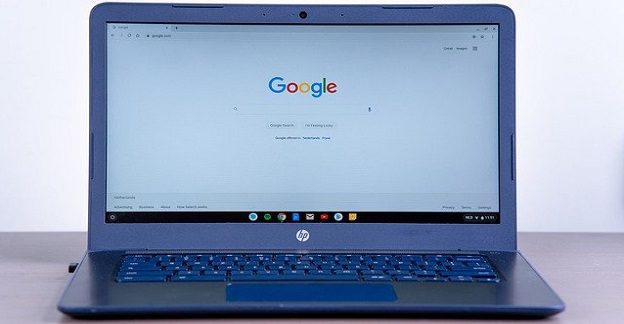
Google Play Store is an essential feature of Chromebook that allows users to download various Android applications. However, many Chromebook users have reported that they encounter problems accessing the Google Play Store. If you find Google Play Store not working on your Chromebook, this article will help you with solutions to fix it.

Restart Your Chromebook

One of the simplest ways to fix any issue with Google Play Store is by restarting your Chromebook. There might be some issues with the device or the operating system, and a simple restart can resolve them. To restart your Chromebook, click on the settings icon located in the bottom right corner of the taskbar. Then, select the power icon and click on “Restart.”

Check Your Internet Connection

Google Play Store requires a stable internet connection to work smoothly. If your Chromebook is not connected to the internet, the Google Play Store will not work. Therefore, you must check and ensure that you have a reliable internet connection. Try connecting to a different Wi-Fi network or switch to mobile data to see if that fixes the issue.

Check for Updates

Sometimes, your Chromebook might be using an outdated version of the Chrome OS, which can cause issues with Google Play Store. Therefore, it is essential to check for updates regularly. To check for updates, click on the settings icon, and choose “About Chrome OS.” Then click on “Check for updates.” The Chrome OS will check for any available updates. If updates are available, install them and restart the Chromebook.

Clear Cache and Data

Clearing the cache and data of the Google Play Store app could help fix the issue. To do this, click on the settings icon and choose “Apps” or “Manage Apps.” Find the Google Play Store app from the list of installed applications, and click on it. From the app information screen, click on “Storage and Cache” and then choose “Clear Cache” and “Clear Data.” Once done, restart the Chromebook and check if the issue is resolved.

Disable and Re-enable Google Play Store

Disabling and re-enabling the Google Play Store could help fix the issue. Click on the settings icon, and choose “Apps” or “Manage Apps.” Find the Google Play Store app from the list of installed applications, and click on it. On the app information screen, click on the “Disable” button. Wait for a few minutes, and then click on the “Enable” button.

Powerwash Your Chromebook

If none of the above solutions works, the last resort is to Powerwash your Chromebook. Powerwashing resets your Chromebook to factory settings, which means you will lose all your data and settings. Therefore, it is essential to back up your data before you powerwash your Chromebook. To Powerwash your Chromebook, click on the settings icon, and choose “Advanced.” Then click on “Reset Settings” and choose “Powerwash.”

In conclusion, if your Google Play Store is not working on your Chromebook, you can try the above solutions to fix it. Restarting the Chromebook, checking for updates, clearing cache and data, disabling and re-enabling Google Play Store, and Powerwashing the Chromebook are some of the most common solutions that can help fix the issue.

Previous Article

How to Fix High CPU Usage in ...

Next Article

How to Fix High CPU Usage on ...

Matthew Lynch

Related articles More from author

  • Digital & Mobile Technology

    How to Create Smart Home Groups with Alexa

    July 31, 2023
    By Matthew Lynch
  • Digital & Mobile Technology

    How to Make a PDF File of Pictures

    April 29, 2023
    By Matthew Lynch
  • Digital & Mobile Technology

    How to Transfer Music From an Old iPod to Your Computer or iPhone

    August 5, 2023
    By Matthew Lynch
  • Digital & Mobile Technology

    Range Definition and Use in Excel Spreadsheets

    July 6, 2023
    By Matthew Lynch
  • Digital & Mobile Technology

    What is Cascading Style Sheets Level 3 (CSS3)?

    May 5, 2023
    By Matthew Lynch
  • Digital & Mobile Technology

    How to Send a FaceTime Link to Any Device

    September 7, 2023
    By Matthew Lynch

Search

Login & Registration

  • Log in
  • Entries feed
  • Comments feed
  • WordPress.org

Newsletter

Signup for The Tech Edvocate Newsletter and have the latest in EdTech news and opinion delivered to your email address!

About Us

Since technology is not going anywhere and does more good than harm, adapting is the best course of action. That is where The Tech Edvocate comes in. We plan to cover the PreK-12 and Higher Education EdTech sectors and provide our readers with the latest news and opinion on the subject. From time to time, I will invite other voices to weigh in on important issues in EdTech. We hope to provide a well-rounded, multi-faceted look at the past, present, the future of EdTech in the US and internationally.

We started this journey back in June 2016, and we plan to continue it for many more years to come. I hope that you will join us in this discussion of the past, present and future of EdTech and lend your own insight to the issues that are discussed.

Newsletter

Signup for The Tech Edvocate Newsletter and have the latest in EdTech news and opinion delivered to your email address!

Contact Us

The Tech Edvocate
910 Goddin Street
Richmond, VA 23231
(601) 630-5238
[email protected]

Copyright © 2026 Matthew Lynch. All rights reserved.