Master Outlook Mobile: Your Guide to Email & Calendar On The Go
“`html
In a world where staying connected is paramount, the Outlook mobile app has emerged as a powerful tool for managing emails, calendars, and tasks right from your smartphone. Whether you’re a busy professional needing to juggle communications on the go or a student organizing your schedule, understanding how to effectively use the Outlook mobile app can significantly streamline your daily activities. This guide will dive into the most important aspects of using the Outlook mobile app, ensuring you get the most out of this handy tool.
1. Setting Up Your Outlook Mobile App
Getting started with the Outlook mobile app is straightforward. Available for both Android and iOS, you can download it from the Google Play Store or the Apple App Store. After installation, the first step is to sign in with your Microsoft account. If you don’t have one yet, creating an account is simple and free.
Once signed in, the app will automatically sync your emails, contacts, and calendar events. This integration is crucial as it allows you to access all your important information in one place. Don’t forget to allow notifications for incoming emails and calendar reminders, as this feature helps you stay on top of your responsibilities without needing to constantly check your device.
2. Navigating the Interface
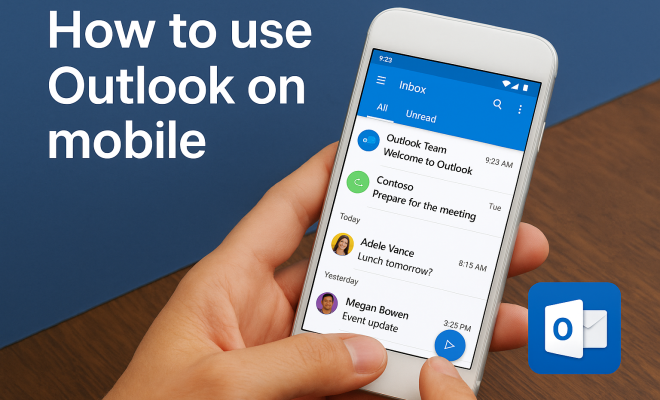
The user interface of the Outlook mobile app is designed for ease of use. The home screen features a clean layout with a menu on the left that gives you quick access to your inbox, calendar, and contacts. You can easily switch between these sections with a swipe, enabling you to manage your communications and schedule seamlessly. See also top organization apps for teachers.
One of the standout features of the interface is the Focused Inbox, which separates important emails from less crucial ones. This helps prioritize your responses and keeps your inbox organized. You can customize which emails appear in the Focused Inbox by dragging and dropping messages between tabs, allowing personal preferences to shape your email management.
3. Organizing Your Emails
Email management is one of the key functionalities of the Outlook mobile app. Beyond the Focused Inbox, you can create folders to categorize your emails more specifically. For example, you might have folders for work, personal, and newsletters. This organizational structure helps you find important emails quickly and reduces clutter in your inbox.
Additionally, the app supports customizable swipes for quick actions. You can set up left and right swipe options for actions like archiving, deleting, or marking emails as read. This feature allows for efficient email management without needing to open each message individually, saving valuable time throughout your day.
4. Scheduling with the Calendar
The scheduling capabilities within the Outlook mobile app are robust, allowing you to create and manage events easily. You can add new appointments directly from the calendar view, and with a few taps, you can invite others, set reminders, and choose recurrence options. This functionality is particularly useful for managing meetings and coordinating schedules with colleagues.
Another useful feature is the ability to view multiple calendars. If you share calendars with others or have separate ones for personal and work commitments, you can toggle these on and off, ensuring a clear view of your obligations. Plus, integration with Microsoft Teams makes scheduling virtual meetings straightforward, keeping your workflow uninterrupted.
5. Integrating Contacts
Managing contacts is another essential aspect of the Outlook mobile app. The app syncs with your existing contacts across Microsoft platforms, ensuring you have access to important information without manually entering data. You can add new contacts directly within the app and categorize them to streamline communication.
Additionally, the app allows you to link contacts to their social media profiles, providing quick access to their latest updates. This integration can foster better relationships, as you stay informed about your contacts’ activities and milestones, making your interactions more meaningful. (See: Microsoft Outlook overview on Wikipedia.)
6. Using the Tasks Feature
The Tasks feature in the Outlook mobile app is a game-changer for productivity. It allows you to create to-do lists and set deadlines for tasks directly within your email interface. You can prioritize tasks and mark them as complete when finished, helping you stay organized and focused.
Furthermore, you can sync your tasks across devices, so whether you’re on your phone, tablet, or desktop, your task list is always up to date. This feature is particularly beneficial for those juggling multiple projects, ensuring that nothing falls through the cracks.
7. Utilizing Search Functionality
Finding specific emails or calendar entries can be daunting without the right tools, but the Outlook mobile app offers a powerful search function to make this task easier. The search bar at the top of the interface allows you to enter keywords, filter by date, or even search specific folders to locate your desired content quickly.
This search feature also extends to contacts and tasks, making it a comprehensive tool for retrieving information. If you often find yourself sifting through countless emails, mastering this search function will save you significant time and frustration.
8. Customizing Your Experience
The Outlook mobile app is highly customizable. You can adjust settings related to notifications, themes, and layout to suit your preferences. For example, if you prefer a dark mode for easier nighttime reading, you can toggle that option in the settings menu.
Moreover, customizing how your emails are displayed can enhance readability. You can choose to show or hide images, adjust font sizes, and even select the order in which emails are sorted. Tailoring the app to your personal needs enhances usability and overall satisfaction with the tool.
9. Staying Secure
As with any application handling sensitive information, security is paramount. The Outlook mobile app incorporates various layers of security to protect your data. Setting up two-factor authentication adds an extra layer of protection, ensuring that even if someone has your password, they cannot access your account without the second verification step.
Additionally, be sure to regularly update the app to maintain security standards and receive the latest features. Microsoft is continuously improving the app’s security protocols, and staying up to date is crucial for protecting your personal and professional information.
10. Advanced Features You Might Not Know About
The Outlook mobile app is packed with advanced features that can enhance your productivity even further. For instance, the app supports the integration of third-party add-ins. This enables you to connect other productivity tools directly within the app, creating a seamless workflow. Whether it’s a project management tool or a note-taking app, these integrations can save you time and effort.
Another noteworthy feature is the ability to utilize @mentions in your emails. When composing a message, typing “@” followed by a contact’s name will notify them directly. This is particularly useful in team settings where it’s essential to get someone’s attention quickly.
Also, the app supports a “Play My Emails” feature, which reads your emails aloud to you while you’re on the go. This is especially useful when you’re driving or multitasking and need to stay updated without taking your eyes off the road.
11. Statistics on Email Usage
Understanding the significance of effective email management is essential, especially in a professional context. Statistics show that the average office worker receives around 121 emails per day. With such a high volume of emails, being able to efficiently manage and respond to messages is crucial. The Outlook mobile app helps users to stay organized and reduce the time spent on email, allowing more time to focus on crucial tasks.
Moreover, studies indicate that about 58% of adults check their email on their mobile devices first thing in the morning. With such reliance on mobile email, having an app that allows easy access and management, like Outlook, can lead to better productivity outcomes. (See: CDC communication tools and resources.)
12. User Testimonials and Expert Perspectives
Users have praised the Outlook mobile app for its user-friendly interface and powerful functionality. One user, a project manager, noted, “The ability to integrate my calendar and tasks directly into my email is a game-changer. I can manage my entire day without losing track of important emails.”
Experts in productivity tools also highlight the app’s effectiveness in real-time collaboration. “With features like the ability to share calendars and integrate with Teams, the Outlook mobile app is essential for modern professionals,” says a leading productivity consultant. This reflects how the app supports collaborative work environments.
13. Common Issues and Troubleshooting
While the Outlook mobile app is generally stable, users may encounter some common issues. One frequent problem is syncing errors, where emails or calendar events don’t update. If you experience this, check your internet connection and ensure that the app has permission to access background data.
Another common issue is the app crashing or freezing. If this happens, make sure your app is updated to the latest version. If the problem persists, consider uninstalling and reinstalling the app to reset it. These steps usually resolve most technical difficulties.
14. Frequently Asked Questions (FAQ)
What platforms is the Outlook mobile app available on?
The Outlook mobile app is available for both Android and iOS devices, ensuring that a wide range of users can access its features regardless of their operating system.
Can I use the Outlook mobile app offline?
Yes, the Outlook mobile app allows you to access your recent emails and calendar items even when you’re offline. However, sending new emails or syncing changes will require an internet connection.
Is there a limit to the number of accounts I can add?
You can add multiple email accounts to the Outlook mobile app, including those from other providers like Gmail, Yahoo, and more. This makes managing different accounts in one place efficient.
How can I recover deleted emails?
If you accidentally delete an email, you can often recover it from the “Deleted Items” folder. The app retains deleted emails for a limited time, allowing you to restore them if needed.
How does the app handle spam?
The Outlook mobile app includes a built-in spam filter that automatically sorts out unwanted messages. Additionally, you can manually mark emails as spam to help improve the filter’s accuracy over time.
15. Tips for Maximizing Your Outlook Mobile App Experience
To truly leverage the power of the Outlook mobile app, consider these tips: (See: Harvard University resources on productivity.)
- Utilize Calendar Sync: If you have other calendar apps, sync them with your Outlook calendar. This way, you can view all your commitments in one convenient place.
- Leverage Quick Steps: Set up Quick Steps for repetitive tasks like forwarding emails or creating new tasks from emails. This can save you time and streamline your workflow.
- Explore Focused Inbox Settings: Regularly check the settings of your Focused Inbox. Adjusting the settings can enhance how emails are prioritized and displayed.
- Use Templates for Emails: If you find yourself sending the same emails frequently, create templates. This feature can save you from repetitive typing and ensure consistency.
- Engage with Teams: Use the app’s integration with Microsoft Teams to stay connected with colleagues. You can quickly jump from an email to a chat, ensuring smooth communication.
16. Comparing Outlook Mobile App with Other Email Clients
When considering email management, it’s worth comparing the Outlook mobile app with other popular email clients such as Gmail and Apple Mail.
Gmail: While Gmail offers a clean interface and powerful search capabilities, Outlook’s integration with Microsoft Office tools provides a more holistic approach to productivity. For those who rely heavily on Office applications, Outlook is a more seamless choice.
Apple Mail: Apple Mail is user-friendly for iOS users; however, it lacks some of the advanced features found in Outlook, especially for business users. Outlook’s task management and calendar features are superior, making it more suitable for professionals managing multiple projects. (must-have scheduling tools)
Ultimately, the best choice depends largely on individual needs and existing software ecosystems.
17. Future Updates and Developments
Microsoft continuously enhances the Outlook mobile app, so it’s worthwhile to keep an eye on potential updates. Future developments may include more AI-driven features to help sort emails or improved collaboration tools integrated with other Microsoft services like OneDrive.
As remote work becomes the norm, Microsoft has committed to evolving the app to meet the changing needs of users, ensuring that it remains a competitive tool in the productivity space.
18. Best Practices for Email Etiquette
While using the Outlook mobile app, adhering to email etiquette can enhance professional communication:
- Keep it Concise: Aim for clarity and brevity in your emails. Busy professionals appreciate getting straight to the point.
- Use Clear Subject Lines: A well-defined subject line helps the recipient understand the email’s content at a glance.
- Respect Reply Times: If someone doesn’t respond immediately, don’t rush to send a follow-up unless it’s urgent. Everyone has their own pace of managing emails.
- Be Mindful of Tone: Without facial expressions or vocal tones, written communication can sometimes be misinterpreted. Use polite language and consider how your email may be perceived.
- Avoid Overusing CC: Use CC responsibly to avoid overwhelming others with unnecessary emails. Only include those who need to be in the loop.
By incorporating these tips into your usage of the Outlook mobile app, you’ll find it easier to manage your emails, schedule, and tasks from anywhere at any time. Embracing this tool can lead to increased productivity and greater organization in your day-to-day life.
“`
Trending Now
Frequently Asked Questions
How do I set up Outlook on my mobile device?
To set up Outlook on your mobile device, download the app from the Google Play Store or Apple App Store. After installation, sign in with your Microsoft account. If you don't have one, creating an account is free and easy. Once signed in, the app will sync your emails, contacts, and calendar events automatically.
What features does the Outlook mobile app offer?
The Outlook mobile app offers a variety of features including email management, calendar integration, task organization, and notifications for incoming emails and reminders. The Focused Inbox feature helps prioritize important emails, while the clean interface allows for easy navigation between inbox, calendar, and contacts.
Can I use Outlook on both Android and iOS?
Yes, the Outlook mobile app is available for both Android and iOS devices. You can download it from the Google Play Store for Android or the Apple App Store for iOS, making it accessible for users on both platforms.
How do I enable notifications for Outlook on my mobile?
To enable notifications for Outlook on your mobile device, go to your app settings and ensure that notifications are turned on. This will allow you to receive alerts for incoming emails and calendar reminders, helping you stay organized and informed.
What is the Focused Inbox in Outlook mobile?
The Focused Inbox feature in the Outlook mobile app separates important emails from less crucial ones, helping you prioritize your responses. You can customize which emails appear in the Focused Inbox by dragging and dropping messages, ensuring your inbox remains organized and manageable.
Have you experienced this yourself? We'd love to hear your story in the comments.