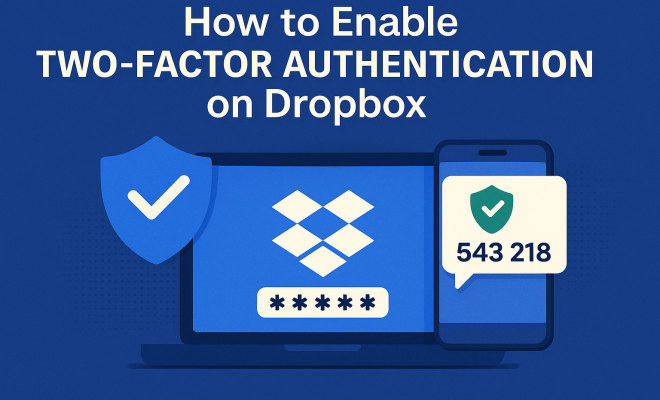
How to enable two-factor authentication on Dropbox
“`html
In an age where cyber threats are increasingly prevalent, safeguarding your online accounts has never been more important. One of the simplest yet most effective ways to enhance your account security is by enabling two-factor authentication (2FA). If you’re a Dropbox user, this feature can provide an extra layer of protection for your valuable files and data. In this article, we’ll explore how to enable two-factor authentication on Dropbox, discuss its benefits, and provide practical insights to help you stay secure online.
1. Understanding Two-Factor Authentication
Before diving into the steps to enable two-factor authentication on Dropbox, it’s crucial to grasp what 2FA really is. Two-factor authentication adds an additional layer of security to your login process. Instead of just needing a password—something you know—2FA requires something you have—like a smartphone or a hardware token—to gain access to your account.
In essence, this means that even if someone has your password, they won’t be able to log in without that second factor. This drastically reduces the chances of unauthorized access and protects your data from potential intrusions.
2. Why Enable Two-Factor Authentication on Dropbox?
Dropbox is a popular cloud storage service used by millions worldwide for storing files, sharing documents, and collaborating on projects. However, its popularity also makes it a target for cybercriminals. By enabling two-factor authentication on Dropbox, you can protect your sensitive files from being compromised. Here are some compelling reasons to consider:
- Increased Security: With 2FA, even if hackers obtain your password, they’ll need access to your second factor to access your account.
- Peace of Mind: Knowing your files are more secure can give you peace of mind, especially if you store sensitive information.
- Quick Recovery: If you ever lose access to your account, having 2FA can help you recover it more easily.
- Regulatory Compliance: For businesses, enabling 2FA can be a crucial step toward meeting regulatory compliance requirements, such as those established by GDPR or HIPAA.
- Enhanced Collaboration Security: If you use Dropbox for team projects, 2FA can protect against unauthorized access to shared folders, ensuring sensitive information remains confidential.
3. Prerequisites for Enabling 2FA on Dropbox
Before you can enable two-factor authentication on Dropbox, there are a few prerequisites you should have in place:
- A Dropbox Account: You need an active Dropbox account to set up 2FA. It’s also a good idea to ensure your password is strong and unique.
- A Mobile Device: You’ll need a smartphone to receive your second factor, typically through an authentication app or SMS.
- Authentication App: While you can receive codes via SMS, using an authentication app like Google Authenticator or Authy is generally more secure.
- Email Access: Ensure you have access to the email associated with your Dropbox account, as it may be used for recovery and notifications.
Having these elements in place will streamline the process of enabling two-factor authentication on Dropbox.
4. Step-by-Step Guide to Enable Two-Factor Authentication on Dropbox
Now that you understand the importance of two-factor authentication, let’s walk through the steps to enable it on Dropbox. This process is straightforward and can be completed in just a few minutes:
- Log in to your Dropbox account: Start by signing into your account on the Dropbox website.
- Go to Security Settings: Click on your profile picture in the upper right corner and select “Settings.” Then, navigate to the “Security” tab.
- Find the Two-Factor Authentication section: Look for the “Two-step verification” section in the security settings.
- Click “Enable”: Press the “Enable” button next to the two-step verification option.
- Choose your authentication method: Select whether you want to receive codes via SMS or an authentication app.
- Follow the prompts: If you chose an app, scan the QR code provided to link it to your Dropbox account. Alternatively, if you selected SMS, enter your mobile number and verify it.
- Backup codes: Dropbox will provide you with backup codes. Save these in a secure location, as they can help you regain access if you lose your device.
- Final verification: After setting up authentication, Dropbox will prompt you to enter a code to verify that it’s working. Input the code sent to your device, and you’re all set!
By following these steps, you will successfully enable two-factor authentication on Dropbox, enhancing your account’s security.
5. Using an Authentication App vs. SMS
When setting up two-factor authentication on Dropbox, you have two primary options for receiving codes: via SMS or through an authentication app. Both methods have their pros and cons, so it’s essential to understand these differences to make an informed choice. (See: Understanding two-factor authentication.)
SMS: Using SMS is the simplest method. You’ll receive a text message with your code, which you can easily enter when prompted. However, it’s worth noting that SMS can be less secure due to vulnerabilities in mobile networks. Hackers can potentially intercept text messages or perform SIM swapping attacks, gaining access to your codes.
Authentication Apps: Apps like Google Authenticator, Authy, or Duo Security provide a more secure method for generating codes. They use time-based algorithms to generate a unique code every 30 seconds. Since these codes are generated on your device and do not rely on your phone number, they are less susceptible to interception. While slightly more complex to set up, authentication apps offer a significantly higher level of security.
For example, a study from the University of Maryland found that accounts secured with authentication apps were 90% less likely to be compromised compared to those protected only by passwords and SMS. This makes using an authentication app a worthwhile investment in your online security.
6. Managing Your Two-Factor Authentication Settings
Once you enable two-factor authentication on Dropbox, it’s crucial to manage and maintain this security feature effectively. Here are some tips for managing your 2FA settings:
- Regularly Update Your Backup Codes: Keep your backup codes stored safely. If you change devices or lose access to your authentication method, you’ll need these to regain entry.
- Review Trusted Devices: In your security settings, you can see which devices are trusted for 2FA. Remove any devices that you no longer use or recognize.
- Update Your Authentication Method if Necessary: If you switch phones or decide to use a different authentication app, go back into the settings to update your 2FA method.
- Enable Notifications: Allow Dropbox to send alerts about security-related activities, such as login attempts from new devices.
- Educate Yourself on Phishing Attacks: Stay informed about common phishing tactics aimed at stealing your credentials and 2FA codes.
Properly managing these settings can further enhance your security and ensure that you always have access to your account.
7. What to Do If You Lose Access to Your Authentication Method
It’s a common concern: what if you lose your phone or it gets stolen? Losing access to your two-factor authentication method can feel daunting, but Dropbox offers backup solutions to mitigate this issue. Here’s how to regain access:
- Use Backup Codes: When you set up 2FA, you were provided with backup codes. These can be used in the event you lose access to your primary authentication method.
- Account Recovery: If you can’t access your backup codes, you may be able to initiate an account recovery process through Dropbox support. Be prepared to verify your identity.
- Contact Support: If all else fails, reach out to Dropbox’s customer support for assistance. They may have additional steps to help you regain access.
- Consider Additional Security Measures: If you frequently travel or change devices, consider using a security key alongside 2FA for an added layer of protection.
Being proactive about your recovery options can save you a lot of stress should you ever find yourself locked out of your account.
8. Current Trends and Future of Two-Factor Authentication
As cyber threats continue to evolve, so does the landscape of online security. Two-factor authentication remains a vital component of securing online accounts, but we’re seeing new trends and technologies emerge:
Biometric Authentication: Many platforms are beginning to incorporate biometric verification methods, such as face recognition or fingerprint scanning, as a second factor. This adds an additional layer of security and can streamline the authentication process.
Security Keys: Hardware security keys, like YubiKey, are becoming popular for 2FA. These small devices require physical access to log in, making them nearly impossible for remote attackers to compromise. (See: Benefits of two-factor authentication.)
Adoption Rates: As awareness of cyber threats grows, more individuals and businesses are adopting two-factor authentication. Reports show that users who enable 2FA are 50% less likely to experience account takeover incidents.
Regulatory Landscape: With increasing legislative pressure on data protection and privacy, more organizations are implementing 2FA as a compliance measure. For instance, the California Consumer Privacy Act (CCPA) emphasizes the importance of safeguarding personal data, making 2FA an essential practice for businesses.
The future of two-factor authentication is promising, but it’s essential to stay informed and adapt to the latest developments to keep your data secure.
9. Frequently Asked Questions (FAQ)
What is two-factor authentication (2FA) and how does it work?
Two-factor authentication (2FA) is a security mechanism that requires two forms of verification before granting access to an account. Typically, this involves something you know (like a password) and something you have (like a smartphone or security token). This dual verification process significantly enhances security by making unauthorized access more difficult.
Is two-factor authentication mandatory for Dropbox users?
While two-factor authentication is not mandatory for all Dropbox users, it is highly recommended for anyone wanting to enhance their account security. Enabling 2FA can significantly reduce the risk of unauthorized access.
Can I use two-factor authentication if I travel frequently?
Yes, you can use two-factor authentication while traveling. However, it is important to ensure that your authentication method (like your phone or an authentication app) is accessible while you are away. Consider carrying backup codes with you or using a portable security key for easier access.
What should I do if I lose my backup codes?
If you lose your backup codes and can’t access your authentication method, you’ll need to initiate an account recovery process through Dropbox support. Be prepared to provide information to verify your identity.
How often should I change my Dropbox password?
It’s good practice to change your Dropbox password regularly, especially if you suspect any unauthorized access. Most security experts recommend changing passwords every three to six months, or immediately if you receive alerts about suspicious activities. (See: Why enable two-factor authentication.)
Is using SMS for 2FA safe?
While using SMS for two-factor authentication is better than having no 2FA at all, it is less secure compared to using an authentication app. SMS is vulnerable to interception and other attacks. Therefore, if security is a priority, opt for an authentication app instead.
What’s the difference between two-step verification and two-factor authentication?
While both terms are often used interchangeably, two-step verification typically refers to an additional step to verify your identity, whereas two-factor authentication specifically indicates that two different categories of credentials are needed (something you know and something you have).
10. Best Practices for Two-Factor Authentication on Dropbox
To maximize the effectiveness of two-factor authentication on Dropbox, consider implementing these best practices:
- Use Strong Passwords: Always use a strong, unique password for your Dropbox account. Avoid using easily guessable information, such as birthdays or common words.
- Keep Your Authentication App Secure: If you choose to use an authentication app, ensure that your phone is secured with a passcode or biometric lock to prevent unauthorized access.
- Regularly Review Account Activity: Regularly check your Dropbox account for any suspicious activity. If you notice anything unusual, change your password immediately and review your security settings.
- Educate Team Members: If you are using Dropbox in a business setting, ensure that all team members are knowledgeable about the importance of 2FA and follow best practices.
- Backup Your Data: While 2FA secures your account, it’s also wise to regularly back up your important files to another location, just in case something goes wrong.
11. Real-World Examples of 2FA Success Stories
Many organizations and individuals have successfully used two-factor authentication to thwart cyber attacks. Here are a few notable examples:
- Google: Google’s implementation of 2FA has reportedly reduced account breaches by over 50%. Users who enable 2FA can be assured that their accounts are far more secure against unauthorized access.
- Twitter: Following a high-profile security breach in 2020, Twitter urged its users to enable 2FA to protect their accounts. Since then, they have seen a substantial decrease in unauthorized logins.
- Corporate Sector: A survey conducted by the Ponemon Institute highlighted that companies adopting 2FA experienced a 70% reduction in data breaches. This statistic underscores the importance of implementing robust security measures in any organization.
12. The Importance of Staying Updated
As cyber threats evolve, so too do the techniques and technologies to combat them. Staying updated on the latest security measures is crucial. Here are a few ways to keep your security knowledge current:
- Follow Industry News: Cybersecurity news sites and blogs often provide insights into the latest threats and security measures.
- Attend Workshops: Many organizations offer workshops and training sessions focused on online security and best practices for using services like Dropbox.
- Engage with Community Forums: Online forums and communities can provide a wealth of information from other users about effective security practices.
By taking the steps to enable two-factor authentication on Dropbox, you’re making a wise decision to protect your files and personal information. With cyber security threats rising, safeguarding your accounts should be a top priority. As you implement these security measures, remember that staying proactive and informed is key to maintaining a secure digital environment.
“`
Trending Now
Frequently Asked Questions
How do I enable two-factor authentication on Dropbox?
To enable two-factor authentication on Dropbox, log in to your account, go to 'Settings', select the 'Security' tab, and find the 'Two-step verification' section. Click 'Enable', then follow the prompts to link your mobile device or authentication app.
What is two-factor authentication and how does it work?
Two-factor authentication (2FA) is a security process that requires two forms of identification before granting access to an account. Typically, it combines something you know (like your password) with something you have (like a smartphone) to enhance security.
Why should I use two-factor authentication on Dropbox?
Using two-factor authentication on Dropbox significantly enhances your account security. It protects your sensitive files even if your password is compromised, providing peace of mind and making it easier to recover your account if access is lost.
Can I use an authentication app for Dropbox's two-factor authentication?
Yes, you can use authentication apps like Google Authenticator or Authy for Dropbox's two-factor authentication. During the setup process, you will be prompted to scan a QR code with your authentication app to generate verification codes.
What should I do if I lose access to my two-factor authentication device?
If you lose access to your two-factor authentication device, you can use backup codes provided during the setup process to regain access to your Dropbox account. It's also advisable to update your recovery options in your account settings.
What did we miss? Let us know in the comments and join the conversation.