How to use Google Sheets on mobile
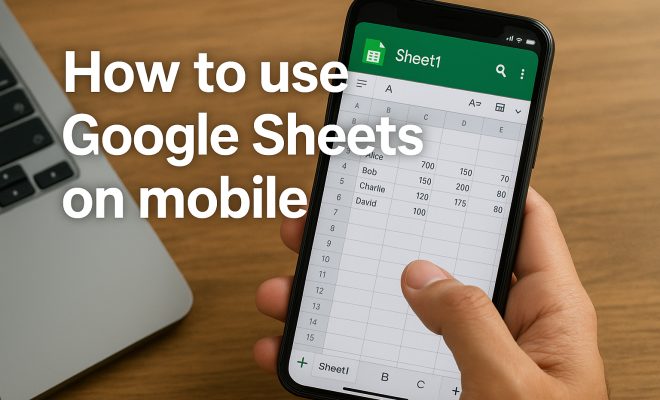
If you’re one of the millions navigating spreadsheets on your phone, you’re probably familiar with the Google Sheets mobile app. It’s a powerful tool that allows you to create, edit, and collaborate on spreadsheets from anywhere. But are you really making the most of it? In this article, we’ll explore ten essential tips that can help you master the Google Sheets mobile app, making your mobile spreadsheet experience smoother and more efficient.
1. Getting Started with the Google Sheets Mobile App
First things first, let’s get that app up and running. The Google Sheets mobile app is available for both Android and iOS devices. To get started, simply download the app from the Google Play Store or Apple App Store. Once installed, open the app and sign in with your Google account. If you don’t have an account, you’ll need to create one. This step is essential as it syncs all your spreadsheets across devices.
After logging in, you’ll find a clean interface displaying all your existing spreadsheets. You can create a new sheet by clicking the ‘+’ icon. The app also allows you to access files stored in Google Drive, enhancing your productivity on the go. It’s important to familiarize yourself with the layout and features so you can navigate seamlessly.
2. Understanding the User Interface
One of the first challenges users face with the Google Sheets mobile app is its user interface, which differs from the desktop version. The app is designed for touch, so you’ll notice that many functions are simplified. For example, the toolbar at the top provides quick access to common features like formatting and functions.
At the bottom, you’ll find options for adding rows or columns, inserting charts, and sharing files. Understanding where everything is located will save you time and make your workflow more efficient. Remember, you can always swipe left or right to access more options. This interface isn’t just user-friendly; it’s optimized for the mobile experience.
3. Utilizing Templates for Quick Setup
Templates can be a lifesaver when you’re in a hurry. The Google Sheets mobile app offers a variety of pre-built templates for budgets, schedules, and project tracking. Instead of starting from scratch, you can use these templates as a foundation for your spreadsheet. This feature is particularly useful for users who may not be adept at spreadsheet design.
To access templates, simply click on the ‘+’ icon and select ‘Choose template.’ From there, browse the available options. Customize the template to fit your needs by adding or removing columns and rows, or changing data formats. This capability speeds up your setup time significantly and enhances your productivity.
4. Collaboration Made Easy
One of the standout features of the Google Sheets mobile app is its collaboration capabilities. Sharing your spreadsheet with teammates or family is straightforward. Just tap on the ‘Share’ button, enter the email addresses of the people you want to collaborate with, and set their permissions—either view-only or edit access.
Real-time collaboration allows multiple users to work on the same document simultaneously. You can see changes as they happen, which is perfect for project management or brainstorming sessions. Additionally, comments can be added to specific cells to provide feedback or suggestions without altering the content directly, making collaboration even smoother.
5. Harnessing Functions and Formulas
While spreadsheets may seem daunting, mastering a few key functions can dramatically improve your efficiency. The Google Sheets mobile app supports various formulas like SUM, AVERAGE, and IF statements. You can easily add a formula by selecting a cell and tapping the function icon on the toolbar.
For example, if you need to calculate the total of a series of numbers, you can use the SUM function. Simply tap the cell you want the result in, type ‘=SUM(‘, select the range of cells, and close the parenthesis. This functionality is not only available but is also user-friendly, making it accessible even for those who are new to spreadsheets. (See: Wikipedia page on Google Sheets.)
6. Offline Access: Work Without Worry
One of the common frustrations users face is not having access to the internet while on the go. The Google Sheets mobile app allows you to work offline, a feature that’s incredibly useful when you’re in a location with no service. To enable offline access, open the app and go to Settings. Toggle on the ‘Make recent files available offline’ option.
While offline, you can view and edit your spreadsheets, and all changes will sync once you reconnect to the internet. This feature ensures you can keep working without interruptions. Just be sure to save your changes, and the app will take care of the rest once you’re back online.
7. Formatting on the Go
Formatting your spreadsheet might seem like a tedious task, but the Google Sheets mobile app simplifies the process. With just a few taps, you can change the font size, style, and cell colors, making your data visually appealing and easier to read. To format cells, select the cell or range of cells you want to adjust, then tap the ‘Format’ icon on the toolbar.
From there, you can choose options like text alignment, border styles, and background colors. Good formatting not only makes your data look better but also helps convey information more effectively. This is particularly important for presentations or reports that rely on clarity and aesthetics.
8. Integrating with Other Google Apps
The Google Sheets mobile app integrates seamlessly with other Google applications like Google Drive and Google Docs. You can easily import data from Google Docs or export your spreadsheet to Google Slides for presentations. This interconnectedness enhances your workflow and allows for smoother transitions between projects.
For instance, if you’re preparing a presentation and want to include a chart from Google Sheets, you can simply copy the chart and paste it into Google Slides. This integration saves time and ensures that your data is always up-to-date across platforms. Plus, it makes collaboration between different teams and departments much easier.
9. Keyboard Shortcuts for Speedy Navigation
If you’re serious about speeding up your workflow, learning keyboard shortcuts can be a game-changer. While the Google Sheets mobile app is primarily touch-based, many devices allow for external keyboards, which can facilitate faster data entry. Familiarize yourself with key shortcuts like Ctrl+C (Copy), Ctrl+V (Paste), or Ctrl+Z (Undo) to enhance your productivity.
Using shortcuts can significantly reduce the time spent on repetitive tasks. Additionally, if you find yourself utilizing certain functions frequently, consider creating custom shortcuts where possible. This minor adjustment can have a significant impact on your overall efficiency when working on mobile.
10. Staying Organized with Data Validation
As your spreadsheets grow, maintaining organization becomes increasingly vital. The Google Sheets mobile app features data validation options that allow you to set parameters for what can be entered into specific cells. This is especially useful for preventing errors and ensuring data consistency.
To set up data validation, select a cell, tap on the ‘Data’ option in the menu, and choose ‘Data validation.’ Here, you can specify criteria like dropdown lists, numerical ranges, or text restrictions. This ensures that users input only the correct type of data, which is crucial for maintaining data integrity in shared documents.
11. Exploring the Benefits of Google Sheets Mobile App
The Google Sheets mobile app isn’t just a portable version of the desktop application; it comes with unique benefits tailored for on-the-go productivity. For instance, the ability to work seamlessly across devices ensures that your work is never confined to your desk. Whether you’re waiting in line or commuting, you can easily check, edit, or create spreadsheets. This flexibility is invaluable in a fast-paced world where time often feels like a luxury. (fixing device compatibility issues)
Statistics show that mobile usage has surged in recent years, with over 90% of people using their smartphones for various tasks, including work-related activities. This trend underlines the importance of having a robust mobile office solution. Google Sheets supports this by providing real-time updates and collaborative features that allow users to stay connected and productive without being tied to a traditional office environment.
12. Examples of Real-World Applications
The versatility of the Google Sheets mobile app makes it an excellent choice for various real-world applications. For instance, small business owners can use it for tracking expenses and income while on the go. Imagine you’re at a trade show, and you need to keep tabs on your budget. With Google Sheets, you can quickly log expenses as they occur, ensuring you stay within your limits. (See: CDC tips on using Google Sheets.)
Likewise, project managers can utilize the app to track tasks and milestones. By sharing a project timeline with team members, everyone can stay updated on their responsibilities and deadlines. This enhanced transparency leads to better collaboration and efficiency, critical components for any successful project.
Additionally, freelancers can use the app to manage client lists, invoicing, and project status. The ability to create and edit documents in real-time allows them to respond to client requests promptly, enhancing client satisfaction and leading to repeat business.
13. Advanced Features to Explore
If you’re already comfortable with the basics of the Google Sheets mobile app, it might be time to dive into its more advanced features. One such feature is conditional formatting, which allows you to change the appearance of cells based on their content. For example, you could highlight all expenses that exceed a certain amount, giving you quick visual cues to manage your budget effectively.
Another powerful tool is the use of pivot tables, which can help summarize large datasets efficiently. While pivot tables are more commonly used on the desktop version, you can still create them on mobile to analyze data trends directly from your phone. This can be especially handy during meetings when you need to quickly pull data insights without needing a laptop.
14. Common Problems and Solutions
Using the Google Sheets mobile app can sometimes come with its challenges. One common issue is syncing problems. If you notice that changes aren’t being updated across your devices, first check your internet connection. If that’s not the issue, try logging out and logging back into your Google account. This can often resolve the syncing hiccup.
Another issue users face is accidental deletions or changes. Fortunately, Google Sheets has a robust version history feature that can help you recover lost data. You can access this by selecting ‘File’ and then ‘Version history.’ This allows you to view and restore previous versions of your spreadsheet, providing peace of mind when making significant changes.
15. Frequently Asked Questions (FAQ)
Q: Can I use the Google Sheets mobile app offline?
A: Yes, you can enable offline access to work on your spreadsheets without an internet connection. Just make sure to toggle on the ‘Make recent files available offline’ option in settings.
Q: Are there any limitations to the mobile app compared to the desktop version?
A: While the mobile app offers many of the same features as the desktop version, some advanced features (like complex pivot tables or extensive conditional formatting options) may be easier to execute on a larger screen.
Q: Is there a limit to the number of collaborators I can invite?
A: Google Sheets allows you to invite up to 100 collaborators for a single document, making it a robust tool for team projects.
Q: Are my files secure when using the Google Sheets mobile app?
A: Yes, Google Sheets uses encryption during transfer and while your files are stored on their servers. Additionally, you can manage sharing permissions to control who has access to your files.
Q: How can I access help if I encounter issues with the app?
A: You can access help by visiting the Google Docs Editors Help Center or looking through the in-app help sections for troubleshooting guidance. (See: Harvard University resources.)
16. Tips for Enhancing Your Google Sheets Mobile App Experience
To further improve your experience while using the Google Sheets mobile app, consider the following tips:
- Customize Your Toolbar: You can personalize your toolbar for quicker access to the features you use most. Just tap on the three dots on the toolbar and choose ‘Customize.’
- Use Comments Effectively: When collaborating, make sure to utilize comments for feedback. You can tag collaborators using ‘@’ to notify them directly about specific changes or concerns.
- Explore Add-ons: Google Sheets supports various add-ons that can enhance functionality. Check the ‘Add-ons’ menu to find tools that can help with project management, data analysis, and more.
- Take Advantage of Mobile-Specific Features: Features such as voice input for data entry can be a game-changer. Use your device’s microphone to quickly input data without typing.
17. Success Stories: How Businesses Use the Google Sheets Mobile App
Many businesses have adopted the Google Sheets mobile app for a wide range of tasks. For example, a local restaurant chain uses the app to manage inventory levels in real-time. Staff can log stock levels or place orders directly from their smartphones, ensuring that they never run out of essential ingredients.
Similarly, a marketing agency utilizes the app to track campaign performance. Team members can update progress and insights on the go, allowing for agile decision-making and faster adjustments in strategy. This ability to work flexibly is especially crucial in fast-paced industries where time is of the essence.
In a different scenario, educational institutions have embraced Google Sheets for managing student data. Teachers can track attendance, grades, and individual student progress directly from their mobile devices, making it easier to maintain records and communicate with parents.
18. Future Trends for Mobile Spreadsheet Applications
The future of mobile spreadsheet applications like the Google Sheets mobile app is likely to be shaped by advancements in technology. One trend is the incorporation of artificial intelligence (AI) to automate data entry and analysis. Imagine being able to voice command the app to create complex reports or visualize data trends without manual input.
Another exciting development is the enhanced integration of machine learning algorithms for predictive analytics, which can help users forecast trends based on historical data. This could be particularly beneficial for businesses looking to streamline their operations and make data-driven decisions.
Furthermore, as remote work continues to be prevalent, the demand for seamless collaboration tools will only increase. Expect updates that focus on enhancing real-time editing capabilities, user permissions, and version control to ensure teams can work together effectively, no matter where they are. There’s a fuller look at best organization apps for teachers.
Mastering the Google Sheets mobile app can transform the way you handle spreadsheets while on the go. By implementing these essential tips, you’ll not only streamline your workflow but also become more adept at managing data in a mobile setting. Whether you’re collaborating with a team, creating budgets, or tracking projects, the capabilities of the app will significantly enhance your productivity. So, gear up, and let’s make those spreadsheet skills shine!
Trending Now
Frequently Asked Questions
How do I download Google Sheets on my mobile device?
To download Google Sheets on your mobile device, simply go to the Google Play Store if you have an Android device or the Apple App Store for iOS. Search for 'Google Sheets' and click 'Install' to download the app. Once installed, open the app and sign in with your Google account to start using it.
What features does the Google Sheets mobile app offer?
The Google Sheets mobile app offers various features including creating and editing spreadsheets, collaboration with others in real-time, access to files stored in Google Drive, and a simplified user interface optimized for touch. You can also insert charts, add rows or columns, and share files directly from the app.
Is the Google Sheets mobile app free to use?
Yes, the Google Sheets mobile app is free to download and use. However, you will need a Google account to access and sync your spreadsheets across devices. This allows you to collaborate with others and store your files in Google Drive without any additional cost.
How do I navigate the Google Sheets mobile app?
Navigating the Google Sheets mobile app is straightforward. After opening the app, you can view your existing spreadsheets on the main screen. Use the '+' icon to create a new sheet, and access additional options by swiping left or right. The toolbar at the top provides quick access to formatting and functions, enhancing your workflow.
Can I collaborate with others using Google Sheets on mobile?
Absolutely! The Google Sheets mobile app allows you to collaborate with others in real-time. You can share spreadsheets directly from the app, enabling multiple users to view and edit the document simultaneously. This feature enhances teamwork and productivity, making it easy to work together from anywhere.
What's your take on this? Share your thoughts in the comments below — we read every one.