Master Notion Formulas: Automate & Enhance Productivity
“`html
Notion has skyrocketed in popularity as a versatile tool for project management, note-taking, and personal organization. One of the platform’s standout features is its formula functionality, which allows users to automate tasks, analyze data, and create dynamic content. In this comprehensive guide, we’ll explore Notion formulas, how to use them effectively, and the many ways they can enhance your productivity. Get ready to unlock the full potential of Notion!
1. Understanding Notion Formulas
Before diving into the practical uses of Notion formulas, it’s vital to understand what they are. Notion formulas serve as a way to perform calculations and create logical conditions within your databases. They can manipulate text, numbers, and dates, making them a powerful tool for users who want to streamline their workflows.
Formulas in Notion are similar to those in spreadsheet programs like Excel or Google Sheets. They can be basic, such as simple arithmetic, or complex, incorporating multiple functions. Whether you want to calculate a project’s completion percentage or dynamically generate a title based on other fields, Notion formulas can do it all.
2. Getting Started with Notion Formulas
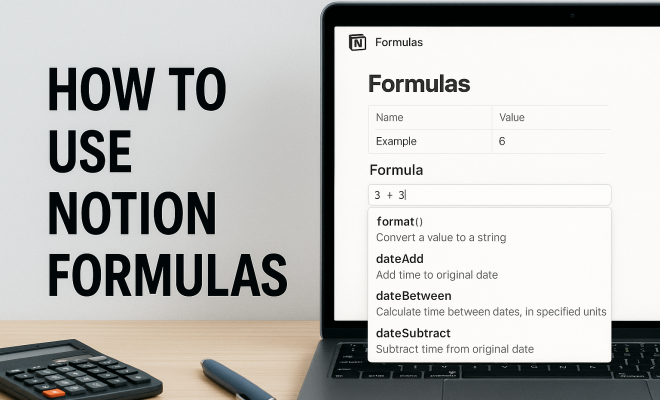
To use Notion formulas, you first need to be familiar with the Notion interface. Formulas can be added to a database by creating a Formula property. Click on the “+” to add a new property, then select the Formula option. Once you’ve done that, a formula editor will appear where you can begin building your formula.
When constructing your formula, you’ll use a combination of functions, operators, and references to other properties in your database. This might feel overwhelming initially, but with practice, it becomes an intuitive process. The formula editor also provides helpful hints and syntax suggestions as you type, making it easier to build accurate formulas.
3. Key Functions in Notion Formulas
Understanding the functions available in Notion is critical for mastering Notion formulas. Here are some of the most useful functions you can leverage:
- Math Functions: Functions like
add,subtract,multiply, anddivideallow for basic arithmetic operations. - Logical Functions: Use functions such as
if,and, andorto create conditional statements. For example,if(condition, value_if_true, value_if_false)can determine the output based on certain criteria. - Date Functions: Notion allows you to manipulate dates using functions like
dateBetween, which can calculate the difference between two dates, ornow, which gives you the current date and time. - Text Functions: Use
concatto combine text strings, orformatto format numbers as currency, percentages, or other styles.
4. Creating Your First Formula
Let’s walk through the process of creating a simple formula in Notion. Suppose you have a task database, and you want to create a formula to indicate whether each task is overdue. Start by adding a new property and selecting the Formula option.
In the formula editor, you could use a formula like this: if(date < now(), "Overdue", "On Time"). This formula checks if the date in your task database is earlier than the current date. If it is, it will display "Overdue"; if not, it will display "On Time". This basic example shows how Notion formulas can instantly provide valuable insights without manual tracking. (better IT project management tips)
5. Advanced Formula Techniques
Once you're comfortable with basic formulas, you can start experimenting with advanced techniques. For instance, you can nest multiple functions within a single formula. This allows for sophisticated calculations and logic. Let's say you want to create a performance score based on multiple criteria, such as completion percentage and deadlines.
Your formula could look something like this: if(completion >= 100, "Completed", if(deadline < now(), "Late", "On Track")). This nested formula evaluates multiple conditions in a single statement, providing a clear overview of a task’s status based on various factors. (See: Understanding spreadsheet functionalities.)
6. Practical Use Cases for Notion Formulas
The real power of Notion formulas shines through in practical applications. Here are some scenarios where these formulas can significantly enhance your productivity:
- Project Management: Use formulas to track project milestones and completion rates. For instance, a formula could calculate the percentage of tasks completed in a project and display a progress bar.
- Budget Tracking: Create formulas that automatically calculate expenses and compare them against your budget. This can help you maintain a clear overview of your financial status.
- Content Planning: For those managing editorial calendars, formulas can help determine which articles are due, overdue, or already published, streamlining the content creation process.
- Goal Tracking: Set up formulas to track personal or professional goals. You can create a percentage completion formula based on tasks completed against total tasks for any given goal.
- Habit Tracking: Utilizing Notion to manage your habits is easy with formulas. You can compute a habit's success rate based on daily logs, helping you stay accountable.
7. Tips for Writing Effective Notion Formulas
Writing effective Notion formulas requires attention to detail and an understanding of syntax. Here are some tips to keep in mind:
- Test Incrementally: Rather than writing a complex formula all at once, build it step by step. Test each part to ensure it works correctly before adding more complexity.
- Utilize Comments: You can add comments to your formulas for clarity. Use
//to insert a comment, which can help you keep track of what each part of the formula does. - Refer to the Documentation: Notion provides extensive documentation on its formula capabilities. Don’t hesitate to refer to it for examples and detailed explanations of functions.
- Use Descriptive Names: When naming your properties, use descriptive names that clarify their purpose. This practice will make it easier to reference them in your formulas.
- Keep It Simple: When possible, avoid overly complicated formulas. Simplicity can often lead to better performance and easier troubleshooting.
8. Common Mistakes to Avoid
Even seasoned Notion users can make mistakes when working with formulas. Here are some common pitfalls to watch out for:
- Syntax Errors: Missing commas, parentheses, or incorrect function names can lead to errors. Always double-check your syntax before finalizing a formula.
- Overcomplicating Formulas: While it can be tempting to create lengthy formulas that encompass multiple functions, this can lead to confusion. Simplifying your formula can often make it easier to read and understand.
- Neglecting Data Types: Ensure that you are using the correct data types in your formulas. Mixing text with numbers can lead to unexpected results. For instance, trying to perform arithmetic on text fields will yield errors.
- Ignoring Error Messages: Notion provides error messages when formulas don't work as intended. Pay attention to these messages, as they can guide you toward correcting mistakes.
9. Integrating Notion Formulas with Other Features
Notion is not just about formulas; it’s a comprehensive workspace that can integrate various features. Consider how formulas can work harmoniously with other elements:
- Relation Properties: You can use formulas in conjunction with relation properties to pull data from other databases. For example, a formula can calculate the total hours worked by summing values from a related tasks database.
- Rollup Properties: Rollup properties allow you to aggregate information from related tables. Combining these with formulas can produce powerful insights, such as total expenses from various categories.
- Templates: When creating templates in Notion, incorporate predefined formulas that automatically adjust based on the input data. This can save time and ensure consistency across your workspace.
- Dashboards: Create dashboards that summarize key metrics using formulas. You can use them to visualize data from multiple sources and provide quick insights into your projects or tasks.
- Collaboration: Use formulas to manage collaborative projects, like automatically calculating each team member's workload based on task assignments.
10. The Future of Notion Formulas
As Notion continues to evolve, so too will the capabilities of its formula functionality. The demand for more complex data manipulation and analysis continues to grow, and users are increasingly looking for ways to automate tedious tasks. We covered favorite project management apps in more detail.
Future updates may bring even more advanced functions, support for API integrations, and enhanced user interfaces that make building formulas even more intuitive. Staying updated with Notion's developments will ensure that you can take full advantage of the tool's potential.
In the meantime, mastering Notion formulas can significantly enhance your productivity today. As you become more adept at using formulas, you'll find yourself streamlining workflows, automating repetitive tasks, and improving your overall organization in ways you never thought possible.
11. Examples of Notion Formulas in Action
Seeing formulas in action can help clarify their practical applications. Here are several examples of how you might use Notion formulas across different scenarios:
11.1. Calculating Age from Date of Birth
If you maintain a database with people's dates of birth, you might want to know their current age. You can create a formula like this:
dateBetween(now(), prop("Date of Birth"), "years")
This formula calculates the difference between today’s date and the date of birth in years, providing a straightforward way to track ages automatically.
11.2. Conditional Formatting for Task Priority
If you manage tasks and want to assign priority levels based on due dates, you can set up a formula that dynamically adjusts text color based on urgency. For example:
if(date < now(), "High Priority", "Normal")
This formula will help visually distinguish urgent tasks by labeling them accordingly. (See: Data analysis and automation techniques.)
11.3. Project Completion Tracker
To get a quick snapshot of project statuses, you can create a formula that evaluates completion based on task counts. For example: There's a fuller look at software for improved project management.
if(count(prop("Completed Tasks")) / count(prop("Total Tasks")) >= 1, "Project Complete", "In Progress")
With this formula, you can easily see whether a project is complete or still in progress based on task completion.
12. Frequently Asked Questions About Notion Formulas
12.1. What types of data can Notion formulas work with?
Notion formulas can work with several data types, including text, numbers, dates, and boolean values. You can also create calculations and conditions based on these types to generate dynamic outputs.
12.2. Can I use Notion formulas in linked databases?
Yes, you can use formulas in linked databases. When setting up relations and rollups, you can reference properties from the linked database, allowing for complex calculations and insights.
12.3. How can I troubleshoot formula errors in Notion?
To troubleshoot formula errors, start by checking the syntax. Ensure all parentheses and commas are correctly placed. If an error message appears, read it carefully, as it often indicates where the issue lies. Additionally, break down complex formulas into smaller parts to identify the problematic section.
12.4. Are there limits to the complexity of a Notion formula?
While Notion allows for quite complex formulas, there are limits on the number of nested functions and the overall length of a formula. Generally, if you find that a formula is becoming too complex, consider simplifying it or breaking it up into multiple properties.
12.5. Can I share my Notion formulas with others?
Yes, you can share your Notion pages and databases, including the formulas. However, keep in mind that users with whom you share may need to understand the context of the formula and the data it's referencing to use it effectively.
12.6. Is there a community or resources for learning more about Notion formulas?
Absolutely! Notion has a vibrant community of users who share tips, templates, and formulas. You can explore forums, social media groups, and dedicated Notion resources to learn from others and get inspired. The official Notion documentation is also a comprehensive resource for mastering formulas and functionalities.
13. Real-Life Scenarios Using Notion Formulas
Understanding theoretical use cases is one thing, but seeing how other users apply Notion formulas in real life can provide invaluable insights. Here are some real-life scenarios and examples of how individuals and teams utilize Notion formulas:
13.1. Freelance Project Tracking
Freelancers often juggle multiple clients and projects simultaneously. A freelance graphic designer might use Notion to track project deadlines, payments, and project status. By utilizing formulas, they can automate reminders for project deadlines and payment follow-ups. For example: (See: Notion's impact on productivity tools.) This builds on must-have productivity applications.
if(date < now(), "Follow Up on Payment", "Payment Pending")
This formula checks if the payment date is past and prompts the designer to follow up. This keeps their cash flow in check and ensures no payment is missed.
13.2. Academic Research Management
Researchers often need to manage numerous papers, citations, and deadlines. By employing Notion formulas, they can create a database that tracks their research progress. For instance, a researcher can use a formula to calculate the number of days left until a submission deadline:
dateBetween(now(), prop("Submission Date"), "days")
With this formula, they can sort their research by urgency and prioritize their work accordingly, ensuring timely submissions.
13.3. Team Collaboration and Performance Metrics
In a team setting, managers can use formulas to monitor team performance and workload. For instance, a manager can create a formula that calculates each team member's average completion rate from their tasks:
if(count(prop("Completed Tasks")) > 0, (count(prop("Completed Tasks")) / count(prop("Total Tasks"))) * 100, 0)
By visualizing these metrics, managers can recognize high performers, identify those who may need additional support, and allocate resources effectively.
14. Tips for Enhancing Your Notion Workspace with Formulas
Now that you have a grasp on the basics and advanced aspects of Notion formulas, consider the following tips to make your Notion workspace even more efficient:
- Combine Formulas with Filters: Use filters in conjunction with formulas to create dynamic views of your data. This allows you to focus on the most relevant information, streamlining decision-making.
- Visualize Data: Incorporate Notion’s database view options, such as Kanban or Gallery, alongside formulas. This enables you to visualize the information and facilitate better tracking processes.
- Regularly Update Formulas: As your projects evolve, so should your formulas. Regularly revisit and update your formulas to ensure they still serve your current needs and workflows.
- Gather Feedback from Collaborators: If you're working in a team, solicit feedback on how effective your formulas are. Collaborators may provide insights into further improvements or additional functions that could be useful.
15. Conclusion
With all this in mind, the potential of Notion formulas is virtually limitless. Whether you're tracking projects, managing personal goals, or simply organizing your notes, understanding how to leverage these powerful tools can profoundly impact your efficiency and productivity.
```
Trending Now
Frequently Asked Questions
What are Notion formulas used for?
Notion formulas are used to perform calculations, create logical conditions, and automate tasks within databases. They can manipulate text, numbers, and dates, enhancing workflows in project management, note-taking, and personal organization.
How do I create a formula in Notion?
To create a formula in Notion, add a new property to your database, select the 'Formula' option, and use the formula editor to build your formula. You can combine functions, operators, and other property references to customize your calculations.
Can I use complex formulas in Notion?
Yes, Notion allows for complex formulas that can incorporate multiple functions and conditions. Users can perform advanced calculations, such as calculating completion percentages or generating dynamic titles based on other fields in their databases.
What types of functions are available in Notion formulas?
Notion formulas offer a variety of functions, including mathematical operations, text manipulation, date calculations, and logical conditions. Familiarizing yourself with these functions can greatly enhance your ability to automate and analyze data within Notion.
Is it easy to learn Notion formulas?
While learning Notion formulas may seem daunting at first, the platform provides helpful hints and syntax suggestions within the formula editor. With practice, users typically find it becomes an intuitive process to create and manage formulas effectively.
Have you experienced this yourself? We'd love to hear your story in the comments.