How to enable captions in Microsoft Teams
“`html
In today’s diverse workplace, effective communication is more important than ever. One of the powerful features that can enhance your meetings and interactions in Microsoft Teams is the ability to enable captions. Not only do captions make your conversations more accessible, but they also help to bridge language barriers and accommodate those with hearing impairments. This comprehensive guide will walk you through how to enable captions in Microsoft Teams, ensuring everyone can fully participate in discussions.
1. Understanding the Importance of Captions
Captions serve a vital role in communication, offering real-time text representation of spoken dialogue. This feature is especially beneficial in a multicultural environment where participants may speak different languages or have varying degrees of hearing capabilities. By enabling captions in Microsoft Teams, organizations can foster inclusivity and ensure that all team members are on the same page.
Moreover, captions can enhance comprehension during fast-paced discussions or when technical jargon is used. They allow participants to follow along more easily, reducing the risk of misunderstandings. According to studies, accessibility features like captions can improve retention of information, which is crucial during training sessions or critical meetings.
2. How Captions Work in Microsoft Teams
Microsoft Teams uses advanced speech recognition technology to convert spoken words into text, providing real-time captions during meetings. Depending on the settings, these captions will appear at the bottom of the screen, allowing participants to read along as they listen. The feature is particularly useful in larger meetings where not everyone can see or hear the speaker clearly.
Teams also offers the ability to transcribe meetings post-event. This means that you can review the conversation later, ensuring that no crucial points are missed. The automatic transcription feature can be a game changer for those who need to reference previous discussions or for creating meeting minutes without additional effort.
3. Step-by-Step: How to Enable Captions in Microsoft Teams
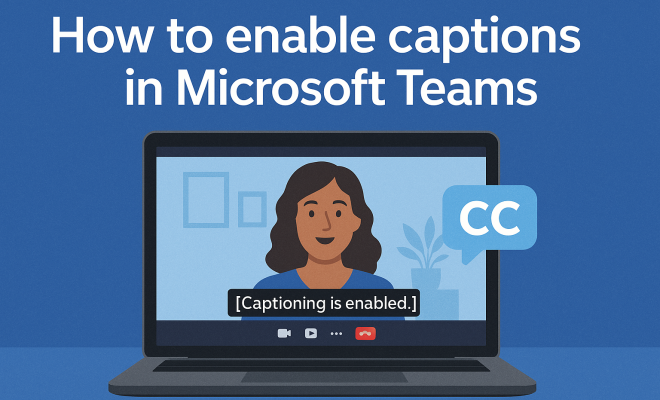
Enabling captions in Microsoft Teams is a straightforward process. Here’s how you can do it:
- Open Microsoft Teams and join your meeting.
- Once in a meeting, locate the More actions (three dots) icon on your toolbar.
- Select Turn on live captions from the dropdown menu.
- The captions will then appear at the bottom of your screen.
It’s important to note that captions are available in multiple languages, depending on the settings configured by your organization. If you want to change the language, you can do so in the settings under the Accessibility tab.
4. Customizing Your Caption Settings
Microsoft Teams allows users to customize their caption settings to enhance their experience. To access these settings, follow these steps:
- Go to your profile at the top right corner of the app.
- Select Settings.
- Click on the Accessibility tab.
- Here, you can adjust the caption language and font size for better readability.
Customizing these settings ensures that captions can be tailored to meet individual needs, making it easier for everyone to follow along during meetings.
5. Best Practices for Using Captions Effectively
While enabling captions in Microsoft Teams is beneficial, there are several best practices to consider for maximizing their effectiveness. First, ensure that all meeting participants are aware of the caption feature and encourage them to use it. This will promote a more inclusive environment.
Second, speakers should strive to speak clearly and at a moderate pace. This allows the speech recognition technology to accurately capture the dialogue and display it as captions. Additionally, if technical terms or acronyms are commonly used in your organization, consider providing a glossary or context to help caption accuracy.
6. Addressing Common Issues with Captions
While enabling captions in Microsoft Teams is generally smooth, users may encounter some common issues. The accuracy of captions can be affected by background noise, multiple speakers talking at once, or heavy accents. If captions appear garbled or incorrect, try the following troubleshooting steps: (See: Disability and health fact sheet.)
- Ensure that your microphone is functioning properly and positioned correctly.
- Request that participants mute their microphones when not speaking to reduce background noise.
- Consider asking speakers to articulate their words more clearly.
Additionally, keep your Teams app updated to the latest version, as improvements and bug fixes are frequently released, enhancing the captioning feature.
7. The Role of Captions in Remote Work
With the rise of remote work, the need for effective communication tools has become paramount. Captions play a crucial role in facilitating clear communication among remote teams. They help reduce the frustration of miscommunication during video calls, which can be exacerbated by lagging internet connections or poor audio quality.
For global teams, captions help bridge language gaps, allowing team members who speak different languages to understand each other better. This capability supports inclusivity and collaboration, making it easier for diverse teams to work together effectively.
8. Legal and Accessibility Considerations
From a legal standpoint, organizations have a responsibility to provide accessible communication tools under acts like the Americans with Disabilities Act (ADA) in the U.S. Enabling captions in Microsoft Teams can help fulfill these obligations, ensuring that employees with disabilities have equal access to information shared during meetings.
Furthermore, by implementing captioning, organizations can demonstrate their commitment to diversity and inclusion. Offering accessibility features like captions not only helps meet legal requirements but also promotes a positive corporate culture.
9. Future of Captioning in Digital Communication
The future of captioning in digital communication looks promising. As technology continues to advance, we can expect greater accuracy and more languages supported in captioning features. Companies like Microsoft are investing in artificial intelligence to enhance real-time transcription and caption generation, making these features increasingly reliable.
Moreover, as remote work persists, the demand for accessible communication solutions will only grow. Businesses that recognize the importance of captions will be well-positioned to improve collaboration and inclusivity within their teams. There’s a fuller look at overcoming language barriers.
10. Final Thoughts on Enabling Captions in Microsoft Teams
Enabling captions in Microsoft Teams is a crucial step toward fostering effective communication in today’s diverse and remote work environments. By following the steps outlined in this guide, you can ensure that all participants in your meetings can engage fully and equally. Remember, a little effort can go a long way in promoting inclusivity and understanding among team members.
As technology continues to evolve, stay informed about updates to captioning features and best practices. Your commitment to enabling captions can lead to better teamwork, more productive meetings, and a more inclusive workplace overall.
11. Exploring Different Captioning Options
In addition to live captions, Microsoft Teams also offers a variety of captioning options that can be tailored to meet different needs. For instance, you can use closed captions, which allow you to turn on or off the captions at will. This feature is beneficial in situations where some participants may prefer to listen without the distraction of on-screen text.
Another option is the transcription feature, which provides a written record of the meeting once it’s finished. This can be particularly useful for creating detailed minutes or for those who were unable to attend the live meeting. The transcription can be edited for accuracy and then shared with stakeholders who need a clear understanding of the meeting’s discussions.
12. Statistics on Caption Usage
Understanding the impact of captions can help organizations appreciate their value. A survey conducted by the National Association of the Deaf revealed that over 90% of deaf and hard-of-hearing individuals rely on captions for accessing multimedia content. Furthermore, a study by the University of California found that captions can increase viewer engagement by up to 80% during online presentations.
The use of captions can also improve learning outcomes. According to research published in the Journal of the Acoustical Society of America, students who used captions while watching educational videos scored significantly higher on comprehension tests compared to those who did not use captions. This highlights the importance of enabling captions in educational settings and corporate training sessions alike. (See: CDC on communication accessibility.)
13. Expert Perspectives on Captioning
Industry experts emphasize the growing necessity of captions in today’s hybrid work environment. Dr. Sarah Jones, a communication specialist, notes, “Captions are not just a utility; they are a bridge to inclusion. In our increasingly remote and global workplace, they serve as a critical tool for ensuring everyone can contribute equally.”
Furthermore, accessibility advocate Mark Thompson states, “The push for accessible communication has never been stronger. By enabling captions, companies are not only complying with regulations but also embracing a culture that prioritizes understanding and collaboration.” Their insights underscore the ongoing evolution of workplace communication dynamics and the pivotal role captions play in that transformation.
14. Comparing Captioning Tools in Microsoft Teams with Other Platforms
While Microsoft Teams offers robust captioning features, it’s helpful to compare them to those available on other platforms like Zoom and Google Meet. For instance, Zoom also provides live captioning and has added an auto-transcription feature. However, its accuracy can vary depending on the speaker’s accent and the background noise level.
Google Meet has made strides in improving its captioning tools, offering live captions in multiple languages as well. Yet, it lacks some customization options available in Teams, such as adjustable font sizes for better readability. Each platform has its strengths, but Teams stands out for its integration with other Microsoft 365 tools, enhancing the overall user experience.
15. Frequently Asked Questions (FAQ)
What languages are available for captions in Microsoft Teams?
Microsoft Teams supports captions in several languages, including English, Spanish, French, German, and many more. The availability depends on the settings configured by your organization. You can always check and change your preferences in the Accessibility settings.
Can I save the captions from a Microsoft Teams meeting?
Yes, you can save the captions by enabling the transcription feature during the meeting. After the meeting ends, the transcript will be available for you to download and share with others.
Are captions available for recorded meetings?
Yes, captions can be generated for recorded meetings in Microsoft Teams. Once the meeting is recorded, you can access the transcript, which will include the captions used during the live session.
Do I need any special permissions to enable captions in Teams?
Generally, any participant in a Teams meeting can enable captions. However, if your organization has restricted access to certain features, you may need to check with your IT department for permissions.
How can I improve caption accuracy in Teams?
To improve accuracy, ensure that participants speak clearly and at a moderate pace. Using high-quality microphones and minimizing background noise can also enhance the captioning experience. If your organization frequently uses specific jargon, consider preparing a list of terms to help those using the captions.
16. Advanced Tips for Maximizing Captions
To get the most out of captions in Microsoft Teams, consider these advanced tips. First, familiarize yourself with the specific needs of your team members. Some may benefit from larger font sizes or specific color contrasts for easier readability. Tailoring the captions to accommodate different preferences can lead to a more engaging meeting experience.
Another tip is to incorporate visual aids alongside captions. When presenting complex information, using slides or visual content can complement the text displayed in captions. This practice not only aids understanding but also maintains the attention of participants who might find it easier to follow along with both visual and text cues. (See: New York Times on Microsoft Teams features.)
17. The Impact of Captions on Team Dynamics
In a workplace setting, the use of captions can significantly impact team dynamics. When all participants can access the spoken content in real-time, it fosters a sense of belonging and respect. Team members who might otherwise hesitate to speak up due to language barriers or hearing difficulties may find the confidence to engage in discussions. This boost in participation can lead to diverse ideas and perspectives being shared, ultimately enhancing creativity and collaboration.
Moreover, captions can help in conflict resolution scenarios. When discussions become heated or misunderstandings arise, having a real-time text representation of the dialogue can provide clarity and help parties involved refer to exact phrases or points made. This can mitigate escalation and promote more productive conversations aimed at finding solutions.
18. Integrating Captions into Training and Onboarding
For organizations looking to enhance their training programs, integrating captions into training sessions can make a substantial impact. Research indicates that employees who are provided with captioned training materials have a better grasp of the content being presented. This benefit is particularly pronounced for complex topics that require detailed understanding.
Utilizing captions can also expedite the onboarding process for new employees. By ensuring that training materials are accessible, companies can help new hires acclimate to the organization’s culture and processes more smoothly. This inclusivity not only aids comprehension but also enhances retention rates for key information.
19. Captioning in Multilingual Teams
In multilingual teams, the role of captions becomes even more critical. Captions can serve as a unifying tool that allows team members who speak different languages to engage with one another effectively. For example, when a meeting is held in English, team members who are non-native speakers can benefit from real-time captions in their preferred language. This promotes a richer dialogue and ensures that language differences do not hinder collaboration.
Additionally, having captions in multiple languages can boost morale within international teams. Team members will appreciate the effort made to accommodate their language needs, fostering goodwill and a sense of belonging within the team.
20. Exploring the Accessibility Compliance Landscape
Organizations should also consider the broader implications of accessibility compliance when implementing features like captions. As more companies transition to remote work and digital communication platforms, the need for compliance with accessibility laws has become increasingly important. In addition to the ADA, many countries have their own regulations regarding accessibility in the workplace.
Being proactive about accessibility can position a company as a leader in its industry. Companies that prioritize accessibility often attract a more diverse workforce, leading to improved innovation and performance. Furthermore, organizations can avoid potential legal pitfalls by ensuring that their communication tools are compliant with relevant laws.
“`
Trending Now
Frequently Asked Questions
How do I turn on captions in Microsoft Teams?
To turn on captions in Microsoft Teams, join a meeting and click on the three dots (More actions) in the meeting controls. Then select 'Turn on live captions' to enable real-time text representation of spoken dialogue.
What are the benefits of using captions in Microsoft Teams?
Captions enhance accessibility for all participants, bridging language barriers and accommodating those with hearing impairments. They improve comprehension during discussions, especially in diverse teams, ensuring everyone can follow along and reducing misunderstandings.
Can I use captions in Microsoft Teams for recorded meetings?
Yes, Microsoft Teams offers a transcription feature that allows you to review conversations from recorded meetings. This ensures that you can access all crucial points discussed, making it easier to catch up on missed information.
Are captions in Microsoft Teams available in multiple languages?
Microsoft Teams provides captions in multiple languages, depending on the language settings of the meeting. This feature supports inclusivity in multicultural environments, allowing participants to follow along in their preferred language.
How accurate are the captions in Microsoft Teams?
The accuracy of captions in Microsoft Teams is generally high, thanks to advanced speech recognition technology. However, factors like background noise, accents, and technical jargon can affect performance. Regular updates aim to improve the feature continually.
Have you experienced this yourself? We'd love to hear your story in the comments.