How to fix iPhone update stuck
“`html
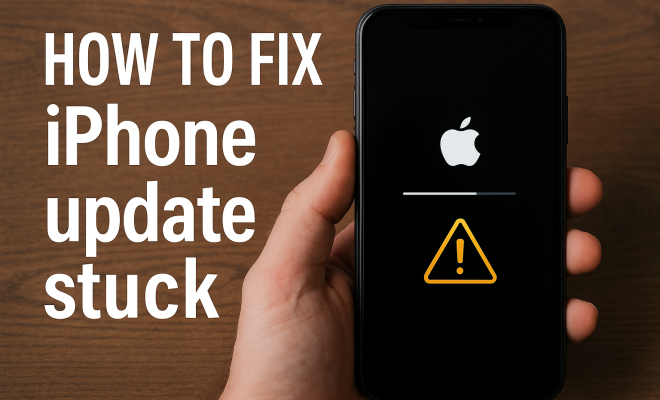
We’ve all been there: you’re eagerly awaiting the latest iPhone update, and when you finally hit ‘install’, your device gets stuck. Whether it’s a persistent circular loading icon or a message that just won’t go away, it’s frustrating. Luckily, you can take several steps to fix this issue. In this article, we’ll explore nine effective methods to fix iPhone update stuck issues, ensuring that you get back to enjoying your device in no time.
1. Restart Your iPhone
Sometimes, the simplest solutions are the most effective. Restarting your iPhone can resolve many minor software glitches, including those that cause update processes to get stuck. To restart your iPhone, press and hold the power button (or the side button for iPhones without a home button) until the ‘slide to power off’ slider appears. Slide it to turn off your phone, then wait a few seconds before turning it back on.
Upon rebooting, your iPhone may automatically resume the update process. If it doesn’t, don’t worry; you have more options to explore. Remember, a simple restart can clear temporary files or glitches that may be causing the update issue.
2. Check Your Internet Connection
A stable internet connection is crucial when updating your iPhone. If your Wi-Fi signal is weak or intermittent, the update may fail or get stuck. To check your connection, go to Settings > Wi-Fi and ensure you are connected to a reliable network. If your connection seems weak, you might want to switch to a different network or reset your router.
Additionally, if you’re using cellular data to update, ensure that you have sufficient data allowance and that your service is working correctly. Sometimes, toggling Airplane mode on and off can also help refresh your connection.
3. Free Up Space on Your iPhone
Running out of storage space can be another reason your iPhone update gets stuck. iOS updates typically require a considerable amount of free space to install successfully. To check your storage, go to Settings > General > iPhone Storage. If you see that your storage is almost full, consider deleting some unused apps, large photos, or videos.
Moreover, you can use features like Offload Unused Apps to automatically free up space without losing data. After clearing sufficient space, try the update again. It’s a good practice to keep at least 10-15% of your total storage free for optimal performance.
4. Update Using iTunes or Finder
If the over-the-air update is giving you headaches, consider using your computer as an alternative. Connect your iPhone to your computer and open iTunes (or Finder for macOS Catalina and later). Click on your device icon and then navigate to Summary > Check for Update. This method can sometimes bypass issues that occur during wireless updates.
After selecting the update option, iTunes or Finder will download the necessary update files and install them on your device. This method not only helps resolve the stuck update issue but can also be faster, especially if your internet connection is slow. (See: CDC on technology and health.)
5. Reset Network Settings
If your iPhone is having trouble connecting to the internet, resetting the network settings may help. This action can resolve persistent network issues that prevent updates from completing. To do this, go to Settings > General > Reset > Reset Network Settings. Keep in mind that you will need to re-enter Wi-Fi passwords after performing this step.
After resetting, attempt the update again to see if the issue persists. This method can often clear underlying network problems that may not be immediately apparent.
6. Put Your iPhone in Recovery Mode
When all else fails, entering recovery mode can be a lifesaver. Recovery mode allows you to restore your iPhone to factory settings or reinstall iOS. To enter recovery mode, connect your iPhone to your computer and open iTunes or Finder. Depending on your iPhone model, follow the appropriate button presses to enter recovery mode.
- iPhone 8 and later: Press and quickly release the Volume Up button, press and quickly release the Volume Down button, then press and hold the Side button until you see the recovery mode screen.
- iPhone 7 and 7 Plus: Press and hold both the Volume Down and Side buttons until you see the recovery mode screen.
- iPhone 6s and earlier: Press and hold both the Home and the Top (or Side) buttons until you see the recovery mode screen.
Once in recovery mode, your computer will prompt you to either update or restore your iPhone. Choose the update option first. If this fails, you can always opt for a full restore as a last resort.
7. Check Apple’s System Status
Sometimes, the problem isn’t with your device but rather with Apple’s servers. Before going through a long list of troubleshooting steps, it’s worth checking Apple’s System Status page. If there are known issues with the update servers, you might have to wait until Apple resolves them.
You can access the System Status page on Apple’s official website. If you see a yellow or red indicator next to the iOS update service, it means there’s an ongoing issue. Patience is key here, as trying to update while servers are down can lead to further complications.
8. Contact Apple Support
If you’ve tried everything and your iPhone still won’t update, it may be time to reach out to Apple Support. They can provide tailored assistance based on your specific situation. You can contact them via chat, call, or even visit a local Apple Store for in-person help.
Ensuring you have all relevant details on hand—like the model of your iPhone, the version of iOS you’re trying to install, and any error messages you’ve encountered—will help them assist you more effectively. Don’t hesitate to use this resource, as they have the expertise to resolve even the most stubborn issues.
9. Consider Factory Resetting Your iPhone
If all attempts to fix iPhone update stuck issues fail, a factory reset might be your last resort. Keep in mind that this action will erase all data on your device, so back up everything crucial beforehand. To perform a factory reset, go to Settings > General > Reset > Erase All Content and Settings.
After the reset, you can restore your data from a backup. Though this method is drastic, it can often solve deep-rooted software issues that other methods can’t. Make sure to only use this as a final solution when other avenues have been exhausted. (See: New York Times on iPhone updates.)
Understanding Why Updates Get Stuck
Before diving into troubleshooting steps, let’s take a moment to understand why exactly your iPhone update might get stuck in the first place. Several factors can contribute to this frustrating scenario:
- Software Bugs: Sometimes the update itself has bugs that cause it to stall during installation.
- Compatibility Issues: If you’re trying to update to a version that doesn’t play well with your older model, it could cause problems.
- Insufficient Space: As mentioned earlier, lack of storage space can halt the installation process.
- Network Glitches: A weak or unstable internet connection can interrupt the download and installation process, leading to a stuck update.
Expert Insights on iPhone Update Issues
Experts in the tech community often emphasize the importance of keeping your device updated. Regular updates not only introduce new features but also provide crucial security patches that protect your personal information. According to a study by cybersecurity firm Kaspersky, outdated software can leave devices vulnerable to attacks, underscoring the need for timely updates.
Moreover, tech analyst Ming-Chi Kuo has pointed out that Apple continually works on improving its update process. This includes optimizing how updates are pushed out and addressing common issues that arise during installations. Staying informed about the latest updates from Apple can also help you prepare and prevent stuck updates in the future.
Common Myths About iPhone Updates
There are plenty of misconceptions surrounding iPhone updates that can lead to confusion. Let’s debunk a few:
- Myth 1: You should always update immediately.
- Myth 2: Updates are only necessary for new features.
- Myth 3: Updating your iPhone will delete your data.
Understanding these myths can help you make more informed decisions about when and how to update your device.
Statistics on Update Issues
Statistics reveal that a significant number of users encounter issues during updates. A survey conducted by Apple Insider found that nearly 30% of iPhone users experienced difficulties when trying to update their devices over the past year. Among those, 40% reported their updates getting stuck. These numbers highlight the commonality of update issues, which is why knowing how to resolve them is essential.
Additional Troubleshooting Tips
If you’re still facing a stuck iPhone update, here are a few more advanced troubleshooting tips that might help:
- Clear App Store Cache: Sometimes, the App Store cache can interfere with the update process. To clear it, open the App Store, tap on any of the bottom tabs (like Today, Games, Apps) 10 times. This can refresh the cache and potentially resolve the update issue.
- Use a Different Computer: If updating via iTunes or Finder isn’t working, try a different computer. Sometimes, the issue may lie with the computer’s settings or software.
- Check for Third-Party Software Interference: If you have any third-party security software installed on your computer, it could be blocking the update process. Try disabling it temporarily and then attempt the update again.
FAQs About Fixing iPhone Update Stuck Issues
What should I do if my iPhone update is stuck on the Apple logo?
If your iPhone is stuck on the Apple logo, try force restarting your device. The method varies by model, but generally involves pressing and releasing the Volume Up button, then the Volume Down button, and then holding the Side button until you see the Apple logo again.
Can I update my iPhone without Wi-Fi?
Yes, you can update your iPhone using cellular data, but it’s important to ensure you have a sufficient data plan. Keep in mind that iOS updates can be large, so be cautious about your data usage.
How do I know if my iPhone is up to date?
To check for updates, go to Settings > General > Software Update. If your iPhone is up to date, it will display a message indicating so. If an update is available, you’ll see the option to download and install it.
Is it safe to manually download iOS updates?
While it’s generally safe to download updates from Apple’s official website or through iTunes/Finder, be cautious of third-party sites. Always ensure that you’re obtaining software from trusted sources to avoid malware or incompatible files.
What if I still can’t fix iPhone update stuck issues?
If you’ve exhausted all options mentioned in this article and your update is still stuck, consider taking your device to an Apple Store. The technicians can run diagnostics to determine if there’s a hardware issue or if a more advanced software repair is needed.
Keeping Your iPhone Updated: Best Practices
Preventing update issues is often easier than fixing them. Here are some best practices to keep in mind:
- Regular Backups: Ensure you back up your iPhone regularly, either through iCloud or your computer. This is crucial in case an update fails and you need to restore your device.
- Install Updates Promptly: Don’t wait too long to install updates. The longer you delay, the more issues you may face, especially if there are security vulnerabilities in the software you’re using.
- Stay Informed: Follow Apple news and updates to stay informed about potential issues with specific iOS versions. Websites like MacRumors or AppleInsider can provide timely insights.
- Use Wi-Fi for Updates: Always use a stable Wi-Fi connection for downloading updates to ensure a smooth process. Avoid cellular data unless necessary.
Dealing with a stuck iPhone update can feel stressful, but by following these nine methods, you should be able to resolve the issue effectively. Whether it’s a simple restart or a factory reset, there’s a solution that fits your situation. Remember to keep your device updated regularly to avoid problems in the future, and don’t hesitate to seek expert help when needed. Happy updating!
“`
Trending Now
Frequently Asked Questions
What should I do if my iPhone update is stuck?
If your iPhone update is stuck, start by restarting your device. This can resolve minor glitches. If that doesn’t work, check your internet connection to ensure it's stable. You may also need to free up storage space, as updates require sufficient space to install.
How do I restart my iPhone to fix update issues?
To restart your iPhone, press and hold the power button (or side button for newer models) until the 'slide to power off' slider appears. Slide to turn off your phone, wait a few seconds, then turn it back on. This simple step can often resolve update issues.
Why is my iPhone update taking so long?
An iPhone update can take a long time due to a slow or unstable internet connection, insufficient storage space, or server issues with Apple. Ensure your Wi-Fi is strong and that you have enough free space on your device to facilitate a smooth update process.
How can I check my iPhone's internet connection?
To check your iPhone's internet connection, go to Settings > Wi-Fi. Ensure you are connected to a reliable network. If your connection seems weak, consider switching networks or resetting your router to improve connectivity during the update.
What to do if my iPhone is out of storage during an update?
If your iPhone is out of storage during an update, you'll need to free up some space. You can do this by deleting unused apps, photos, or files. After clearing enough space, try the update again to ensure it installs successfully.
Agree or disagree? Drop a comment and tell us what you think.