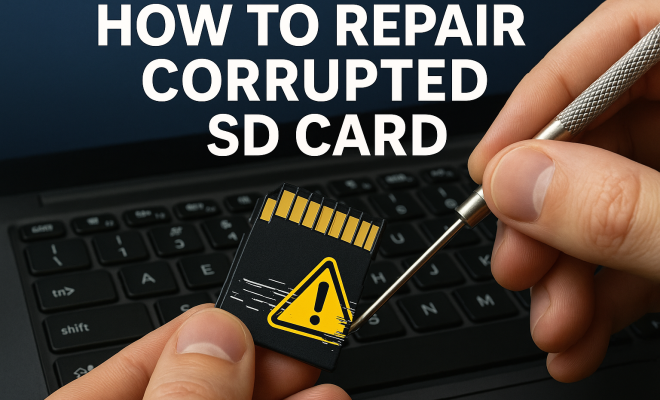
How to repair corrupted SD card
“`html
Every photographer and tech enthusiast knows the sinking feeling when they discover their SD card is corrupted. Losing precious memories or essential data can be a nightmare, but the good news is you might be able to repair a corrupted SD card without losing anything. This guide will walk you through practical solutions, expert tips, and tools to restore your SD card to working condition.
1. Understanding SD Card Corruption
Before diving into the solutions for repairing a corrupted SD card, it’s crucial to understand what corruption means. SD card corruption can occur for several reasons, including improper ejection, power failures, virus infections, or manufacturing defects. When an SD card is corrupted, it may result in unreadable files, lost data, or a card that your device fails to recognize.
Common symptoms of a corrupted SD card include error messages when trying to access files, a card that suddenly appears empty, or frequent freezing or crashing of devices using the card. Identifying the signs early can help you take action before data is permanently lost.
2. Initial Checks and Preparations
The first step in repairing a corrupted SD card is to do some preliminary checks. Ensure that the card is inserted correctly into the device, whether it’s a camera, smartphone, or computer. If the device fails to recognize the SD card, try using a different card reader or device to rule out hardware issues.
Next, make sure the card is not write-protected. Many SD cards come with a physical switch on the side that prevents writing. If this switch is enabled, your device won’t be able to access or modify the data. Once you’re sure everything is set up correctly, you can begin the repair process.
3. Using Windows Error Checking Tool
If you’re using a Windows PC, one effective way to repair a corrupted SD card is through the built-in Error Checking tool. Simply insert the SD card into your computer, go to ‘This PC,’ right-click the SD card drive, and select ‘Properties.’ From there, navigate to the ‘Tools’ tab and click ‘Check.’
This tool scans the SD card for errors and attempts to fix them automatically. It’s a straightforward, no-cost method that often resolves minor corruption issues. Remember, while this process is running, avoid interrupting it to prevent further damage to the card.
4. Using Command Prompt for Advanced Repair
If the Error Checking tool doesn’t resolve the issues, using the Command Prompt can be a more robust option. Type ‘cmd’ in the Windows search bar, right-click, and select ‘Run as administrator.’ In the Command Prompt window, type chkdsk X: /f, replacing “X” with your SD card’s drive letter.
This command checks the file system and fixes errors. It’s important to note that this method can sometimes lead to loss of files if the corruption is severe, but it’s worth trying, especially if the data is not critical.
5. Utilizing Third-Party Recovery Software
When standard methods fail, third-party recovery software can be a lifesaver. Software like Recuva, EaseUS Data Recovery Wizard, and Disk Drill specialize in recovering lost files from corrupted storage. Most of these programs are user-friendly and guide you through the recovery process step by step.
Before using recovery software, ensure that you don’t write any new data to the SD card, as this could overwrite the files you’re trying to recover. After installation, follow the software prompts to scan your SD card and retrieve any lost data. (See: Understanding SD Card technology.)
6. Formatting the SD Card as a Last Resort
If all else fails, formatting the SD card might be the only option left. However, this should be considered a last resort, as formatting wipes all data from the card. To format, right-click the SD card in ‘This PC’ and select ‘Format.’ Choose the desired file system—FAT32 is commonly recommended for SD cards.
Before formatting, it’s worth attempting to recover files using software, as formatting will lead to permanent data loss. Once formatted, your SD card should work again, and you can start using it like new.
7. Preventing Future Corruption
After successfully repairing your SD card, it’s essential to adopt practices that can prevent future corruption. Always safely eject your SD card from devices to avoid data loss. Regularly back up your files to a computer or cloud storage, so you have an extra copy if something goes wrong.
Additionally, avoid using the same SD card across multiple devices simultaneously, as this can lead to file system conflicts. If your card has a write-protection switch, keep it locked when transferring data to avoid accidental deletion.
8. When to Seek Professional Help
If you find yourself unable to repair your corrupted SD card despite multiple attempts, it might be time to consult a professional data recovery service. These specialists utilize advanced techniques and tools to recover data from severely corrupted or damaged cards.
While this option can be costly, if the data is irreplaceable, it may be worth the investment. Ensure you research and choose a reputable recovery service with positive reviews to minimize risks further.
9. Common Misconceptions About SD Card Corruption
Many people hold misconceptions about SD card corruption. One prevalent myth is that once a card is corrupted, it can never be fixed. While severe damage can limit recovery options, many cases can be resolved with the right techniques and tools.
Another misconception is that formatting an SD card always guarantees recovery. While it may fix corruption issues, it does lead to the loss of all data. Understanding these myths can help in better handling SD card issues and avoiding panic when problems arise.
10. Deeper Analysis of SD Card Corruption Causes
To better understand how to repair a corrupted SD card, it’s helpful to explore the causes of corruption in more detail. Improper ejection is one of the most common reasons. If you remove the SD card without properly ejecting it from your device, the file system may not be updated correctly, leading to corruption.
Power failures during data writing can also corrupt the card. For instance, if a camera runs out of battery while saving a photo, that specific file may become corrupted, and in some cases, it can lead to larger issues affecting the whole card.
Virus infections are another serious threat. Just like any other storage device, SD cards can be infected by malware that corrupts files or damages the file system. Regularly scanning your card for viruses, especially if you use it on multiple devices, can help prevent this issue.
11. Statistics on SD Card Failures
Understanding the statistics surrounding SD card failures can provide insight into how common these issues are. According to a study conducted by a data recovery company, nearly 30% of users experience SD card corruption at some point. Another statistic suggests that about 20% of users lose data on their cards due to accidental deletion or formatting.
Additionally, a survey indicated that 40% of photographers have encountered corruption issues after transferring data between devices. These numbers highlight the importance of taking preventative measures, utilizing safe ejection practices, and regularly backing up your data. (See: Data loss prevention strategies.)
12. FAQs About Repairing Corrupted SD Cards
What should I do first if my SD card is corrupted?
The first step is to check if the card is properly inserted and not write-protected. If everything seems in order, try to access the card using a different device or card reader to rule out hardware issues.
Can I recover photos from a corrupted SD card?
Yes, often you can recover photos using specialized recovery software. However, it’s crucial to stop using the card immediately to prevent overwriting any recoverable data.
Is it safe to format a corrupted SD card?
Formatting can resolve corruption issues, but it will erase all existing data. It’s advisable to attempt recovery first before considering formatting.
How do I know if my SD card is beyond repair?
If all recovery methods fail, and the card is not recognized by any device or software, it may be beyond repair. Consulting a professional data recovery service can provide clarity in such cases.
What are the best software options for recovering corrupted SD cards?
Some of the best software options include Recuva, EaseUS Data Recovery Wizard, Disk Drill, and Stellar Data Recovery. Each of these tools offers user-friendly interfaces and effective recovery solutions.
How can I improve the lifespan of my SD card?
To prolong the lifespan of your SD card, avoid exposing it to extreme temperatures, handle it carefully, and frequently back up your data. Additionally, don’t fill it to maximum capacity, as this can lead to performance issues.
13. Expert Perspectives on SD Card Care
Experts in data recovery often emphasize the importance of regular maintenance for SD cards. Regularly checking the health of your card can prevent unexpected failures. Some recommend using a dedicated card reader instead of relying solely on devices, as this can help prevent wear and tear.
Additionally, storing SD cards in protective cases can shield them from physical damage and environmental factors. Using quality brands and avoiding cheap alternatives is also recommended, as lower-quality cards are more prone to failure.
14. How to Choose the Right SD Card for Your Needs
When selecting an SD card, consider the purpose for which you’ll be using it. Different tasks may require different specifications. For instance, high-resolution photography or 4K video recording demands a card with a faster write speed and higher capacity.
Look for cards labeled as UHS-I or UHS-II, which indicate Ultra High-Speed capabilities that are essential for high-performance tasks. Additionally, consider the card’s capacity. Cards range from a few gigabytes to several terabytes, so pick one that matches your storage needs. (See: Tech repair and data recovery.)
It’s also worth checking for the card’s lifespan and warranty. A good warranty can often indicate the manufacturer’s confidence in their product. Reading user reviews can also provide insight into the reliability of an SD card brand.
15. Understanding File Systems and Their Impact on Corruption
The file system used on your SD card can also play a significant role in the likelihood of corruption. Most SD cards use FAT32 or exFAT file systems, which have different characteristics and limits. FAT32, for instance, has a maximum file size of 4GB, which can be a limitation for high-definition videos. In contrast, exFAT supports larger files and is more suited for modern devices and larger storage.
Switching from FAT32 to exFAT can sometimes help improve performance and reduce corruption risk, especially if you’re regularly working with larger files. If you format your card, be sure to choose the file system that best suits your intended use.
16. Regular Maintenance Tips for SD Cards
Regular maintenance can greatly reduce the chances of encountering corruption. One simple yet effective tip is to perform routine checks on your SD card’s health. Use software tools that can monitor the card’s performance and detect early signs of failure. You can also follow a consistent backup schedule to ensure your data is safe regardless of potential failures.
Another tip is to avoid filling your SD card to its maximum capacity. Keeping some free space available not only improves performance but also provides a buffer for when you need to save new data. Additionally, always ensure your SD card is clean and free of dust or debris that could affect its functionality.
17. In-depth Comparison: Micro SD vs. SD Cards
If you’re considering which type of card to use, it helps to understand the differences between micro SD and standard SD cards. Micro SD cards are typically used in smartphones, drones, and action cameras due to their small size, while standard SD cards are more common in cameras and laptops.
In terms of performance, both card types can offer similar speeds and capacities, but the choice often comes down to compatibility with your devices. Micro SD cards can be used in standard SD card slots with an adapter, but the reverse is not true. If you plan to use the card in multiple devices, consider the size and compatibility aspects carefully.
18. Conclusion: Handling SD Card Corruption with Confidence
Repairing a corrupted SD card doesn’t have to be a daunting task. With the right tools and knowledge, you can navigate through the recovery process effectively. Remember to perform regular backups, handle your SD cards with care, and stay informed about the common pitfalls of data storage. By following these steps, you’ll be well-equipped to tackle the challenge of corrupt SD cards and safeguard your valuable data.
“`
Trending Now
Frequently Asked Questions
How do I know if my SD card is corrupted?
Common signs of a corrupted SD card include receiving error messages when trying to access files, the card appearing empty despite having data, or frequent device crashes when using the card. Early identification of these symptoms can help you take steps to recover your data.
Can you fix a corrupted SD card without losing data?
Yes, it is possible to repair a corrupted SD card without losing data. Utilizing tools like the Windows Error Checking tool or third-party recovery software can help restore functionality while preserving your files.
What causes an SD card to become corrupted?
SD card corruption can occur due to various reasons such as improper ejection from devices, power failures during data transfer, virus infections, or manufacturing defects. Understanding these causes can help prevent future issues.
What should I do first if my SD card is not recognized?
Start by checking if the SD card is inserted correctly and ensure it's not write-protected. If the device still doesn’t recognize it, try using a different card reader or device to rule out hardware issues.
Is there software to repair a corrupted SD card?
Yes, there are several software options available for repairing corrupted SD cards. Tools like Recuva, EaseUS Data Recovery Wizard, and the built-in Windows Error Checking tool can help recover data and restore card functionality.
What did we miss? Let us know in the comments and join the conversation.