Master Google Colab: Your Ultimate Guide to Cloud Python
“`html
Google Colab has taken the data science community by storm. This powerful tool, developed by Google, allows users to write and execute Python code in a web-based environment, making it exceptionally accessible for beginners and seasoned programmers alike. In this Google Colab tutorial, we’ll explore its key features, practical applications, and tips to maximize your productivity while using this remarkable tool.
1. What is Google Colab?
Google Colaboratory, commonly known as Google Colab, is a Cloud-based Jupyter notebook service. It enables users to write and execute Python code in their browsers without any setup. This eliminates the hassle of managing software installations or configurations, making it perfect for those who want to jump straight into coding.
Colab is particularly popular among data scientists and machine learning practitioners because it comes with powerful libraries like TensorFlow, Keras, and PyTorch pre-installed. Plus, its integration with Google Drive allows for easy storage and sharing of notebooks, ensuring your work is always accessible from anywhere.
2. Setting Up Your Google Colab Environment
Starting with Google Colab is incredibly simple. All you need is a Google account. Once you log in, you can create a new notebook by navigating to the Google Colab website or by accessing it through Google Drive. In just a few clicks, you’ll have a fully functional Python notebook ready for use.
One of the most beneficial aspects of Google Colab is its collaboration features. You can easily share your notebook with others by clicking on the “Share” button. This functionality allows for real-time collaboration—much like Google Docs—meaning multiple users can work together on the same project simultaneously. This is especially advantageous in a team setting or when you’re seeking feedback on your code.
3. Understanding the Interface
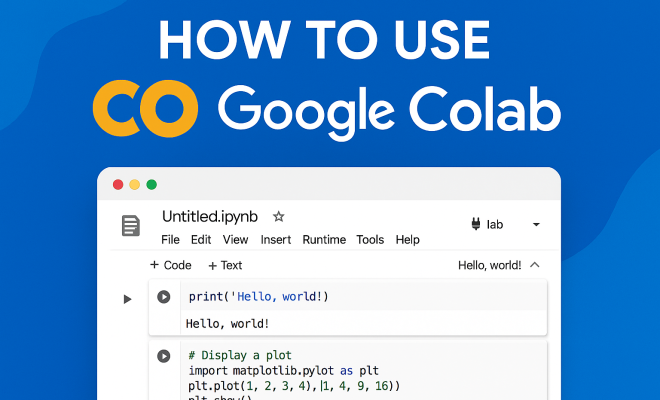
The Google Colab interface is user-friendly and intuitive, resembling a simplified version of Jupyter notebooks. The main components include code cells and text cells, allowing for a mix of code execution and rich text outputs. Understanding how to navigate this interface can significantly enhance your productivity.
- Code Cells: These are where you write and execute your Python code. You can run code by clicking the play button on the left or by using the shortcut Shift + Enter.
- Text Cells: These allow you to write documentation, explanations, or any other text using Markdown formatting. This feature is crucial for adding context to your code, making your notebooks more informative and easier to understand.
- File Navigation: On the left sidebar, you can access files stored in your Google Drive, upload files from your local system, or even browse through datasets hosted online.
4. Importing Libraries and Data
One of the first things you’ll want to do in any Google Colab tutorial is import the libraries you’ll use for your analysis. Since Colab comes pre-installed with many popular libraries, such as NumPy, Pandas, and Matplotlib, you can start coding right away. For additional libraries not included by default, a simple pip install command will suffice.
Importing data is also straightforward. You can upload files directly from your local machine or access datasets from your Google Drive or external URLs. For larger datasets, mounting your Google Drive is often the best option. Use the following code to do this:
from google.colab import drive

drive.mount('/content/drive')
This command allows you to interact with files stored in your Google Drive as if they were on your local file system.
5. Utilizing GPU and TPU Resources
One of the standout features of Google Colab is the ability to leverage powerful hardware for your computations. By default, Colab runs on a virtual machine with limited resources. However, you can easily switch to a GPU or TPU to accelerate your computations, especially when training machine learning models.
To enable GPU or TPU support, navigate to the “Runtime” menu, select “Change runtime type,” and choose either GPU or TPU. This capability is a game-changer for anyone working with large datasets or complex neural networks, as it significantly reduces training times and boosts performance.
6. Creating and Managing Notebooks
Creating notebooks in Google Colab is simple, but managing them effectively can enhance your workflow. You can organize your notebooks into folders within Google Drive, making it easy to locate them later. Additionally, Google Colab automatically saves your work, so you don’t have to worry about losing progress.
For those who like to keep their code organized, consider using clear naming conventions for your notebooks and consistent structure within each notebook. This practice enhances readability and ensures that any collaborator can easily understand your workflow. (See: Google Colaboratory on Wikipedia.)
7. Sharing and Collaboration Features
Google Colab excels in its sharing and collaboration capabilities. Not only can you share your notebooks with just a click, but you can also set permissions to control whether collaborators can view or edit. This functionality is incredibly useful for team projects, as it allows for seamless collaboration.
Additionally, Google Colab supports comments, letting collaborators leave feedback directly in the notebook. This feature helps streamline communication, making it easier to address issues or discuss code changes in real-time, further improving team productivity.
8. Best Practices for Writing Code in Colab
When writing code in Google Colab, adhering to best practices can save you time and prevent common pitfalls. Here are some tips to enhance your coding experience:
- Use Markdown Cells: Document your code effectively using Markdown cells for explanations, comments, or notes. This practice makes your notebooks more informative and user-friendly.
- Run Code in Small Batches: Execute your code in smaller segments to make debugging easier. This practice allows you to isolate errors quickly and understand the flow of your program.
- Keep Code Modular: Organize your code into functions. This not only makes it easier to read but also encourages reusability across different notebooks or projects.
9. Real-World Applications of Google Colab
Google Colab is not just a tool for coding; it’s a versatile platform used for various applications in data science and machine learning. Researchers use it for prototyping algorithms, educators utilize it for teaching programming concepts, and data analysts rely on it to analyze datasets.
Furthermore, with the rise of remote work, Colab has become an invaluable resource for distributed teams. It allows team members to collaborate on projects from different geographical locations, making it a perfect solution for modern workflows.
In summary, Google Colab empowers users with its accessibility, powerful resources, and collaborative features—making it a go-to platform for anyone interested in data science. Whether you’re a beginner looking to learn Python or an experienced data scientist developing complex models, this Google Colab tutorial provides the foundational skills and knowledge needed to make the most of this remarkable tool.
10. Advanced Features of Google Colab
Beyond its basic functionalities, Google Colab offers advanced features that can take your data science projects to the next level. Understanding and utilizing these features can significantly enhance your workflow and the effectiveness of your analyses.
10.1 Customizing Your Environment
You can customize your Colab environment by changing the themes, adjusting the font sizes, and even modifying the code execution settings. This customization allows you to create a workspace that suits your personal workflow better.
For example, if you prefer a darker interface, you can switch to the dark theme by going to the “Tools” menu, selecting “Settings,” and then choosing the “Theme” option. This is particularly useful for those who spend long hours coding.
10.2 Using Google Colab with GitHub
Another powerful feature is the ability to integrate Google Colab with GitHub. This allows you to directly import notebooks from GitHub repositories into Colab and push your changes back to GitHub. This feature is highly beneficial for version control and collaboration on larger projects.
To open a notebook from GitHub, you can simply use the URL of the notebook or search for it directly using the built-in GitHub search option in the Colab interface. This seamless integration streamlines your workflow and ensures you’re always working with the latest version of your files.
10.3 Utilizing TensorBoard in Colab
TensorBoard is a powerful visualization tool that comes with TensorFlow and can be integrated into Google Colab to monitor your training process. By using TensorBoard, you can visualize metrics such as loss and accuracy, making it easier to diagnose issues in your models.
To set up TensorBoard in your Colab notebook, you can use the following code:
from tensorboard import notebook
notebook.start('--logdir=/content/logs')
This snippet initializes TensorBoard and allows you to visualize your training metrics directly within your Colab notebook. It’s a great way to analyze your model’s performance in real-time. (See: CDC official website.)
11. Common Challenges and Solutions
While Google Colab is a robust platform, users may encounter some challenges. Here we address some common issues and provide solutions to help you navigate them effectively.
11.1 Resource Limitations
Colab has limitations regarding session times and available compute resources. Free versions may have restricted usage of GPUs and limited runtimes, which can interrupt long-running processes.
To mitigate this, consider saving your models and checkpoints frequently. You can also explore Google Colab Pro, which offers enhanced resources for a subscription fee, allowing for longer runtimes and more powerful GPUs.
11.2 Handling File Upload Issues
When uploading large files, users might experience delays or failures. To manage file uploads more efficiently, consider using the Google Drive mounting feature instead of direct uploads. This way, you can work with larger datasets without straining the upload limits.
If you encounter issues, ensure that your files are not corrupted and are in the appropriate format for your analyses.
12. Frequently Asked Questions
12.1 Is Google Colab free to use?
Yes, Google Colab is free to use, offering a plethora of features without any cost. However, there’s also a paid version called Google Colab Pro, which provides additional resources and benefits for a monthly fee.
12.2 Can I install additional Python libraries in Colab?
Absolutely! You can easily install additional libraries using pip commands. For example, to install a library, just type:
!pip install library_nameReplace “library_name” with the name of the library you want to install.
12.3 Can I use Google Colab for deep learning?
Yes, Google Colab is an excellent platform for deep learning projects. With its built-in support for TensorFlow, Keras, and PyTorch, you can easily develop, train, and evaluate deep learning models.
12.4 How do I save my work in Google Colab?
Your work is automatically saved in Google Drive. However, you can also download notebooks as a .ipynb file or export them as a PDF for sharing or archiving purposes by using the “File” menu and selecting “Download .ipynb” or “Download as PDF”.
12.5 Can I use Google Colab offline?
No, Google Colab is a cloud-based service that requires an internet connection to function. If you need to work offline, consider downloading your notebook and running it on a local Jupyter environment.
13. Examples of Projects Using Google Colab
To illustrate the versatility of Google Colab, here are some practical examples of projects you can undertake using this platform:
13.1 Data Analysis Projects
Google Colab is perfect for data analysis tasks. For instance, you can perform exploratory data analysis (EDA) on a public dataset, such as the Titanic dataset, to gain insights about passenger survival rates. You could visualize the data using libraries like Matplotlib and Seaborn to create compelling graphs and charts. (See: New York Times technology section.)
13.2 Machine Learning Models
Another common project is building machine learning models. You could use Google Colab to implement a classification model using scikit-learn. By utilizing the Iris dataset, you can train a model to classify flowers based on their features. This is a great way to practice the ML pipeline, from data preprocessing to evaluation of model performance.
13.3 Deep Learning with Neural Networks
For those interested in deep learning, Google Colab allows you to build neural networks using TensorFlow or PyTorch. You could create a convolutional neural network (CNN) for image classification tasks, such as distinguishing between cats and dogs. This project will enable you to explore concepts like layers, activations, and loss functions.
13.4 Natural Language Processing
Google Colab can also be used for natural language processing (NLP) projects. For example, you could use the Hugging Face Transformers library to fine-tune a pre-trained language model for a specific task, such as sentiment analysis. This project can help you understand the intricacies of working with text data and the power of transfer learning.
14. Tips for Maximizing Your Google Colab Experience
To truly make the most of your Google Colab experience, consider the following tips:
14.1 Frequent Saving and Version Control
Even though Google Colab automatically saves your work, it’s a good practice to make manual saves regularly. Additionally, consider using version control practices by keeping copies of major changes or using GitHub to track your project’s history.
14.2 Take Advantage of Colab Pro
If you find yourself using Google Colab frequently for intensive tasks, consider upgrading to Colab Pro. This subscription service offers enhanced compute resources like faster GPUs and longer runtimes, which can significantly speed up your work.
14.3 Explore Community Notebooks
The Google Colab community is vast, and many users share their notebooks publicly. Take the time to explore these community notebooks to learn new techniques and best practices. You can find notebooks on GitHub, Kaggle, and other platforms.
14.4 Use Keyboard Shortcuts
Mastering keyboard shortcuts can boost your efficiency in Google Colab. For example, familiarize yourself with shortcuts like Ctrl + M + B to insert a new code cell below or Ctrl + M + A to insert a new code cell above. You can view all shortcuts by clicking on “Tools” and selecting “Keyboard shortcuts.”
15. Conclusion
Google Colab stands out as a powerful platform for both novice and experienced programmers. By understanding its features and best practices, you can enhance your workflow and leverage its capabilities for various data science and machine learning projects. Whether you’re collaborating with others or working independently, this Google Colab tutorial provides the insight needed to harness the full potential of this tool and take your coding skills to new heights.
“`
Trending Now
Frequently Asked Questions
What is Google Colab used for?
Google Colab is a cloud-based Jupyter notebook service that allows users to write and execute Python code directly in their web browsers. It is widely used for data science and machine learning projects due to its pre-installed libraries like TensorFlow and Keras, making it accessible for both beginners and experienced programmers.
How do I start using Google Colab?
To start using Google Colab, simply log in with your Google account and navigate to the Google Colab website. You can create a new notebook easily, and within moments, you'll have a fully functional Python environment ready for coding.
Can I collaborate with others on Google Colab?
Yes, Google Colab offers real-time collaboration features. You can share your notebook with others by clicking the 'Share' button, allowing multiple users to work on the same project simultaneously, similar to Google Docs.
Is Google Colab free to use?
Yes, Google Colab is free to use. It provides users with access to powerful computing resources and libraries without any setup required, making it an ideal platform for learning and experimentation in data science and machine learning.
What are the benefits of using Google Colab?
The benefits of using Google Colab include its cloud-based accessibility, ease of use, pre-installed libraries for data science, and seamless integration with Google Drive for storage and sharing. These features make it an excellent tool for collaboration and productivity.
Agree or disagree? Drop a comment and tell us what you think.