The Tech Edvocate

Top Menu

  • Advertisement
  • Apps
  • Home Page
  • Home Page Five (No Sidebar)
  • Home Page Four
  • Home Page Three
  • Home Page Two
  • Home Tech2
  • Icons [No Sidebar]
  • Left Sidbear Page
  • Lynch Educational Consulting
  • My Account
  • My Speaking Page
  • Newsletter Sign Up Confirmation
  • Newsletter Unsubscription
  • Our Brands
  • Page Example
  • Privacy Policy
  • Protected Content
  • Register
  • Request a Product Review
  • Shop
  • Shortcodes Examples
  • Signup
  • Start Here
    • Governance
    • Careers
    • Contact Us
  • Terms and Conditions
  • The Edvocate
  • The Tech Edvocate Product Guide
  • Topics
  • Write For Us
  • Advertise

Main Menu

  • Start Here
    • Our Brands
    • Governance
      • Lynch Educational Consulting, LLC.
      • Dr. Lynch’s Personal Website
      • Careers
    • Write For Us
    • The Tech Edvocate Product Guide
    • Contact Us
    • Books
    • Edupedia
    • Post a Job
    • The Edvocate Podcast
    • Terms and Conditions
    • Privacy Policy
  • Topics
    • Assistive Technology
    • Child Development Tech
    • Early Childhood & K-12 EdTech
    • EdTech Futures
    • EdTech News
    • EdTech Policy & Reform
    • EdTech Startups & Businesses
    • Higher Education EdTech
    • Online Learning & eLearning
    • Parent & Family Tech
    • Personalized Learning
    • Product Reviews
  • Advertise
  • Tech Edvocate Awards
  • The Edvocate
  • Pedagogue
  • School Ratings

logo

The Tech Edvocate

  • Start Here
    • Our Brands
    • Governance
      • Lynch Educational Consulting, LLC.
      • Dr. Lynch’s Personal Website
        • My Speaking Page
      • Careers
    • Write For Us
    • The Tech Edvocate Product Guide
    • Contact Us
    • Books
    • Edupedia
    • Post a Job
    • The Edvocate Podcast
    • Terms and Conditions
    • Privacy Policy
  • Topics
    • Assistive Technology
    • Child Development Tech
    • Early Childhood & K-12 EdTech
    • EdTech Futures
    • EdTech News
    • EdTech Policy & Reform
    • EdTech Startups & Businesses
    • Higher Education EdTech
    • Online Learning & eLearning
    • Parent & Family Tech
    • Personalized Learning
    • Product Reviews
  • Advertise
  • Tech Edvocate Awards
  • The Edvocate
  • Pedagogue
  • School Ratings
  • How to create estimates in Buildertrend

  • How to use Bluebeam for punch lists

  • Procore vs Viewpoint features

  • How to submit invoices in Procore

  • How to set up Monday.com for contractors

  • Can PlanGrid track punch lists

  • How to create selections in CoConstruct

  • How to markup drawings in PlanGrid

  • How to use PlanGrid for blueprints

  • How to create custom tools in Bluebeam

Tech Advice
Home›Tech Advice›How to Master Google Password Manager

How to Master Google Password Manager
By Matthew Lynch
July 23, 2023
0
Spread the love

In today’s digital world, password management is a critical skill. With an ever-expanding array of accounts, websites, and subscriptions, it is essential to have a secure method for managing your passwords. One such solution is the Google Password Manager, a handy tool that allows you to store and manage your passwords effectively. This comprehensive guide will walk you through everything you need to know to master Google Password Manager.

What is Google Password Manager?

Google Password Manager is a convenient and secure way to store your passwords and login information across various websites. It is a built-in feature of Chrome browser and also works with Android devices as part of the Android Autofill framework. This tool makes it easy to save, retrieve, and auto-fill passwords when required.

Setting Up Google Password Manager

To start using this efficient password management system, follow these simple steps:

1. Make sure you are signed in to your Google account: In order to use Google Password Manager, you must be logged into your Google account.

2. If not already enabled in your Chrome browser, enable the “Offer to save passwords” feature by navigating to Chrome settings > Autofill > Passwords. Toggle on “Offer to save passwords” if not already on.

3. For Android devices, ensure that the Autofill framework settings utilize Google services. Go to settings > search for ‘Autofill’ > choose ‘Autofill with Google.’

Managing Your Stored Passwords

Google Password Manager allows you to easily view, update or delete any stored password:

1. Accessing stored passwords: Go to chrome://settings/passwords or visit https://passwords.google.com/ while signed into your Google account.

2. Editing your passwords: Once on the password manager page, locate the website whose password you wish to change or update. Click on the three dots found next to the selection and hit “Details.” Here, you can edit your stored password.

3. Removing old passwords: On the password management page, click the three dots next to the desired website and select “Remove” to delete the password.

Creating Strong Passwords

The Google Password Manager can also help you create secure, unique passwords for your online accounts:

1. Sign up for a new account or change an existing password: After enabling Google Password Manager, navigate to new account sign-up pages or visit account settings to change the password.

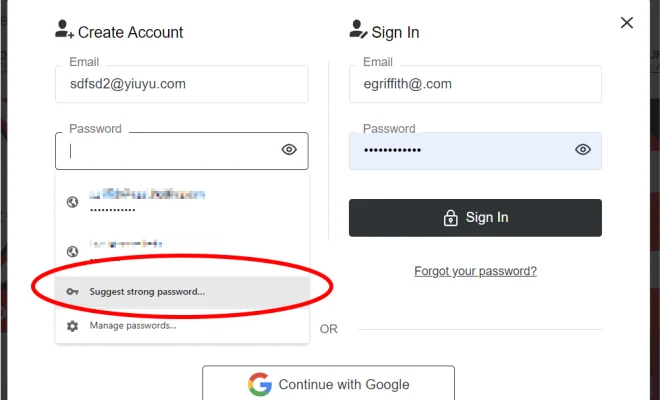
2. Click on the password field: A prompt from Google Password Manager should suggest a generated secure password. Select this strong, random password and let Google manage it for you.

3. Confirm selection: Often, websites require confirmation of new passwords, so be sure to accept the auto-generated suggestion in both instances.

Conclusion

By following these steps, you’ll successfully master the Google Password Manager and improve your overall digital security. Make managing passwords a stress-free experience by utilizing this powerful tool. No longer will you need to memorize countless passwords or risk using weak security measures across multiple platforms. With Google Password Manager on your side, take control of your digital world and protect your personal information effortlessly.


Previous Article

How to Pick the Right Calendar App ...

Next Article

How to Merge Gmail Accounts

Matthew Lynch

Related articles More from author

  • Tech Advice

    10 Best Silk Sheets for a Luxurious Night’s Sleep

    October 19, 2023
    By Matthew Lynch
  • Tech Advice

    How to Set Investment Goals: A Comprehensive Guide

    September 7, 2023
    By Matthew Lynch
  • Tech Advice

    The Best Pet Cameras for Your Cat or Dog

    October 19, 2023
    By Matthew Lynch
  • Tech Advice

    The Best Hilton Diamond Status Benefits

    October 20, 2023
    By Matthew Lynch
  • Tech Advice

    The Best Mattresses For Couples That Don’t Feel Like A Compromise

    August 8, 2023
    By Matthew Lynch
  • Tech Advice

    TFLOPS

    July 20, 2023
    By Matthew Lynch

Search

Login & Registration

  • Log in
  • Entries feed
  • Comments feed
  • WordPress.org

Newsletter

Signup for The Tech Edvocate Newsletter and have the latest in EdTech news and opinion delivered to your email address!

About Us

Since technology is not going anywhere and does more good than harm, adapting is the best course of action. That is where The Tech Edvocate comes in. We plan to cover the PreK-12 and Higher Education EdTech sectors and provide our readers with the latest news and opinion on the subject. From time to time, I will invite other voices to weigh in on important issues in EdTech. We hope to provide a well-rounded, multi-faceted look at the past, present, the future of EdTech in the US and internationally.

We started this journey back in June 2016, and we plan to continue it for many more years to come. I hope that you will join us in this discussion of the past, present and future of EdTech and lend your own insight to the issues that are discussed.

Newsletter

Signup for The Tech Edvocate Newsletter and have the latest in EdTech news and opinion delivered to your email address!

Contact Us

The Tech Edvocate
910 Goddin Street
Richmond, VA 23231
(601) 630-5238
[email protected]

Copyright © 2026 Matthew Lynch. All rights reserved.