The Tech Edvocate

Top Menu

  • Advertisement
  • Apps
  • Home Page
  • Home Page Five (No Sidebar)
  • Home Page Four
  • Home Page Three
  • Home Page Two
  • Home Tech2
  • Icons [No Sidebar]
  • Left Sidbear Page
  • Lynch Educational Consulting
  • My Account
  • My Speaking Page
  • Newsletter Sign Up Confirmation
  • Newsletter Unsubscription
  • Our Brands
  • Page Example
  • Privacy Policy
  • Protected Content
  • Register
  • Request a Product Review
  • Shop
  • Shortcodes Examples
  • Signup
  • Start Here
    • Governance
    • Careers
    • Contact Us
  • Terms and Conditions
  • The Edvocate
  • The Tech Edvocate Product Guide
  • Topics
  • Write For Us
  • Advertise

Main Menu

  • Start Here
    • Our Brands
    • Governance
      • Lynch Educational Consulting, LLC.
      • Dr. Lynch’s Personal Website
      • Careers
    • Write For Us
    • The Tech Edvocate Product Guide
    • Contact Us
    • Books
    • Edupedia
    • Post a Job
    • The Edvocate Podcast
    • Terms and Conditions
    • Privacy Policy
  • Topics
    • Assistive Technology
    • Child Development Tech
    • Early Childhood & K-12 EdTech
    • EdTech Futures
    • EdTech News
    • EdTech Policy & Reform
    • EdTech Startups & Businesses
    • Higher Education EdTech
    • Online Learning & eLearning
    • Parent & Family Tech
    • Personalized Learning
    • Product Reviews
  • Advertise
  • Tech Edvocate Awards
  • The Edvocate
  • Pedagogue
  • School Ratings

logo

The Tech Edvocate

  • Start Here
    • Our Brands
    • Governance
      • Lynch Educational Consulting, LLC.
      • Dr. Lynch’s Personal Website
        • My Speaking Page
      • Careers
    • Write For Us
    • The Tech Edvocate Product Guide
    • Contact Us
    • Books
    • Edupedia
    • Post a Job
    • The Edvocate Podcast
    • Terms and Conditions
    • Privacy Policy
  • Topics
    • Assistive Technology
    • Child Development Tech
    • Early Childhood & K-12 EdTech
    • EdTech Futures
    • EdTech News
    • EdTech Policy & Reform
    • EdTech Startups & Businesses
    • Higher Education EdTech
    • Online Learning & eLearning
    • Parent & Family Tech
    • Personalized Learning
    • Product Reviews
  • Advertise
  • Tech Edvocate Awards
  • The Edvocate
  • Pedagogue
  • School Ratings
  • Why Millions Are Ditching Degrees for These Microcredential Programs

  • The Astonishing Truth: Why Microcredentials Could Be Your Career’s Secret Weapon

  • Why Employers Are Paying 15% More for This One Credential – Not Your Degree

  • 7 Critical Steps to Safeguard Students When Implementing AI in Your Classroom

  • The Astonishing Truth: Your School’s Data Security Might Be a Time Bomb – 7 LMS Platforms That Are Actually Safe for K-12

  • The Troubling Truth: AI in Education Could Be Compromising Your Child’s Privacy

  • Revealed: The Brutal Truth About IronCircle vs Other Cybersecurity Boot Camps

  • This One Thing About University Boot Camps Is Infuriating — Don’t Fall For It

  • Revealed: The Brutal Truth About University Boot Camp Debt

  • Revealed: The 7 Tools EdTech Pros Are Using to Dominate Remote Work in 2026

Digital & Mobile Technology
Home›Digital & Mobile Technology›How to Reduce Google Chrome’s Memory Usage and Free Up RAM

How to Reduce Google Chrome’s Memory Usage and Free Up RAM
By Matthew Lynch
July 31, 2023
0
Spread the love

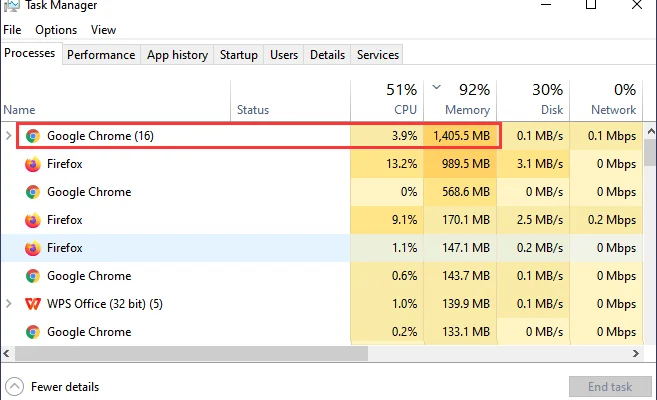
Google Chrome is a renowned web browser that has become extremely popular amongst internet users all around the world. While it offers a wealth of features, it is also known to be a notorious memory hog that can slow down your computer if you open too many tabs or have a lot of extensions installed. In this article, we will discuss how you can reduce Google Chrome’s memory usage and free up RAM.

1. Close Unnecessary Tabs:

The first and easiest step to reduce Chrome’s memory usage is to close tabs that you aren’t using. Having many open tabs can consume a lot of memory. To close a tab, simply click the X on the tab or right-click on it and select “Close Tab.” If you need to revisit the tab later, you can always bookmark it.

2. Disable Unnecessary Extensions:

Extensions are also big culprits for eating up Chrome’s memory. Some extensions start running automatically when you open Chrome, and this can lead to a lot of memory usage. To check which extensions are active, type “chrome://extensions/” in the Chrome address bar and press Enter. From there, you can disable or remove any extensions that you don’t need.

3. Use the Task Manager:

Chrome has its own Task Manager, which shows how much memory each tab and extension is using. To open the Task Manager, press Shift+Esc or go to the three-dot menu and select More Tools > Task Manager. From there, you can end any tasks that are using up too much memory.

4. Use Chrome’s Built-in Tab Discarder:

Chrome has a built-in feature called ‘Tab Discarder’ that automatically unloads tabs that aren’t used frequently to conserve memory. To enable this feature, go to chrome://flags/#automatic-tab-discarding in the Chrome address bar and select ‘Enabled’ from the dropdown list.

5. Update Chrome:

Make sure you have the latest version of Chrome. New updates often include bug fixes and optimizations that can improve Chrome’s performance and reduce memory usage.

6. Use a Chrome Alternative:

If none of the above tips works for you and you still need to free up memory, consider using an alternative browser such as Mozilla Firefox or Microsoft Edge. These browsers are known for being more memory-efficient compared to Google Chrome.

In conclusion, Chrome’s memory hog is no big deal if you take some time to adjust the settings and turn off the unnecessary features. The above tips should help you reduce Chrome’s memory usage and free up RAM. By optimizing Chrome’s performance, you can enjoy a faster, more efficient browsing experience.


Previous Article

Is Win32:Bogent Safe? How Do I Remove ...

Next Article

Should You Hide Your Subscriber Count on ...

Matthew Lynch

Related articles More from author

  • Digital & Mobile Technology

    How to Customize the New Tab Page in Chrome

    May 27, 2023
    By Matthew Lynch
  • Digital & Mobile Technology

    The New iPad (8th Gen) Price, Release Date, Specs, and News

    June 8, 2023
    By Matthew Lynch
  • Digital & Mobile Technology

    iPhone Camera Won’t Focus? Try These Fixes

    June 12, 2023
    By Matthew Lynch
  • Digital & Mobile Technology

    AOMEI Backupper Standard v7.2.0 Review (A Backup Tool)

    June 4, 2023
    By Matthew Lynch
  • Digital & Mobile Technology

    How to Install or Update PowerShell on Windows 11

    June 12, 2023
    By Matthew Lynch
  • Digital & Mobile Technology

    Best Twitter Alternatives Worth Trying

    June 15, 2023
    By Matthew Lynch

Search

Login & Registration

  • Log in
  • Entries feed
  • Comments feed
  • WordPress.org

Newsletter

Signup for The Tech Edvocate Newsletter and have the latest in EdTech news and opinion delivered to your email address!

About Us

Since technology is not going anywhere and does more good than harm, adapting is the best course of action. That is where The Tech Edvocate comes in. We plan to cover the PreK-12 and Higher Education EdTech sectors and provide our readers with the latest news and opinion on the subject. From time to time, I will invite other voices to weigh in on important issues in EdTech. We hope to provide a well-rounded, multi-faceted look at the past, present, the future of EdTech in the US and internationally.

We started this journey back in June 2016, and we plan to continue it for many more years to come. I hope that you will join us in this discussion of the past, present and future of EdTech and lend your own insight to the issues that are discussed.

Newsletter

Signup for The Tech Edvocate Newsletter and have the latest in EdTech news and opinion delivered to your email address!

Contact Us

The Tech Edvocate
910 Goddin Street
Richmond, VA 23231
(601) 630-5238
[email protected]

Copyright © 2026 Matthew Lynch. All rights reserved.