The Tech Edvocate

Top Menu

  • Advertisement
  • Apps
  • Home Page
  • Home Page Five (No Sidebar)
  • Home Page Four
  • Home Page Three
  • Home Page Two
  • Home Tech2
  • Icons [No Sidebar]
  • Left Sidbear Page
  • Lynch Educational Consulting
  • My Account
  • My Speaking Page
  • Newsletter Sign Up Confirmation
  • Newsletter Unsubscription
  • Our Brands
  • Page Example
  • Privacy Policy
  • Protected Content
  • Register
  • Request a Product Review
  • Shop
  • Shortcodes Examples
  • Signup
  • Start Here
    • Governance
    • Careers
    • Contact Us
  • Terms and Conditions
  • The Edvocate
  • The Tech Edvocate Product Guide
  • Topics
  • Write For Us
  • Advertise

Main Menu

  • Start Here
    • Our Brands
    • Governance
      • Lynch Educational Consulting, LLC.
      • Dr. Lynch’s Personal Website
      • Careers
    • Write For Us
    • The Tech Edvocate Product Guide
    • Contact Us
    • Books
    • Edupedia
    • Post a Job
    • The Edvocate Podcast
    • Terms and Conditions
    • Privacy Policy
  • Topics
    • Assistive Technology
    • Child Development Tech
    • Early Childhood & K-12 EdTech
    • EdTech Futures
    • EdTech News
    • EdTech Policy & Reform
    • EdTech Startups & Businesses
    • Higher Education EdTech
    • Online Learning & eLearning
    • Parent & Family Tech
    • Personalized Learning
    • Product Reviews
  • Advertise
  • Tech Edvocate Awards
  • The Edvocate
  • Pedagogue
  • School Ratings

logo

The Tech Edvocate

  • Start Here
    • Our Brands
    • Governance
      • Lynch Educational Consulting, LLC.
      • Dr. Lynch’s Personal Website
        • My Speaking Page
      • Careers
    • Write For Us
    • The Tech Edvocate Product Guide
    • Contact Us
    • Books
    • Edupedia
    • Post a Job
    • The Edvocate Podcast
    • Terms and Conditions
    • Privacy Policy
  • Topics
    • Assistive Technology
    • Child Development Tech
    • Early Childhood & K-12 EdTech
    • EdTech Futures
    • EdTech News
    • EdTech Policy & Reform
    • EdTech Startups & Businesses
    • Higher Education EdTech
    • Online Learning & eLearning
    • Parent & Family Tech
    • Personalized Learning
    • Product Reviews
  • Advertise
  • Tech Edvocate Awards
  • The Edvocate
  • Pedagogue
  • School Ratings
  • 100 Best Apps for Incident Management

  • 100 Best Apps for Program Directors (Nonprofit)

  • 100 Best Apps for Addiction Counselors

  • 100 Best Apps for Landscape Designers

  • 100 Best Apps for Internal Communications Managers

  • 100 Best Apps for Superintendents

  • 100 Best Apps for Industrial Engineers

  • 100 Best Apps for Design Systems Designers

  • 100 Best Apps for TikTokers

  • 100 Best SSO Apps

Digital & Mobile Technology
Home›Digital & Mobile Technology›How to Link OneDrive to Your Microsoft Account on Windows

How to Link OneDrive to Your Microsoft Account on Windows
By Matthew Lynch
June 23, 2023
0
Spread the love

OneDrive is a powerful tool offered by Microsoft that allows users to store, sync and access their files from any device. It provides a cloud storage solution to its users, ensuring that their files are safe and secure. OneDrive can be linked to your Microsoft account, which makes it easy to access your files on all your devices. Here is a step-by-step guide to Link OneDrive to your Microsoft Account on Windows:

Step 1: Download and Install OneDrive

Before you proceed to link your OneDrive account with your Microsoft account, you need to have OneDrive installed on your Windows PC. You can download and install OneDrive from Microsoft’s website or Microsoft Store. You can search for OneDrive and download the installation file.

Step 2: Sign in to OneDrive

Once you have installed OneDrive on your Windows PC, you need to sign in to your OneDrive account using your email id and password. The OneDrive icon will appear in your taskbar, click on it and sign in with your credentials.

Step 3: Click on OneDrive Icon

After you have signed in to your OneDrive account, click on the OneDrive icon on your taskbar. It will open the OneDrive settings and options.

Step 4: Open Settings

Click on the settings button located at the top of the OneDrive pop-up window. In settings, you will find an option to add an account.

Step 5: Add Account

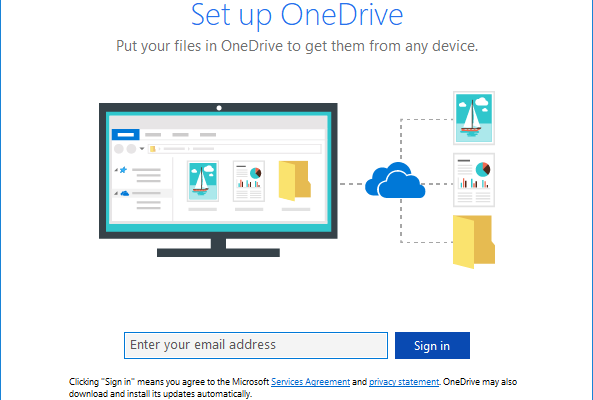
Click on the ‘Add Account’ option present in the settings. It will open a new window in which you will be prompted to enter your Microsoft account credentials.

Step 6: Enter your Microsoft Account Credentials

Enter your email id and password that you use to sign in to your Microsoft account. Click on the ‘Sign-In’ button once you have provided the details.

Step 7: Wait for the Sync

Once you have linked your OneDrive account to your Microsoft account, you need to wait for the sync to complete. The time it takes for the sync to complete depends on the size of your data.

Step 8: Check Sync Status

You can check the sync status by clicking on the OneDrive icon in the taskbar. If you see a green tick mark on the OneDrive icon, it means that your files are synced and available on all your devices.

Previous Article

Signs It’s Time to Replace Your Mac

Next Article

Tips on Getting a Remote Job With ...

Matthew Lynch

Related articles More from author

  • Digital & Mobile Technology

    Free Online DAWs for Music Production and Podcasting

    June 22, 2023
    By Matthew Lynch
  • Digital & Mobile Technology

    How to Create a Custom Color Palette in Adobe Photoshop

    July 31, 2023
    By Matthew Lynch
  • Digital & Mobile Technology

    What Is a Good Download Speed and Upload Speed?

    May 31, 2023
    By Matthew Lynch
  • Digital & Mobile Technology

    Scientists create glow-in-the-dark cats

    July 4, 2023
    By Matthew Lynch
  • Digital & Mobile Technology

    How to Access iCloud From Your Android Phone

    June 12, 2023
    By Matthew Lynch
  • Digital & Mobile Technology

    9 Best Ways to Hide Your Identity Online

    June 4, 2023
    By Matthew Lynch

Search

Login & Registration

  • Log in
  • Entries feed
  • Comments feed
  • WordPress.org

Newsletter

Signup for The Tech Edvocate Newsletter and have the latest in EdTech news and opinion delivered to your email address!

About Us

Since technology is not going anywhere and does more good than harm, adapting is the best course of action. That is where The Tech Edvocate comes in. We plan to cover the PreK-12 and Higher Education EdTech sectors and provide our readers with the latest news and opinion on the subject. From time to time, I will invite other voices to weigh in on important issues in EdTech. We hope to provide a well-rounded, multi-faceted look at the past, present, the future of EdTech in the US and internationally.

We started this journey back in June 2016, and we plan to continue it for many more years to come. I hope that you will join us in this discussion of the past, present and future of EdTech and lend your own insight to the issues that are discussed.

Newsletter

Signup for The Tech Edvocate Newsletter and have the latest in EdTech news and opinion delivered to your email address!

Contact Us

The Tech Edvocate
910 Goddin Street
Richmond, VA 23231
(601) 630-5238
[email protected]

Copyright © 2026 Matthew Lynch. All rights reserved.